Tired of battling frustrating Wi-Fi dead zones and slow internet speeds in certain corners of your home? Imagine a world where every device, from your smart TV to your phone, enjoys a strong, consistent connection, no matter where you are. This isn’t a futuristic dream; it’s the reality offered by a Google Wifi Mesh Router system, designed to blanket your entire home in reliable, high-speed Wi-Fi. It’s time to say goodbye to connectivity woes and embrace a truly seamless online experience.
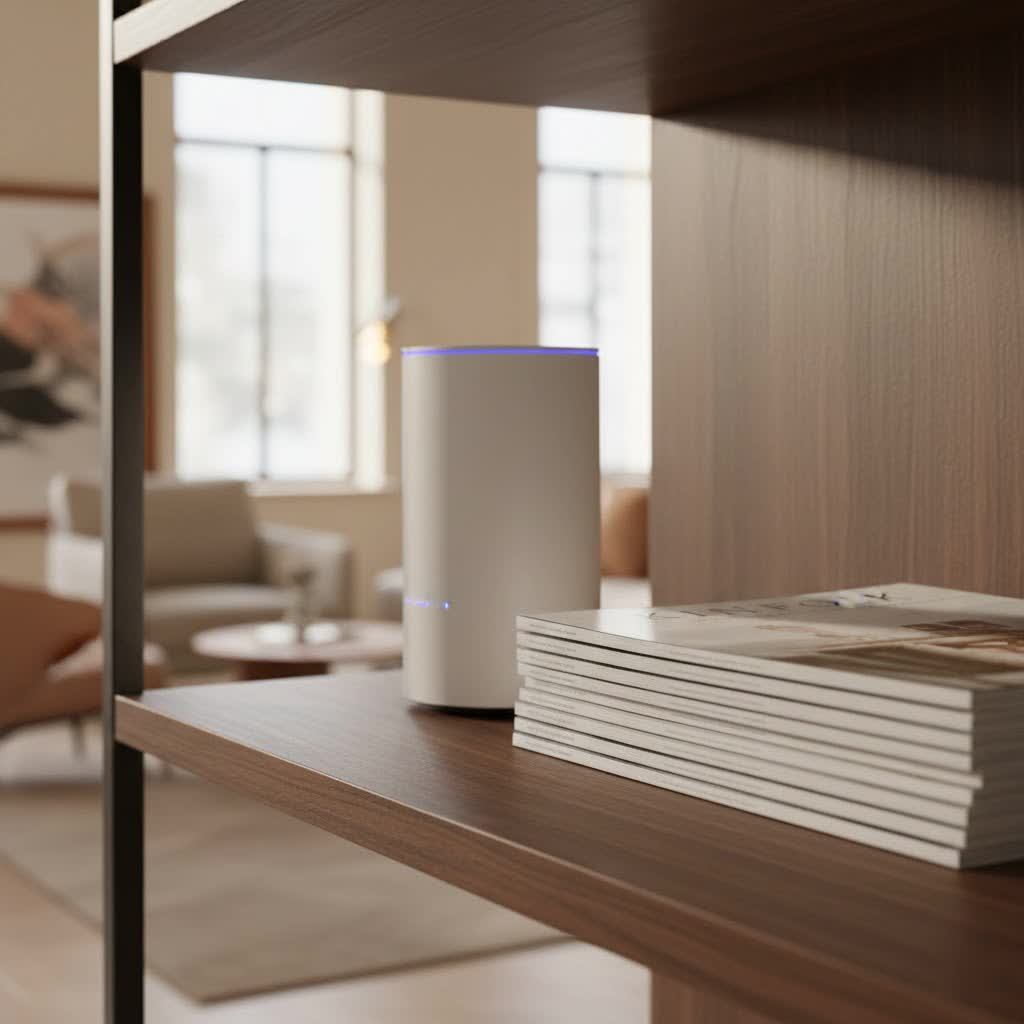
What is a Mesh WiFi System and Why Does it Matter?
For years, traditional single-router Wi-Fi setups have been the norm. You’d place a single router, typically provided by your internet service provider (ISP), in one central location, hoping its signal would somehow magically penetrate walls, floors, and furniture to reach every device. The reality, however, often involved frustrating signal drops, buffering videos, and “dead zones” where Wi-Fi simply couldn’t reach. Traditional routers, quite frankly, weren’t designed for today’s multi-device, multi-room demands.
This is precisely where a mesh WiFi system like the Google Wifi mesh router steps in. Instead of one single point trying to do it all, a mesh network employs multiple interconnected devices—a main router and several “points” or satellites—that work together as a single, unified network. Think of it as creating a web of connectivity rather than a single hub. This approach ensures that your devices always connect to the closest and strongest Wi-Fi source, providing uninterrupted coverage across your entire home. No more switching networks as you move from room to room; it’s one seamless experience.
Unpacking the Magic: How Google Wifi Mesh Works
At its core, a Google Wifi mesh router system takes your internet connection and intelligently spreads it throughout your living space. The primary Google Wifi unit connects directly to your modem, establishing the initial Wi-Fi network. Then, you strategically place additional Google Wifi “points” around your home. These points communicate wirelessly with each other and the main router, extending the network’s reach and strength.
The real magic, however, lies in Google’s “Network Assist” technology. This intelligent feature actively manages your network in the background, constantly optimizing performance without you lifting a finger. It automatically switches your devices to the clearest Wi-Fi channel to avoid interference and seamlessly hands off your connection from one Google Wifi point to another as you roam. This means you can start a video call in the living room, walk to your kitchen, and then move to your backyard without experiencing a single dropped signal or stutter. Your network always presents as one unified Wi-Fi name (SSID), making it incredibly user-friendly.
“Google Wifi revolutionized home networking by making mesh technology accessible and truly user-friendly,” says Eleanor Vance, a seasoned network architect and smart home enthusiast. “Its ability to self-optimize and provide consistent performance across an entire property was a game-changer for many.”
The Perks of Powering Your Home with Google Wifi
Choosing a Google Wifi mesh router offers a host of advantages that significantly enhance your home internet experience:
- Eliminate Dead Zones: This is arguably the biggest benefit. Google Wifi ensures strong, reliable Wi-Fi coverage in every corner of your home, from the basement to the attic, and even outdoors if points are strategically placed.
- Effortless Setup: Gone are the days of complex router configurations. Setting up a Google Wifi system is incredibly straightforward, guided by the intuitive Google Home app. You don’t need to be a tech expert to get your mesh network up and running.
- Smart Features for Modern Households: Google Wifi integrates seamlessly with the Google Home ecosystem, offering handy features directly from the app. You can easily create a secure guest network for visitors, set up parental controls (Family Wi-Fi) to manage screen time and block adult content for specific devices, and even prioritize bandwidth for certain devices (like your gaming console during an important match).
- Automatic Updates & Security: Google Wifi systems receive automatic software updates, ensuring your network is always running on the latest firmware with the newest security patches and performance enhancements. This hands-off approach provides peace of mind.
- Scalability: Need more coverage? Simply add more Google Wifi points to expand your network’s reach. The system is designed to grow with your home and connectivity needs.
Step-by-Step: Setting Up Your Google Wifi Mesh System
Getting your Google Wifi mesh router system operational is refreshingly simple. Just follow these easy steps:
What do I need to set up Google Wifi?
|
Our Picks for the Best WiFi Router in 2026
As an Amazon Associate I earn from qualifying purchases.
|
||
| Num | Product | Action |
|---|---|---|
| 1 | TP-Link AXE5400 Tri-Band WiFi 6E Router (Archer AXE75), 2025 PCMag Editors\' Choice, Gigabit Internet for Gaming & Streaming, New 6GHz Band, 160MHz, OneMesh, Quad-Core CPU, VPN & WPA3 Security |

|
| 2 | TP-Link Tri-Band BE9300 WiFi 7 Router (Archer BE550) - 6-Stream, Full 2.5G Ports w/ 6 Internal Antennas, Up to 2,000 Sq Ft, Add Easy-Mesh Device for Extended Coverage, VPN Support, Free Expert Support |
|
| 3 | TP-Link AC1200 Gigabit WiFi Router (Archer A6) - Dual Band MU-MIMO Wireless Internet Router, 4 x Antennas, OneMesh and AP Mode, Long Range Coverage |
|
| 4 | TP-Link AC1200 WiFi Router (Archer A54) - Dual Band Wireless Internet Router, 4 x 10/100 Mbps Fast Ethernet Ports, EasyMesh Compatible, Support Guest WiFi, Access Point Mode, IPv6 & Parental Controls |
|
| 5 | TP-Link AX1800 WiFi 6 Router (Archer AX21) – Dual Band Wireless Internet, Gigabit, Easy Mesh, Works with Alexa - A Certified for Humans Device, Free Expert Support |
|
| 6 | RBLHGG-5acD-US LHG 5 ac - 5GHz 802.11ac Wireless Device with 24.5 dBi Dual-Pol Grid Antenna - 716 MHz CPU, 256MB RAM, Gigabit Port, RouterOS L3, PoE, US Version |
|
| 7 | Amazon eero 6 mesh wifi router with 1-month free eero Plus (auto-renews) - Supports internet plans up to 900 Mbps, Coverage up to 1,500 sq. ft., Connect 75+ devices, 1-pack |
|
| 8 | TP-Link Dual-Band BE3600 Wi-Fi 7 Router Archer BE230 - 4-Stream - 2×2.5G + 3×1G Ports, USB 3.0, 2.0 GHz Quad Core, 4 Antennas - VPN, EasyMesh, HomeShield, MLO, Private IOT - Free Expert Support |
|
| 9 | TP-Link Archer BE6500 Dual-Band Wi-Fi 7 Router (Archer BE400) - Dual 2.5 Gbps Ports USB 3.0 - Covers up to 2,400 Sq. ft and 90 Devices - Quad-core CPU- HomeShield, Private IoT, Free Expert Support |
|
| 10 | Amazon eero 6+ mesh wifi router with 1 month free eero Plus (auto-renews) - Coverage up to 1,500 sq. ft., Connect 75+ devices, 1-pack |
|
To begin, you’ll need your Google Wifi point(s), a Google Account, a compatible mobile device (Android 9.0+ or iOS 16.0+), the latest Google Home app, an internet service, and your modem. The primary Wifi point needs to be connected to your working modem.
How do I connect the primary Google Wifi point?
First, download the Google Home app and set up a “home” if you haven’t already. Choose a central location for your primary Wifi point, ideally at eye level and in plain view. Connect the included Ethernet cable from your Google Wifi point’s WAN port to your modem, then plug the Wifi point into an electrical outlet.
How do I complete the initial setup in the app?
Wait about 90 seconds for the light on your primary Wifi point to slowly pulse blue, indicating it’s ready. Open the Google Home app, tap “Add device,” then “Set up new devices in your home.” The app should detect your Google Wifi device. Scan the QR code on the bottom of the device, then follow the prompts to select a room, name your Wi-Fi network, and create a secure password.
How do I add additional Google Wifi points?
Once your main network is established, the app will ask if you want to add more points. You can do this immediately or later through the “Add device” menu. Place additional points no more than two rooms away from each other and plug them into power. Follow the app’s instructions to scan their QR codes and integrate them into your mesh network. The app will then run a mesh test to confirm optimal placement and connectivity.
Google Wifi in the Ecosystem: A Look at Nest Wifi and Nest Wifi Pro
It’s important to note that the original Google Wifi mesh router, launched in 2016, has been succeeded by newer models from Google. The Nest Wifi system, released in 2019, is considered the direct follow-up. While still using Wi-Fi 5 (802.11ac) technology, Nest Wifi offered faster speeds (AC2200 compared to Google Wifi’s AC1200) and improved coverage. A notable difference is that Nest Wifi “points” double as smart speakers with built-in Google Assistant, adding smart home functionality to your network extenders. The good news is that original Google Wifi routers and points are compatible and can be combined with Nest Wifi routers and points to expand your existing mesh network.
More recently, Google introduced the Nest Wifi Pro in 2022. This is a significant leap forward, featuring Wi-Fi 6E support for the fastest speeds and the advanced 6 GHz wireless band. However, Nest Wifi Pro cannot be combined in a mesh network with older Google Wifi or Nest Wifi devices due to these technological differences. If you’re building a new mesh network from scratch and want the absolute latest in Wi-Fi technology, Nest Wifi Pro is Google’s top-tier offering. But for those with existing Google Wifi setups or looking for a more budget-friendly entry into mesh networking, the original Google Wifi or Nest Wifi remains a solid choice.
Keeping Your Network Smooth: Common Google Wifi Troubleshooting
Even the most reliable systems can hit a snag. Here are common troubleshooting tips for your Google Wifi mesh router:
What should I do if my Google Wifi network isn’t working?
First, check all your cables and connections. Ensure the Ethernet cable is securely connected from your primary Google Wifi point’s WAN port to your modem. Power cycle your modem and all Google Wifi points by unplugging them for a few minutes, then plugging the modem back in first, waiting for it to fully restart, and then plugging in your Wifi points.
My additional Wifi points aren’t connecting. What can I do?
Make sure the offline Wifi devices are powered on and their cables are secure. Unplug the affected point and plug it back in. Perform a mesh test via the Google Home app to confirm proper placement. If a point is too far, move it closer to your primary router or another working point. As a last resort, factory reset the unresponsive device and try adding it again through the app.
The Google Home app is having issues with setup. Any fixes?
Force close and then reopen the Google Home app. If the problem persists, try uninstalling and reinstalling the app. You can also temporarily disable your phone’s VPN (for iOS users) or forget nearby Wi-Fi networks in your phone’s settings to avoid conflicts during setup.
Privacy and Your Google Wifi Network
A common concern with smart home devices is privacy. When it comes to your Google Wifi mesh router, Google is transparent about what data is collected. Importantly, Google Wifi and Nest Wifi devices do not track the websites you visit or collect the content of any traffic on your network. Your web browsing remains private.
However, the devices do collect certain information to optimize your Wi-Fi performance. This includes data such as Wi-Fi channel usage, signal strength, and inferred information about device types connected to your network. This data helps Google Wifi automatically adjust channels to reduce interference and ensure your devices get the best possible connection. You can manage some of these privacy settings, such as “Cloud services” and “Wifi point stats,” within the Google Home app. Your DNS provider (which Google Wifi defaults to Google Public DNS or your ISP’s DNS) may be able to associate your web traffic with your public IP address, but Google does not link Google Public DNS information to your Google Account.
Conclusion
The Google Wifi mesh router system offers a compelling solution for anyone seeking to eliminate Wi-Fi dead zones and enjoy consistently fast, reliable internet throughout their entire home. With its straightforward setup, intelligent Network Assist technology, and convenient smart features accessible via the Google Home app, it simplifies home networking. While newer Google Nest Wifi models offer advanced features and faster speeds, the original Google Wifi remains a robust and expandable foundation for a whole-home mesh network. Embrace the power of a Google Wifi mesh router and experience seamless connectivity, transforming your home into a truly connected haven.
