In today’s connected world, a reliable and fast internet connection isn’t just a luxury; it’s a necessity. For many homes, this journey begins with their AT&T Wi-Fi router, which often serves as the central hub of their digital universe. But if you’re like most people, you might view this device as just another blinking box in the corner. What if I told you it’s actually a powerhouse capable of transforming your entire home network experience? With over 15 years in the networking trenches and as the lead content creator for xzike.com, I’m here to demystify the AT&T Wi-Fi router and help you unlock its full potential.
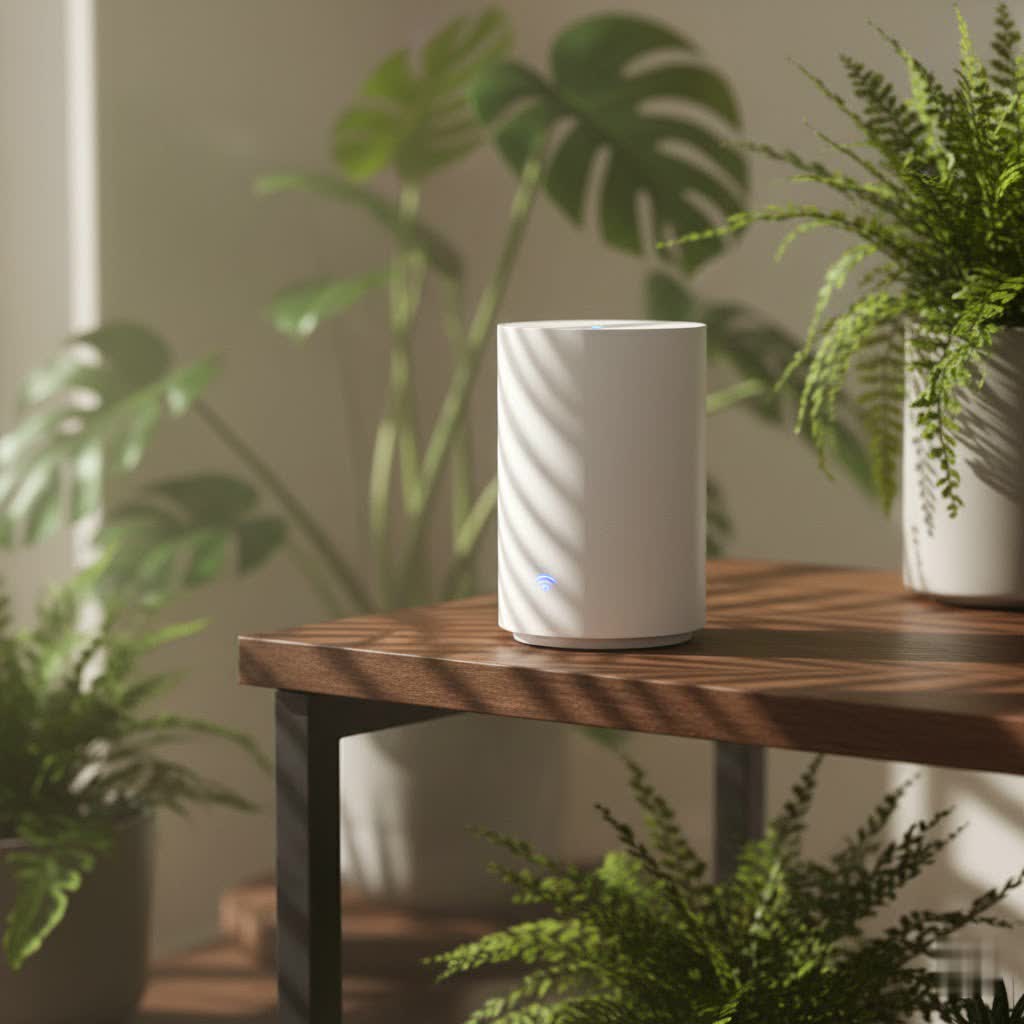
An AT&T Wi-Fi router isn’t just any old router; it’s typically an integrated “Wi-Fi Gateway” designed to simplify your home internet setup. This means it cleverly combines the functions of both a modem and a router into one sleek device, saving you space, reducing cable clutter, and streamlining the installation process. This integrated approach ensures that your home is connected directly to AT&T’s network while simultaneously broadcasting a robust Wi-Fi signal to all your devices.
Understanding Your AT&T Wi-Fi Gateway: More Than Just a Router
At its core, your AT&T Wi-Fi Gateway is the brain of your home network. A traditional setup requires two separate devices: a modem to connect you to the internet service provider (ISP) and a router to distribute that internet connection wirelessly and wired to your various devices. AT&T’s gateway elegantly handles both, providing a seamless bridge between the vast internet and your personal local network.
Common AT&T Wi-Fi Gateway models you might encounter include the BGW320, BGW210, Pace 5268, NVG599, and NVG589. Each model is engineered to deliver reliable performance, with newer models like the BGW320 often boasting advanced features for AT&T Fiber customers, such as an integrated Optical Network Terminal (ONT). This integration ensures that even with the fastest fiber-optic speeds, your gateway can keep up, delivering consistent high-speed data right to your devices.
The beauty of AT&T’s integrated approach lies in its simplicity and efficiency. It means less hassle during setup, fewer devices to manage, and a more cohesive network environment. “Having a single, powerful gateway truly simplifies the home network for most users,” says network architect Alex Chen. “It’s about making advanced technology accessible and easy to maintain.”
Setting Up Your AT&T Wi-Fi Router for Optimal Performance
Getting your AT&T Wi-Fi router up and running is often a surprisingly straightforward affair. For self-installation, it’s usually as simple as plugging the gateway into a power outlet and connecting it to the appropriate jack (fiber or phone line, depending on your service). Then, connect a computer via Ethernet or Wi-Fi, open a web browser, and follow the on-screen prompts to sign in, register, and get online. AT&T guides you through each step, making what might seem like a daunting technical task feel effortless.
Once your network is active, you’ll want to personalize your Wi-Fi network name (SSID) and password. While the default credentials are often found on a sticker on your AT&T Wi-Fi router, changing them to something memorable and secure is a crucial step for both convenience and protection. You can typically do this through the AT&T Smart Home Manager app or by accessing your gateway’s administration page via a web browser. A strong, unique password is your first line of defense against unauthorized access, safeguarding your personal data and internet bandwidth.
The AT&T Smart Home Manager app is an invaluable tool for managing your home Wi-Fi. It allows you to view connected devices, run speed tests, and even troubleshoot minor issues. This app transforms your smartphone into a remote control for your AT&T Wi-Fi router, putting network insights and control right at your fingertips.
Enhancing Your Coverage: AT&T All-Fi and Wi-Fi Extenders
No one enjoys Wi-Fi dead zones or patchy signals, especially in larger homes. That’s where AT&T’s “All-Fi” experience comes into play. All-Fi leverages advanced mesh technology to ensure complete Wi-Fi coverage across your entire home. For even greater performance, “All-Fi Pro” is available, offering the latest Wi-Fi 7 technology with supported plans, perfect for intense activities like multiple 4K video streams, VR gaming, and large file transfers.
If you find certain areas of your home consistently struggling with poor Wi-Fi, AT&T Wi-Fi extenders can be a game-changer. These intelligent devices work seamlessly with your AT&T Wi-Fi Gateway to extend your network’s reach, creating a unified mesh network that covers up to 5,000 square feet with up to five extenders. Unlike traditional range expanders that can create separate networks, AT&T’s mesh system ensures a single, strong network, allowing your devices to automatically connect to the best and fastest signal as you move around your home. The Smart Home Manager app can help you identify weak spots and determine if extenders are right for your setup.
Troubleshooting Common AT&T Wi-Fi Router Issues
Even the most robust AT&T Wi-Fi router can sometimes experience hiccups. Knowing a few basic troubleshooting steps can save you time and frustration. A classic fix for many network issues is simply rebooting your gateway. To do this, press and hold the Reset button on the back of your AT&T Wi-Fi router for at least 10 seconds. This performs a full reboot and typically resolves temporary glitches, resetting your connection and refreshing your network.
Wi-Fi interference is another common culprit behind slow speeds or dropped connections. Your Wi-Fi signal, especially on the 2.4 GHz band, can be affected by other electronic devices (cordless phones, microwaves, baby monitors) or even physical objects like dense walls, furniture, or metal. “Think of your Wi-Fi signal as a sound wave,” explains network engineer Clara Diaz. “Obstacles dampen it, and other loud sounds create static. Your router needs a clear path.” Strategically placing your AT&T Wi-Fi router in a central, open location and using extenders to boost the less congested 5 GHz band can significantly improve performance.
If you’re experiencing persistent slow speeds or dead zones, remember the Smart Home Manager app. It’s designed to analyze your home’s Wi-Fi environment and recommend solutions, including optimal placement for your gateway and extenders.
Choosing Your Own Path: Using a Third-Party Router with AT&T
While the AT&T Wi-Fi Gateway is an excellent all-in-one solution, some users desire more advanced features, greater control, or specific functionalities not offered by the standard equipment. This is where considering a third-party router comes into play. If you’re looking for specialized gaming features, more extensive parental controls, a built-in VPN server, or simply want to integrate with a specific mesh ecosystem, a standalone router can be a powerful addition.
When selecting a third-party router to use with your AT&T internet, prioritize devices with a multi-gig internet port, especially if you have a plan of 500Mbps or faster, and definitely if you’re on a 2 GIG or 5 GIG fiber plan. This ensures your router can fully utilize the high speeds provided by AT&T. Look for routers supporting the latest Wi-Fi standards like Wi-Fi 6, Wi-Fi 6E, or even Wi-Fi 7, as these offer faster speeds, better efficiency, and improved multi-device support.
A critical step when integrating a third-party router with your AT&T Wi-Fi Gateway is enabling IP Passthrough. This feature reassigns your public IP address from the AT&T gateway directly to your new router. In essence, it tells the gateway to step aside and let your third-party router handle all the heavy lifting of routing, firewalls, and Wi-Fi broadcasting. It effectively bypasses the gateway’s routing functions, allowing your chosen router to take full control of your network.
For those considering this route, top-tier options often include the TP-Link Archer AX11000 for its overall performance and multi-gig capabilities, the ASUS ROG Rapture GT-AX11000 for avid gamers, or mesh systems like the Amazon Eero Pro 6 for comprehensive whole-home coverage. These devices are designed to push the boundaries of home networking, providing features that can truly customize your AT&T internet experience.
Boosting Your Wi-Fi Security with AT&T ActiveArmor
In an age of increasing cyber threats, network security is paramount. AT&T ActiveArmor provides 24/7 security features that help protect your home network and connected devices. This advanced internet security solution works in conjunction with your AT&T Wi-Fi router to block known threats before they can even reach your devices, offering an essential layer of defense for your digital life.
ActiveArmor includes features like advanced content controls, allowing you to manage and filter internet access for different family members, and VPN at Home, which encrypts your network traffic for enhanced privacy. Ensuring these security features are enabled through the Smart Home Manager app is a simple yet powerful way to safeguard your home against online vulnerabilities, giving you peace of mind that your network is protected around the clock.
Conclusion: Take Control of Your AT&T Wi-Fi Experience
Your AT&T Wi-Fi router, or Wi-Fi Gateway, is more than just a piece of equipment; it’s the foundation of your digital lifestyle. By understanding its capabilities, utilizing AT&T’s integrated tools like the Smart Home Manager app and Wi-Fi extenders, and knowing how to troubleshoot common issues, you can significantly enhance your home internet experience. Whether you stick with AT&T’s robust All-Fi system or venture into the world of third-party routers with IP Passthrough, the power to optimize your connectivity is truly in your hands. Take control, experiment with settings, and enjoy a faster, more reliable, and more secure Wi-Fi network tailored to your needs.
Frequently Asked Questions
|
Our Picks for the Best WiFi Router in 2026
As an Amazon Associate I earn from qualifying purchases.
|
||
| Num | Product | Action |
|---|---|---|
| 1 | Amazon eero 6 mesh wifi router with 1-month free eero Plus (auto-renews) - Supports internet plans up to 900 Mbps, Coverage up to 1,500 sq. ft., Connect 75+ devices, 1-pack |

|
| 2 | Amazon eero 6+ mesh wifi router with 1 month free eero Plus (auto-renews) - Coverage up to 1,500 sq. ft., Connect 75+ devices, 1-pack |
|
| 3 | TP-Link AC1200 WiFi Router (Archer A54) - Dual Band Wireless Internet Router, 4 x 10/100 Mbps Fast Ethernet Ports, EasyMesh Compatible, Support Guest WiFi, Access Point Mode, IPv6 & Parental Controls |
|
| 4 | TP-Link Dual-Band BE3600 Wi-Fi 7 Router Archer BE230 - 4-Stream - 2×2.5G + 3×1G Ports, USB 3.0, 2.0 GHz Quad Core, 4 Antennas - VPN, EasyMesh, HomeShield, MLO, Private IOT - Free Expert Support |
|
| 5 | TP-Link AXE5400 Tri-Band WiFi 6E Router (Archer AXE75), 2025 PCMag Editors\' Choice, Gigabit Internet for Gaming & Streaming, New 6GHz Band, 160MHz, OneMesh, Quad-Core CPU, VPN & WPA3 Security |
|
| 6 | TP-Link AX1800 WiFi 6 Router (Archer AX21) – Dual Band Wireless Internet, Gigabit, Easy Mesh, Works with Alexa - A Certified for Humans Device, Free Expert Support |
|
| 7 | TP-Link AC1200 Gigabit WiFi Router (Archer A6) - Dual Band MU-MIMO Wireless Internet Router, 4 x Antennas, OneMesh and AP Mode, Long Range Coverage |
|
| 8 | RBLHGG-5acD-US LHG 5 ac - 5GHz 802.11ac Wireless Device with 24.5 dBi Dual-Pol Grid Antenna - 716 MHz CPU, 256MB RAM, Gigabit Port, RouterOS L3, PoE, US Version |
|
| 9 | TP-Link Tri-Band BE9300 WiFi 7 Router (Archer BE550) - 6-Stream, Full 2.5G Ports w/ 6 Internal Antennas, Up to 2,000 Sq Ft, Add Easy-Mesh Device for Extended Coverage, VPN Support, Free Expert Support |
|
| 10 | TP-Link Archer BE6500 Dual-Band Wi-Fi 7 Router (Archer BE400) - Dual 2.5 Gbps Ports USB 3.0 - Covers up to 2,400 Sq. ft and 90 Devices - Quad-core CPU- HomeShield, Private IoT, Free Expert Support |
|
What exactly is an AT&T Wi-Fi Gateway?
An AT&T Wi-Fi Gateway is a single device provided by AT&T that functions as both a modem and a router. It connects your home directly to the internet through AT&T’s network and simultaneously broadcasts a Wi-Fi signal to all your wireless devices, simplifying your home internet setup.
Can I use any Wi-Fi extender with my AT&T router?
While you can technically use third-party Wi-Fi extenders, AT&T recommends using their branded Wi-Fi extenders. AT&T’s extenders are designed to integrate seamlessly with your AT&T Wi-Fi Gateway and work with the Smart Home Manager app for optimal performance and management. Third-party extenders may not offer the same compatibility or features.
How do I reset my AT&T Wi-Fi Gateway?
To reset your AT&T Wi-Fi Gateway, locate the Reset button, usually a small, recessed button on the back of the device. Use a pen or paperclip to press and hold this button for at least 10 seconds. Release the button, and the gateway will reboot, which can resolve many common connectivity issues.
What does IP Passthrough do for my AT&T router setup?
IP Passthrough is a feature on your AT&T Wi-Fi Gateway that allows a connected third-party router to receive the public IP address directly from AT&T’s network. This effectively bypasses the gateway’s internal routing functions, letting your third-party router manage all network traffic and advanced features without interference from the gateway.
How can I improve my AT&T Wi-Fi signal strength?
Improving your AT&T Wi-Fi signal often involves optimizing your AT&T Wi-Fi router’s placement (central, open location), minimizing interference from other electronics or physical obstructions, and potentially adding AT&T Wi-Fi extenders to create a mesh network that covers your entire home. The AT&T Smart Home Manager app can assist in identifying weak signal areas.
What are the latest Wi-Fi technologies supported by AT&T?
AT&T continuously updates its Wi-Fi offerings. Their “All-Fi Pro” service supports the latest Wi-Fi 7 technology for their fastest internet plans, providing superior speeds, lower latency, and improved efficiency for modern, demanding applications and multiple connected devices. Many AT&T gateways also support Wi-Fi 6 and Wi-Fi 6E.
