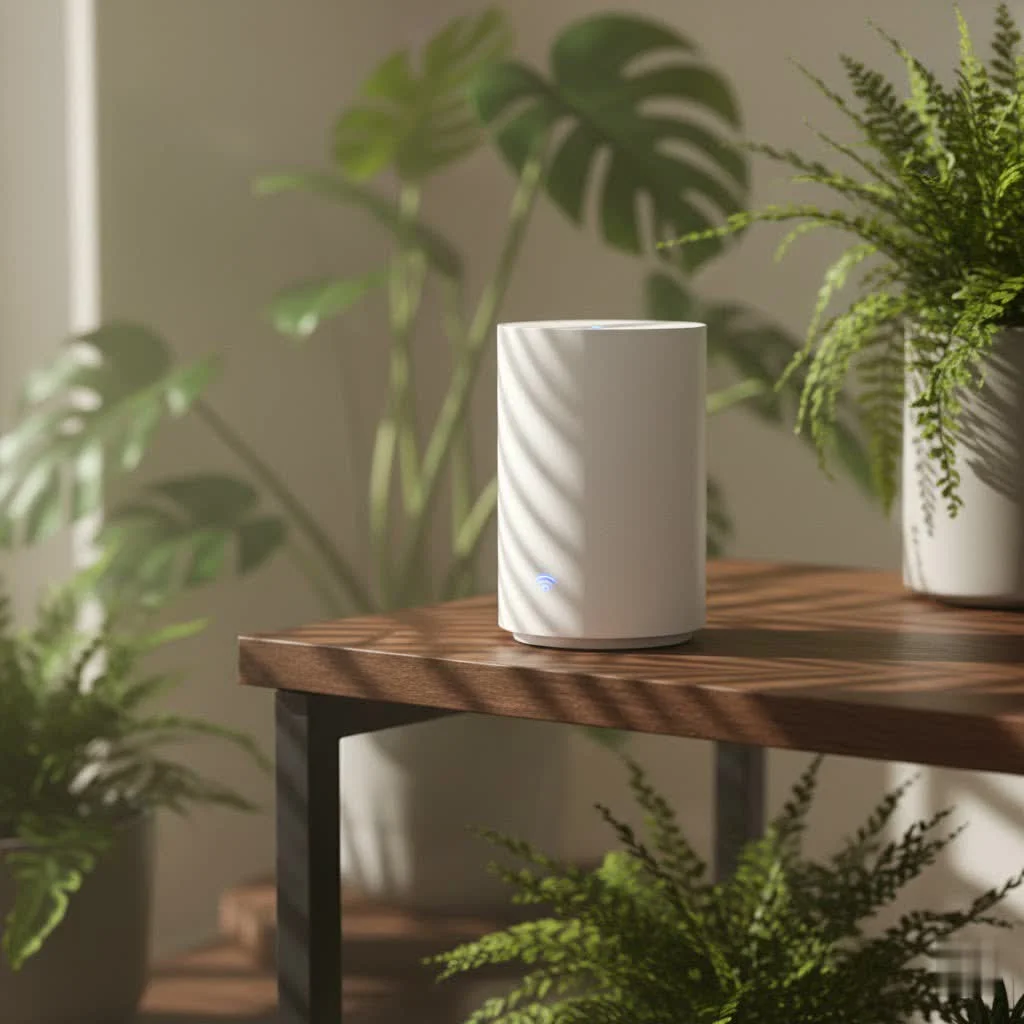
An AT&T Wi-Fi router, often called a Wi-Fi Gateway, is an integrated device that combines a modem and a router into one unit, simplifying home internet setup by connecting directly to AT&T’s network and broadcasting a robust Wi-Fi signal. This single device reduces cable clutter and streamlines installation, making it the central hub for digital connectivity in many homes. Models like the BGW320 offer advanced features for AT&T Fiber customers, including an integrated Optical Network Terminal (ONT).
Understanding Your AT&T Wi-Fi Gateway: More Than Just a Router
Your AT&T Wi-Fi Gateway serves as the brain of your home network, elegantly handling both modem and router functions. A traditional setup requires two separate devices: a modem to connect to the internet service provider (ISP) and a router to distribute the connection wirelessly and via Ethernet. AT&T’s gateway provides a seamless bridge between the internet and your local network.
Common AT&T Wi-Fi Gateway models include the BGW320, BGW210, Pace 5268, NVG599, and NVG589. Newer models like the BGW320 are engineered for reliable performance and often boast advanced features for AT&T Fiber customers, such as an integrated Optical Network Terminal (ONT). This integration ensures the gateway can support the fastest fiber-optic speeds, delivering consistent high-speed data to your devices.
The integrated approach of AT&T’s gateways offers simplicity and efficiency, resulting in less hassle during setup, fewer devices to manage, and a more cohesive network environment. Network architect Alex Chen notes, “Having a single, powerful gateway truly simplifies the home network for most users. It’s about making advanced technology accessible and easy to maintain.”
Setting Up Your AT&T Wi-Fi Router for Optimal Performance
Setting up your AT&T Wi-Fi router is typically straightforward. For self-installation, plug the gateway into a power outlet and connect it to the appropriate jack (fiber or phone line). Then, connect a computer via Ethernet or Wi-Fi, open a web browser, and follow the on-screen prompts to sign in, register, and get online. AT&T provides clear guidance through each step.
Once your network is active, personalize your Wi-Fi network name (SSID) and password. While default credentials are on a sticker on your AT&T Wi-Fi router, changing them to something memorable and secure is crucial for convenience and protection. This can be done through the AT&T Smart Home Manager app or your gateway’s administration page via a web browser. A strong, unique password is your primary defense against unauthorized access, safeguarding your personal data and internet bandwidth.
The AT&T Smart Home Manager app is an invaluable tool for managing your home Wi-Fi. It allows you to view connected devices, run speed tests, and troubleshoot minor issues. This app transforms your smartphone into a remote control for your AT&T Wi-Fi router, providing network insights and control at your fingertips.
Enhancing Your Coverage: AT&T All-Fi and Wi-Fi Extenders
Wi-Fi dead zones are frustrating, especially in larger homes. AT&T’s “All-Fi” experience uses advanced mesh technology to ensure complete Wi-Fi coverage. For even greater performance, “All-Fi Pro” offers the latest Wi-Fi 7 technology with supported plans, ideal for demanding activities like multiple 4K video streams, VR gaming, and large file transfers.
If you experience poor Wi-Fi in certain areas, AT&T Wi-Fi extenders can significantly improve coverage. These devices work seamlessly with your AT&T Wi-Fi Gateway to extend your network’s reach, creating a unified mesh network that can cover up to 5,000 square feet with up to five extenders. Unlike traditional range expanders, AT&T’s mesh system ensures a single, strong network, allowing devices to automatically connect to the best signal. The Smart Home Manager app can help identify weak spots and recommend extenders.
Troubleshooting Common AT&T Wi-Fi Router Issues
Even robust AT&T Wi-Fi routers can encounter issues. A simple reboot often resolves many network problems: press and hold the Reset button on the back of your AT&T Wi-Fi router for at least 10 seconds. This performs a full reboot, typically resolving temporary glitches and refreshing your network connection.
Wi-Fi interference is a common cause of slow speeds or dropped connections. Your Wi-Fi signal, particularly on the 2.4 GHz band, can be affected by other electronics (cordless phones, microwaves, baby monitors) or physical objects like dense walls or metal. Network engineer Clara Diaz explains, “Think of your Wi-Fi signal as a sound wave. Obstacles dampen it, and other loud sounds create static. Your router needs a clear path.” Strategically placing your AT&T Wi-Fi router in a central, open location and using extenders to boost the less congested 5 GHz band can significantly improve performance.
For persistent slow speeds or dead zones, the Smart Home Manager app is a valuable resource. It analyzes your home’s Wi-Fi environment and recommends solutions, including optimal placement for your gateway and extenders.
Choosing Your Own Path: Using a Third-Party Router with AT&T
While the AT&T Wi-Fi Gateway is an excellent all-in-one solution, some users prefer third-party routers for advanced features, greater control, or specific functionalities. These might include specialized gaming features, more extensive parental controls, a built-in VPN server, or integration with a specific mesh ecosystem.
When selecting a third-party router for AT&T internet, prioritize devices with a multi-gig internet port, especially for plans of 500Mbps or faster, or 2 GIG/5 GIG fiber plans. This ensures the router can fully utilize AT&T’s high speeds. Look for routers supporting the latest Wi-Fi standards like Wi-Fi 6, Wi-Fi 6E, or Wi-Fi 7 for faster speeds, better efficiency, and improved multi-device support.
A critical step for integrating a third-party router is enabling IP Passthrough on your AT&T Wi-Fi Gateway. This feature reassigns your public IP address directly to your new router, effectively bypassing the gateway’s routing functions. This allows your chosen router to handle all routing, firewalls, and Wi-Fi broadcasting, taking full control of your network.
Top-tier third-party router options include the TP-Link Archer AX11000 for overall performance, the ASUS ROG Rapture GT-AX11000 for gamers, or mesh systems like the Amazon Eero Pro 6 for comprehensive whole-home coverage. These devices offer features that can truly customize your AT&T internet experience.
Boosting Your Wi-Fi Security with AT&T ActiveArmor
Network security is paramount in an age of increasing cyber threats. AT&T ActiveArmor provides 24/7 security features that protect your home network and connected devices. This advanced internet security solution works with your AT&T Wi-Fi router to block known threats before they reach your devices, offering an essential layer of defense for your digital life.
ActiveArmor includes features like advanced content controls, allowing you to manage and filter internet access for family members, and VPN at Home, which encrypts your network traffic for enhanced privacy. Enabling these security features through the Smart Home Manager app is a simple yet powerful way to safeguard your home against online vulnerabilities, providing peace of mind that your network is protected around the clock.
Conclusion: Take Control of Your AT&T Wi-Fi Experience
Your AT&T Wi-Fi router, or Wi-Fi Gateway, is the foundation of your digital lifestyle. By understanding its capabilities, utilizing AT&T’s integrated tools like the Smart Home Manager app and Wi-Fi extenders, and knowing how to troubleshoot common issues, you can significantly enhance your home internet experience. Whether you stick with AT&T’s robust All-Fi system or venture into the world of third-party routers with IP Passthrough, the power to optimize your connectivity is truly in your hands. Take control, experiment with settings, and enjoy a faster, more reliable, and more secure Wi-Fi network tailored to your needs.
Frequently Asked Questions
|
Our Picks for the Best WiFi Router in 2026
As an Amazon Associate I earn from qualifying purchases.
|
||
| Num | Product | Action |
|---|---|---|
| 1 | TP-Link AC1200 Gigabit WiFi Router (Archer A6) - Dual Band MU-MIMO Wireless Internet Router, 4 x Antennas, OneMesh and AP Mode, Long Range Coverage |

|
| 2 | TP-Link AX1800 WiFi 6 Router (Archer AX21) – Dual Band Wireless Internet, Gigabit, Easy Mesh, Works with Alexa - A Certified for Humans Device, Free Expert Support |
|
| 3 | TP-Link AC1200 WiFi Router (Archer A54) - Dual Band Wireless Internet Router, 4 x 10/100 Mbps Fast Ethernet Ports, EasyMesh Compatible, Support Guest WiFi, Access Point Mode, IPv6 & Parental Controls |
|
| 4 | Amazon eero 6+ mesh wifi router with 1 month free eero Plus (auto-renews) - Coverage up to 1,500 sq. ft., Connect 75+ devices, 1-pack |
|
| 5 | TP-Link Dual-Band BE3600 Wi-Fi 7 Router Archer BE230 - 4-Stream - 2×2.5G + 3×1G Ports, USB 3.0, 2.0 GHz Quad Core, 4 Antennas - VPN, EasyMesh, HomeShield, MLO, Private IOT - Free Expert Support |
|
| 6 | RBLHGG-5acD-US LHG 5 ac - 5GHz 802.11ac Wireless Device with 24.5 dBi Dual-Pol Grid Antenna - 716 MHz CPU, 256MB RAM, Gigabit Port, RouterOS L3, PoE, US Version |
|
| 7 | Amazon eero 6 mesh wifi router with 1-month free eero Plus (auto-renews) - Supports internet plans up to 900 Mbps, Coverage up to 1,500 sq. ft., Connect 75+ devices, 1-pack |
|
| 8 | TP-Link Tri-Band BE9300 WiFi 7 Router (Archer BE550) - 6-Stream, Full 2.5G Ports w/ 6 Internal Antennas, Up to 2,000 Sq Ft, Add Easy-Mesh Device for Extended Coverage, VPN Support, Free Expert Support |
|
| 9 | TP-Link Archer BE6500 Dual-Band Wi-Fi 7 Router (Archer BE400) - Dual 2.5 Gbps Ports USB 3.0 - Covers up to 2,400 Sq. ft and 90 Devices - Quad-core CPU- HomeShield, Private IoT, Free Expert Support |
|
| 10 | TP-Link AXE5400 Tri-Band WiFi 6E Router (Archer AXE75), 2025 PCMag Editors\' Choice, Gigabit Internet for Gaming & Streaming, New 6GHz Band, 160MHz, OneMesh, Quad-Core CPU, VPN & WPA3 Security |
|
What exactly is an AT&T Wi-Fi Gateway? An AT&T Wi-Fi Gateway is a single device provided by AT&T that functions as both a modem and a router. It connects your home directly to the internet through AT&T’s network and simultaneously broadcasts a Wi-Fi signal to all your wireless devices, simplifying your home internet setup.
Can I use any Wi-Fi extender with my AT&T router? While you can technically use third-party Wi-Fi extenders, AT&T recommends using their branded Wi-Fi extenders. AT&T’s extenders are designed to integrate seamlessly with your AT&T Wi-Fi Gateway and work with the Smart Home Manager app for optimal performance and management. Third-party extenders may not offer the same compatibility or features.
How do I reset my AT&T Wi-Fi Gateway? To reset your AT&T Wi-Fi Gateway, locate the Reset button, usually a small, recessed button on the back of the device. Use a pen or paperclip to press and hold this button for at least 10 seconds. Release the button, and the gateway will reboot, which can resolve many common connectivity issues.
What does IP Passthrough do for my AT&T router setup? IP Passthrough is a feature on your AT&T Wi-Fi Gateway that allows a connected third-party router to receive the public IP address directly from AT&T’s network. This effectively bypasses the gateway’s internal routing functions, letting your third-party router manage all network traffic and advanced features without interference from the gateway.
How can I improve my AT&T Wi-Fi signal strength? Improving your AT&T Wi-Fi signal often involves optimizing your AT&T Wi-Fi router’s placement (central, open location), minimizing interference from other electronics or physical obstructions, and potentially adding AT&T Wi-Fi extenders to create a mesh network that covers your entire home. The AT&T Smart Home Manager app can assist in identifying weak signal areas.
What are the latest Wi-Fi technologies supported by AT&T? AT&T continuously updates its Wi-Fi offerings. Their “All-Fi Pro” service supports the latest Wi-Fi 7 technology for their fastest internet plans, providing superior speeds, lower latency, and improved efficiency for modern, demanding applications and multiple connected devices. Many AT&T gateways also support Wi-Fi 6 and Wi-Fi 6E.
Setting Up Your AT&T Wi-Fi Router for Optimal Performance
This guide outlines the steps to set up and personalize your AT&T Wi-Fi router for the best home internet experience, including initial connection and network customization.
Plug your AT&T Wi-Fi Gateway into a power outlet and connect it to the appropriate jack (fiber or phone line) based on your AT&T service. This establishes the initial physical connection to AT&T's network.
Connect a computer to the gateway via Ethernet or Wi-Fi. Open a web browser and follow the on-screen prompts to sign in, register your service, and get online. AT&T's guided setup makes this process straightforward.
Once online, personalize your Wi-Fi network name (SSID) and password for security and convenience. You can do this through the AT&T Smart Home Manager app or by accessing your gateway's administration page via a web browser. A strong, unique password protects your network from unauthorized access.
Download and use the AT&T Smart Home Manager app to manage your home Wi-Fi. This app allows you to view connected devices, run speed tests, and troubleshoot minor issues, providing comprehensive control over your network from your smartphone.
Get our weekly buyer guide
Practical specs, not advice. Unsubscribe anytime.
The AT&T Wi-Fi Gateway has been pretty reliable for our family’s needs. It’s great having the modem and router in one unit, which definitely cut down on the cable clutter behind my desk. My only minor gripe is that the admin interface could be a bit more user-friendly for advanced settings.
I’ve had my AT&T Wi-Fi router for a while now, and while it generally works, I sometimes experience random drops in connection, especially when multiple devices are streaming. It’s not terrible, but it can be frustrating during important video calls. I wish it handled heavy traffic a bit better.
Moving into a new place, I was dreading setting up the internet, but the AT&T Wi-Fi Gateway made it surprisingly easy. The single device concept really does streamline installation. I was up and running in no time, and the signal strength has been excellent for all my work-from-home needs.
I recently upgraded to the BGW320 for my AT&T Fiber connection and the difference is night and day. The integrated ONT really does simplify the setup, and I’ve noticed a much more stable and faster connection throughout my entire house. No more dead zones, even in the back rooms!