In our increasingly connected world, reliable internet access isn’t just a luxury; it’s a necessity. But what happens when traditional broadband falls short, or when you’re constantly on the move? Enter the Sim Card Wifi Router, a game-changer offering unparalleled freedom and flexibility for your internet needs. Imagine having your own portable, robust internet hub that goes wherever you do, turning cellular signals into a powerful WiFi network. This isn’t just a fantasy; it’s the reality a SIM card WiFi router delivers, empowering you to take control of your connectivity.
What Exactly is a SIM Card WiFi Router?
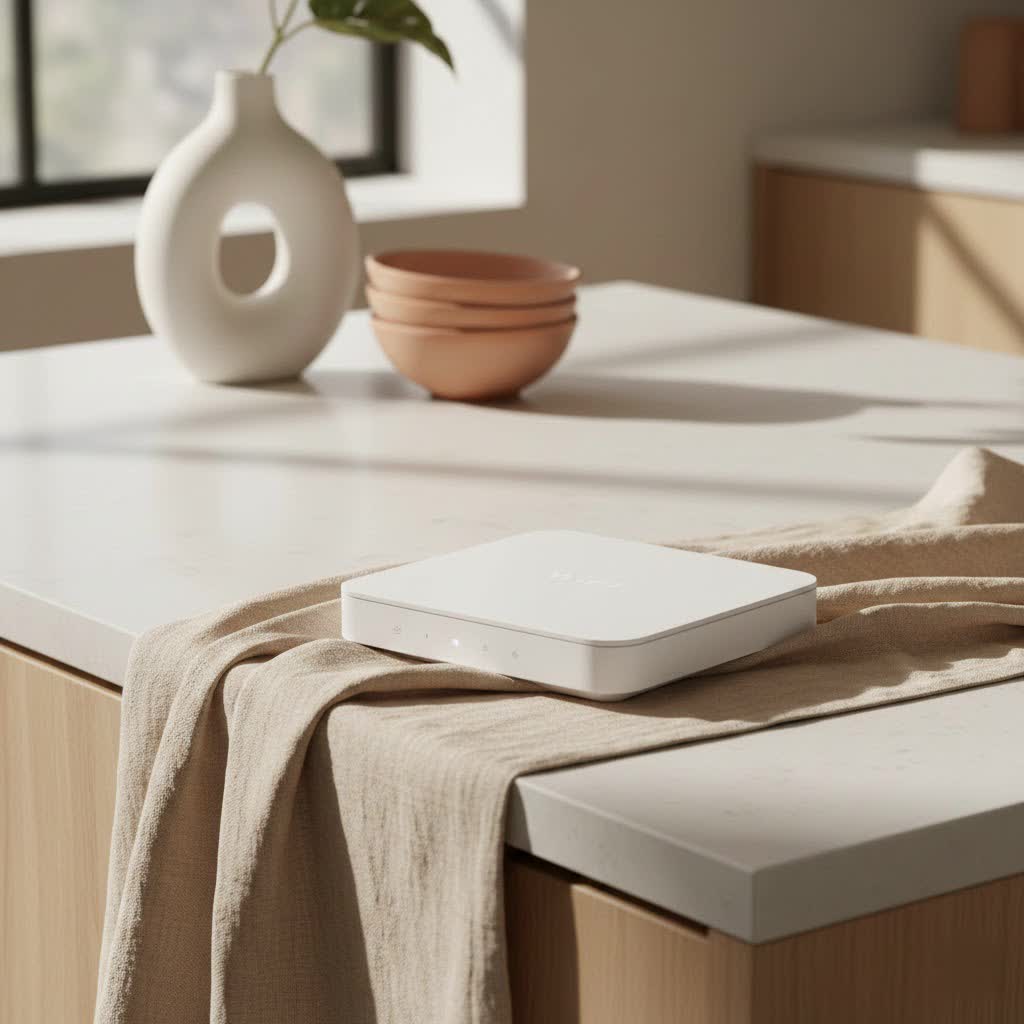
At its core, a SIM card WiFi router is a standalone wireless router that doesn’t rely on fixed line connections like DSL, cable, or fiber. Instead, it harnesses the power of cellular networks – typically 4G LTE or the blazing fast 5G – by simply inserting a data-enabled SIM card, much like the one in your smartphone. This clever device acts as a bridge, transforming those cellular signals into a WiFi network that all your devices can connect to.
Here’s a closer look at how these innovative routers work: When you insert a SIM card into the dedicated slot, the router authenticates with your chosen cellular provider’s network. It then captures the mobile broadband signal, processes it, and converts it into a local WiFi network. This allows multiple devices – laptops, tablets, smartphones, smart home gadgets, and more – to connect simultaneously, just as they would to a traditional home router. Crucially, many models also come equipped with Ethernet ports, offering the flexibility of wired connections for devices that demand maximum stability or speed.
Essential components usually include the SIM card slot itself (supporting various sizes like Nano, Micro, and Standard SIM), external antenna ports for boosting signal strength, Ethernet LAN/WAN ports, LED indicators for status monitoring, and a power adapter. Some models even feature internal batteries for true on-the-go functionality.
The Undeniable Advantages: Why Choose a SIM Card Router?
Opting for a SIM card WiFi router brings a host of benefits, fundamentally changing how you access and manage your internet connection.
One of the most compelling advantages is unrivalled portability and flexibility. With a SIM card router, your internet isn’t tied to a physical location. Whether you’re working from a remote cabin, traveling in an RV, setting up a temporary office, or just need reliable internet during a power outage at home, a SIM card router ensures you stay connected anywhere with cellular coverage. It’s perfect for situations where traditional broadband is unavailable, unreliable, or simply too much hassle to set up.
This leads directly to another major perk: freedom from fixed lines and traditional broadband contracts. Say goodbye to installation fees, cable bills, and the limitations of landline-dependent internet. A SIM card router liberates you from these constraints, offering a simple, plug-and-play solution.
Reliability and backup are also huge factors. For businesses, or even homes where consistent internet is critical, a SIM card router can serve as an invaluable failover solution. If your main broadband connection goes down, the SIM router can automatically switch to cellular data, ensuring uninterrupted online activity. In remote locations where wired internet is non-existent, it becomes the primary lifeline.
These routers are also designed for multi-device connectivity, often supporting more simultaneous connections and a wider WiFi range than typical mobile hotspots. This means everyone in your household or team can get online without a fuss. Furthermore, many SIM card routers offer unlocked potential, meaning you can insert a SIM card from virtually any mobile carrier. This gives you the power to shop around for the best data plans and switch providers if coverage or pricing changes, ensuring you always get the most cost-effective and efficient service.
SIM Card Routers vs. Mobile Hotspots: Clearing the Air
It’s easy to confuse SIM card WiFi routers with mobile hotspots (often called MiFi devices), but there are distinct differences that cater to varying needs. Understanding these can help you make the right choice.
Mobile Hotspots, while incredibly portable and battery-powered, are typically designed for light, occasional use by a limited number of devices (usually up to 10-15). They are excellent for short trips, checking emails on the go, or connecting a laptop for a few hours. However, they often have shorter WiFi ranges, less robust signal quality, and are frequently “locked” to a specific cellular carrier, restricting your SIM card choices.
SIM card WiFi routers, on the other hand, are generally more robust and feature-rich. They often boast:
- Better signal quality and wider range: Especially when equipped with external antennas.
- More simultaneous connections: Supporting more users and devices without performance degradation.
- Ethernet ports: For stable wired connections to desktops, gaming consoles, or smart TVs.
- Advanced features: Such as VPN support, firewalls, Quality of Service (QoS) for bandwidth prioritization, and parental controls.
- Usually unlocked: Providing the flexibility to use any carrier’s SIM card.
So, when should you choose which? If you need internet for an extended period in a remote location, a reliable home internet backup, or a robust connection for a small office, a SIM card WiFi router is the clear winner. If your needs are more about occasional, short-term connectivity for a few devices while literally on the move, a mobile hotspot might suffice due to its ultra-compact size and battery dependency.
Finding Your Perfect Match: Key Features to Look For
Selecting the right SIM card WiFi router involves considering several key features that align with your specific requirements.
Firstly, consider the 4G vs. 5G capability. While 4G LTE is perfectly adequate for most tasks, a 5G SIM card router offers significantly faster speeds and lower latency, making it ideal for bandwidth-intensive activities like 4K streaming, online gaming, and large file transfers. Ensure your chosen router supports the cellular bands used by your preferred carrier.
External antenna support is a crucial feature, especially if you plan to use the router in areas with weak cellular reception. External antennas can dramatically boost signal strength and stability, leading to faster, more reliable connections. Look for models with SMA or TS9 connectors for compatible antennas.
For critical applications or areas with varying network strengths, multiple SIM slots can be a lifesaver. This allows you to insert SIM cards from different carriers, providing redundancy (failover) in case one network goes down, or enabling load balancing to utilize both connections simultaneously for increased bandwidth.
Ethernet ports are essential if you need to connect wired devices. Most SIM card routers come with at least one LAN port, and some offer multiple, along with a WAN port to use it as a traditional router if fixed broadband becomes available. For portable models, battery life is a key consideration; aim for devices that offer a decent run-time on a single charge if you’ll be frequently using it away from power outlets.
Always prioritize an unlocked SIM card router to ensure maximum flexibility in carrier choice. Lastly, don’t overlook advanced features like VPN client/server support for secure connections, QoS for managing bandwidth priorities, robust firewalls for network protection, and parental controls for managing internet access for younger users.
Setting Up Your SIM Card WiFi Router: A Simple Walkthrough
Setting up your SIM card WiFi router is generally a straightforward process, designed to get you online quickly.
Step 1: Insert Your SIM Card. First, ensure the router is powered off. Locate the SIM card slot, which might require a SIM ejector tool (similar to a smartphone). Identify the correct SIM card size – Nano, Micro, or Standard – and carefully insert your activated data SIM card into the slot, making sure it’s oriented correctly (often indicated by a small diagram near the slot). Remember to clean the gold contacts if there’s any dust or dirt, and always handle with care.
Step 2: Connect Antennas (if applicable). If your router supports external antennas, screw them firmly into the designated ports. For optimal signal reception, place the antennas in an upright position and, if possible, near a window or in a location with clear line of sight to a cell tower. Avoid placing the router near metal objects or thick walls that could obstruct the signal.
Step 3: Power On & Initial Configuration. Connect the power adapter and turn on your router. Wait a few moments for it to boot up. Once the indicator lights show it’s ready (usually a solid power light and cellular signal bars), connect to its default WiFi network from your computer or smartphone (the default SSID and password are often printed on a sticker on the router). Then, open a web browser and navigate to the router’s administration panel (typically an IP address like 192.168.1.1 or 192.168.0.1). Log in using the default credentials (also usually on the sticker). The first thing you should do is change the default WiFi name (SSID) and set a strong, unique password to secure your network.
Step 4: Optimize Performance. Within the admin panel, verify the APN (Access Point Name) settings. These are crucial for connecting to your carrier’s network and are usually auto-detected, but sometimes need manual input (check your carrier’s website for the correct APN). Regularly check for and install firmware updates from the manufacturer’s website; these updates often improve performance, add features, and patch security vulnerabilities. Finally, ensure your router is placed in a central location, away from obstructions and other electronic devices that could cause interference, to maximize WiFi coverage throughout your space.
Expert Insights for Enhanced Connectivity
“A SIM card WiFi router is more than just a convenience; it’s a strategic asset for both home users and businesses seeking resilient, flexible connectivity,” advises Alex Tran, Lead Network Architect at Xzike.com. “From ensuring seamless remote work to providing critical backup for smart home systems, understanding its capabilities and optimizing its setup is key to unlocking true internet freedom.”
Common Hurdles and Quick Fixes
Even with the best hardware, you might occasionally encounter issues. Here are some common problems and their straightforward solutions:
No Signal or SIM Card Recognition: This is often the first hurdle.
- Check SIM insertion: Power off the router, remove, and re-insert the SIM card, ensuring it clicks into place and is facing the correct direction.
- Clean contacts: Gently wipe the SIM card’s gold contacts with a soft, dry cloth or a rubber eraser to remove dust or oxidation.
- Verify APN settings: Access the router’s admin panel and confirm the APN settings match those provided by your cellular carrier.
- Antenna placement: If using external antennas, try reorienting them or moving the router to a different location, preferably near a window, to get a stronger signal.
- SIM activation: Ensure your SIM card is active and has a data plan associated with it by testing it in a smartphone.
Slow Speeds: If your internet feels sluggish, consider these:
- Data plan limitations: Check your data plan. You might be experiencing throttling after reaching a data cap, or your plan simply doesn’t offer enough bandwidth for your needs.
- Router placement: Move the router to a more central, elevated location, away from physical obstructions like thick walls or large appliances.
- Firmware updates: Outdated firmware can impact performance. Check the manufacturer’s website for the latest updates.
- Network congestion: Sometimes, slow speeds are due to heavy network traffic from your cellular provider, especially during peak hours.
Indicator Lights: Understanding what the LED lights mean can help diagnose problems.
- Power light: A solid light usually means the router is on; blinking often indicates it’s booting up.
- Signal strength lights (bars): More illuminated bars mean stronger cellular reception. If there’s only one or none, you have a weak signal.
- WiFi light: A solid light means WiFi is active; blinking usually indicates data transmission. Consult your router’s manual for specific light patterns and their meanings.
Frequently Asked Questions about SIM Card WiFi Routers
Q1: Can I use a regular phone SIM card in a SIM card WiFi router?
|
Our Picks for the Best WiFi Router in 2026
As an Amazon Associate I earn from qualifying purchases.
|
||
| Num | Product | Action |
|---|---|---|
| 1 | TP-Link AX1800 WiFi 6 Router (Archer AX21) – Dual Band Wireless Internet, Gigabit, Easy Mesh, Works with Alexa - A Certified for Humans Device, Free Expert Support |

|
| 2 | Amazon eero 6 mesh wifi router with 1-month free eero Plus (auto-renews) - Supports internet plans up to 900 Mbps, Coverage up to 1,500 sq. ft., Connect 75+ devices, 1-pack |
|
| 3 | TP-Link AC1200 WiFi Router (Archer A54) - Dual Band Wireless Internet Router, 4 x 10/100 Mbps Fast Ethernet Ports, EasyMesh Compatible, Support Guest WiFi, Access Point Mode, IPv6 & Parental Controls |
|
| 4 | RBLHGG-5acD-US LHG 5 ac - 5GHz 802.11ac Wireless Device with 24.5 dBi Dual-Pol Grid Antenna - 716 MHz CPU, 256MB RAM, Gigabit Port, RouterOS L3, PoE, US Version |
|
| 5 | TP-Link AXE5400 Tri-Band WiFi 6E Router (Archer AXE75), 2025 PCMag Editors\' Choice, Gigabit Internet for Gaming & Streaming, New 6GHz Band, 160MHz, OneMesh, Quad-Core CPU, VPN & WPA3 Security |
|
| 6 | Amazon eero 6+ mesh wifi router with 1 month free eero Plus (auto-renews) - Coverage up to 1,500 sq. ft., Connect 75+ devices, 1-pack |
|
| 7 | TP-Link AC1200 Gigabit WiFi Router (Archer A6) - Dual Band MU-MIMO Wireless Internet Router, 4 x Antennas, OneMesh and AP Mode, Long Range Coverage |
|
| 8 | TP-Link Tri-Band BE9300 WiFi 7 Router (Archer BE550) - 6-Stream, Full 2.5G Ports w/ 6 Internal Antennas, Up to 2,000 Sq Ft, Add Easy-Mesh Device for Extended Coverage, VPN Support, Free Expert Support |
|
| 9 | TP-Link Dual-Band BE3600 Wi-Fi 7 Router Archer BE230 - 4-Stream - 2×2.5G + 3×1G Ports, USB 3.0, 2.0 GHz Quad Core, 4 Antennas - VPN, EasyMesh, HomeShield, MLO, Private IOT - Free Expert Support |
|
| 10 | TP-Link Archer BE6500 Dual-Band Wi-Fi 7 Router (Archer BE400) - Dual 2.5 Gbps Ports USB 3.0 - Covers up to 2,400 Sq. ft and 90 Devices - Quad-core CPU- HomeShield, Private IoT, Free Expert Support |
|
A1: Yes, in most cases, you can use a regular data-enabled SIM card from your mobile phone in an unlocked SIM card WiFi router. However, some carriers have terms of service that might restrict this or offer specific data plans optimized for router use. It’s always best to check with your carrier.
Q2: How many devices can a SIM card router typically support?
A2: Most SIM card WiFi routers can support between 10 to 60 devices simultaneously, depending on the model and its processing power. High-end models designed for business or power users can often handle even more. Limiting the number of highly active devices helps maintain optimal performance.
Q3: Is a SIM card router secure?
A3: Yes, modern SIM card routers offer robust security features similar to traditional routers, including WPA2/WPA3 encryption, firewalls, and VPN support. It’s crucial to change default passwords, enable the strongest encryption, and keep the firmware updated to ensure maximum security.
Q4: Do I need an unlimited data plan for my SIM card router?
A4: An unlimited data plan is highly recommended, especially if the SIM card router will be your primary internet source or used by multiple people for streaming and downloading. Otherwise, you risk hitting data caps, which can lead to throttling (reduced speeds) or costly overage charges.
Q5: What’s the difference between a SIM card router and a MiFi device?
A5: While both use SIM cards for internet, SIM card routers are generally larger, more powerful, offer more features like Ethernet ports and external antenna support, and often cater to more demanding, long-term use for multiple users. MiFi devices are smaller, battery-powered, and designed for maximum portability and light use by fewer devices.
Q6: How do external antennas improve performance?
A6: External antennas enhance performance by amplifying the cellular signal, which is especially beneficial in areas with weak reception. They can capture signals that internal antennas might miss, leading to more stable connections, faster speeds, and sometimes a wider coverage range for your WiFi network.
Q7: Are 5G SIM card routers worth the upgrade?
A7: If you are in an area with 5G coverage and your internet usage involves high-bandwidth activities like 4K streaming, online gaming, or cloud computing, a 5G SIM card router can offer a significant upgrade in speed and responsiveness compared to 4G models. For basic browsing and email, a 4G router might be sufficient.
Conclusion
The SIM card WiFi router stands as a powerful testament to the evolution of internet access, offering unparalleled freedom, flexibility, and reliability in a world that demands constant connectivity. Whether you’re a digital nomad, a homeowner in a broadband-dark zone, or a business owner needing a dependable backup, these devices empower you to take charge of your internet experience. By understanding their workings, benefits, and how to choose and set up the right one, you gain the ability to stay connected on your terms, breaking free from traditional limitations. Embrace the future of flexible internet and discover the ultimate control a SIM card WiFi router brings to your digital life. Go forth, explore, and let your journey online be as boundless as your adventures offline!
