In today’s hyper-connected world, a robust and reliable home network isn’t just a luxury; it’s an absolute necessity. From streaming your favorite shows in 4K to seamless video conferencing and powering a growing array of smart home devices, your internet connection needs to keep up. That’s where the Nest Wifi Router steps in, offering a sophisticated yet remarkably user-friendly mesh Wi-Fi system designed to blanket your entire home in fast, consistent internet. If you’ve been grappling with dead zones or frustratingly slow speeds, understanding how to effectively set up, optimize, and secure your Nest WiFi Router is your ticket to a truly effortless online experience.
What Makes the Nest WiFi Router Tick? Understanding its Core
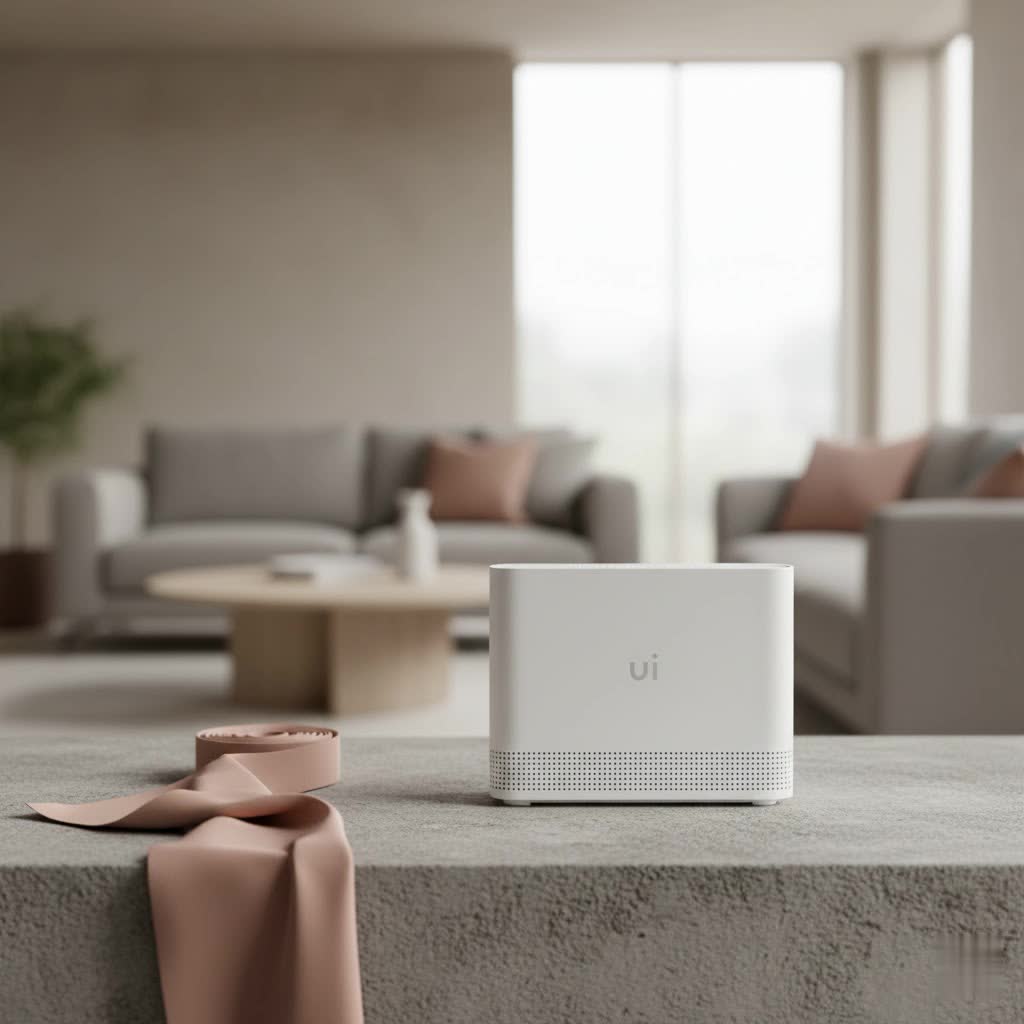
At its heart, the Nest WiFi Router is a dual-band Wi-Fi 5 device, but it’s much more than just a single router. It’s built as a mesh system, meaning it works in concert with additional “points” to create a single, unified network that intelligently spreads coverage throughout your home. Think of it like a team of Wi-Fi broadcasters, all working together to ensure every corner of your living space gets a strong signal. This integrated approach solves a common problem with traditional routers, which often struggle to provide consistent speeds and coverage in larger or multi-story homes.
One of the standout features of the Nest WiFi Points is their dual functionality: they not only extend your Wi-Fi coverage but also double as Google Assistant smart speakers. This integration seamlessly blends your home network with your smart home ecosystem, allowing you to manage your Wi-Fi with voice commands, play music, or control other smart devices, all from your network extender.
Setting Up Your Nest WiFi Router: A Breeze with Google Home
Getting your Nest WiFi Router up and running is designed to be straightforward, leveraging the intuitive Google Home app. You don’t need to be a networking guru to achieve excellent results.
Here’s a step-by-step guide to get your new network online:
- Prepare Your Modem: First, ensure your existing internet modem is powered on and actively connected to the internet.
- Connect the Router: Take your Nest WiFi Router (the unit with Ethernet ports) and connect its WAN port (usually indicated by a globe icon) to your modem using the provided Ethernet cable. Then, plug your Nest WiFi Router into a power outlet. The device’s light will pulse white, indicating it’s ready for setup.
- Download the Google Home App: If you haven’t already, download the Google Home app on your Android or iOS smartphone or tablet.
- Initiate Setup: Open the Google Home app. If it’s your first time, you’ll need to set up a “home.” From the main “Home” tab, tap the “+” symbol in the top-left corner, then select “Set up device,” and finally “New devices.”
- Scan and Connect: The app will search for your Nest WiFi Router. Once found, select it. You’ll then be prompted to scan the QR code located on the bottom of your Nest WiFi Router. Hold your phone about 5 inches away for a clear scan. If scanning fails, you can manually enter the setup key.
- Name Your Network and Create a Password: Give your Wi-Fi network a unique and memorable name, and create a strong, secure password. This is crucial for protecting your network.
- Choose a Location: Select a room for your Nest WiFi Router within the app. This helps organize your smart home devices.
- Network Creation: Your Nest WiFi Router will now take a few minutes to create your Wi-Fi network and check for any firmware updates.
- Add Nest WiFi Points (Optional but Recommended): If you have additional Nest WiFi Points, the app will prompt you to add them after the router setup is complete. Place them strategically throughout your home to eliminate dead zones, and follow the in-app instructions to easily connect them to your mesh network. The process is similar to setting up the router, often just requiring a QR code scan and location assignment.
Beyond Basic Connectivity: Key Features of Your Nest WiFi Router
The Nest WiFi Router system is packed with features designed to enhance your online life and simplify network management:
- Whole-Home Mesh Coverage: The primary benefit is expansive and reliable Wi-Fi coverage. The mesh system ensures a consistent signal from room to room, eliminating frustrating dead spots that single routers often create.
- Family Wi-Fi for Parental Control: Take control of your family’s online experience with Family Wi-Fi. You can group devices used by your children and set schedules to pause Wi-Fi access (e.g., during homework time or bedtime) or enable SafeSearch to automatically block inappropriate content.
- Guest Network: Easily create a separate network for guests, keeping your main network private and secure. Guests can connect without needing access to your primary network’s password or your connected smart devices.
- Device Prioritization: For those crucial moments when bandwidth is paramount, you can prioritize specific devices for a set period. Whether it’s your work laptop during a critical video call or a gaming console mid-match, this feature ensures your most important activities get the lion’s share of your internet speed.
- Smart Home Integration: As mentioned, Nest WiFi Points come with Google Assistant built-in, transforming them into smart speakers. This deep integration allows for voice control over your network and other smart home devices, truly uniting your digital environment.
- Automatic Updates: Your Nest WiFi Router receives automatic software updates directly from Google. This ensures you always have the latest security patches, performance enhancements, and new features without manual intervention, keeping your network secure and efficient.
Maximizing Your Nest WiFi Router’s Performance and Reach
While the Nest WiFi Router is excellent out of the box, a few adjustments can dramatically boost its performance and coverage.
Optimal Placement Strategies
Where you place your router and points makes a huge difference. Think of your Wi-Fi signal like sound waves; obstacles can dampen them.
- Centralize the Router: Position your primary Nest WiFi Router in a central location in your home, ideally on the main floor. Avoid tucking it away in a closet, behind large furniture, or in the basement. Higher is often better.
- Space Out Wi-Fi Points: Distribute your Nest WiFi Points strategically to extend coverage to distant rooms or different floors. The goal is to create overlapping Wi-Fi signals, but don’t place them too far apart, or they won’t maintain a strong mesh connection back to the router. The Google Home app often provides guidance on point placement and connection quality.
- Avoid Interference: Keep your Nest WiFi Router and points away from potential sources of interference like microwaves, cordless phones, large metal objects, and thick concrete walls. These can disrupt Wi-Fi signals and degrade performance.
- Use Wi-Fi Analyzer Apps: For the truly dedicated, free Wi-Fi analyzer apps can help you visualize signal strength in different areas of your home. This allows you to fine-tune placement for the best possible coverage.
|
Our Picks for the Best WiFi Router in 2026
As an Amazon Associate I earn from qualifying purchases.
|
||
| Num | Product | Action |
|---|---|---|
| 1 | TP-Link Archer BE6500 Dual-Band Wi-Fi 7 Router (Archer BE400) - Dual 2.5 Gbps Ports USB 3.0 - Covers up to 2,400 Sq. ft and 90 Devices - Quad-core CPU- HomeShield, Private IoT, Free Expert Support |

|
| 2 | TP-Link AX1800 WiFi 6 Router (Archer AX21) – Dual Band Wireless Internet, Gigabit, Easy Mesh, Works with Alexa - A Certified for Humans Device, Free Expert Support |
|
| 3 | TP-Link AC1200 Gigabit WiFi Router (Archer A6) - Dual Band MU-MIMO Wireless Internet Router, 4 x Antennas, OneMesh and AP Mode, Long Range Coverage |
|
| 4 | RBLHGG-5acD-US LHG 5 ac - 5GHz 802.11ac Wireless Device with 24.5 dBi Dual-Pol Grid Antenna - 716 MHz CPU, 256MB RAM, Gigabit Port, RouterOS L3, PoE, US Version |
|
| 5 | TP-Link Tri-Band BE9300 WiFi 7 Router (Archer BE550) - 6-Stream, Full 2.5G Ports w/ 6 Internal Antennas, Up to 2,000 Sq Ft, Add Easy-Mesh Device for Extended Coverage, VPN Support, Free Expert Support |
|
| 6 | TP-Link Dual-Band BE3600 Wi-Fi 7 Router Archer BE230 - 4-Stream - 2×2.5G + 3×1G Ports, USB 3.0, 2.0 GHz Quad Core, 4 Antennas - VPN, EasyMesh, HomeShield, MLO, Private IOT - Free Expert Support |
|
| 7 | TP-Link AXE5400 Tri-Band WiFi 6E Router (Archer AXE75), 2025 PCMag Editors\' Choice, Gigabit Internet for Gaming & Streaming, New 6GHz Band, 160MHz, OneMesh, Quad-Core CPU, VPN & WPA3 Security |
|
| 8 | Amazon eero 6+ mesh wifi router with 1 month free eero Plus (auto-renews) - Coverage up to 1,500 sq. ft., Connect 75+ devices, 1-pack |
|
| 9 | TP-Link AC1200 WiFi Router (Archer A54) - Dual Band Wireless Internet Router, 4 x 10/100 Mbps Fast Ethernet Ports, EasyMesh Compatible, Support Guest WiFi, Access Point Mode, IPv6 & Parental Controls |
|
| 10 | Amazon eero 6 mesh wifi router with 1-month free eero Plus (auto-renews) - Supports internet plans up to 900 Mbps, Coverage up to 1,500 sq. ft., Connect 75+ devices, 1-pack |
|
Fine-Tuning for Speed: DNS Settings
When setting up your Nest WiFi Router, the DNS (Domain Name System) setting is typically set to “Automatic.” While this works, customizing it can sometimes lead to a snappier browsing experience.
- Custom DNS: You can switch to a custom DNS server, such as Google’s Public DNS (Primary: 8.8.8.8, Secondary: 8.8.4.4) or your ISP’s recommended DNS. Some users report that manually setting these can make internet browsing feel more responsive by reducing slight delays in resolving website addresses. This simple change can be done through the “Advanced networking” section in your Google Home app’s Wi-Fi settings.
Prioritizing Your Online Activities
The “priority device” feature is a powerful tool for managing bandwidth. If multiple devices are competing for internet access, prioritizing one ensures it gets preferential treatment for a set duration (e.g., 1, 2, or 4 hours). This is invaluable for ensuring critical activities like high-resolution streaming or online gaming remain smooth and uninterrupted.
Fortifying Your Home Network: Nest WiFi Router Security
Security is paramount in any home network, and the Nest WiFi Router incorporates several built-in features to protect your data and devices.
- Built-in Stateful Firewall: Your Nest WiFi Router includes a stateful firewall that acts as a barrier between your home network and the internet. It actively monitors connections, allowing only legitimate data associated with known active connections to pass through, effectively shielding your network from unsolicited external access attempts.
- WPA2 and WPA3 Security: By default, Nest WiFi Routers use WPA2, a widely compatible security protocol. However, for enhanced protection against modern threats like offline dictionary attacks, you can enable “WPA3 transition mode” in the Google Home app. This allows both WPA2 and WPA3 devices to connect to your network, providing a more robust security posture.
- Automatic Security Updates: As mentioned earlier, Google regularly pushes automatic software updates to your Nest WiFi Router. These updates are critical for patching vulnerabilities and ensuring your network is protected against newly discovered threats, requiring no action on your part.
- Managing IoT Risks: Many smart home (IoT) devices can pose security risks. While your Nest WiFi Router’s firewall is effective, be cautious with settings like Universal Plug and Play (UPnP) and port forwarding. These features can bypass the firewall, potentially leaving devices vulnerable if not configured carefully. For most home users, it’s advisable to disable UPnP if you don’t explicitly need it, or at least understand the implications of any port forwarding rules you establish.
“Maintaining a secure home network is an ongoing process, not a one-time setup,” advises Dr. Amelia Chen, a lead network architect at Xzike Labs. “The Nest WiFi Router provides a solid foundation with its automatic updates and robust firewall, but user awareness of settings like WPA3 and cautious management of IoT device permissions significantly strengthen your overall digital defense.”
Addressing Common Concerns: What to Know About Nest WiFi Router
While the Nest WiFi Router is an excellent solution for many, it’s important to be aware of a few considerations.
- Wi-Fi 5 vs. Wi-Fi 6/6E: The original Nest WiFi Router uses Wi-Fi 5 (802.11ac). While still very capable for most modern activities, it doesn’t support the newer Wi-Fi 6 or Wi-Fi 6E standards found in the latest devices or the Nest Wifi Pro. This means newer Wi-Fi 6/6E compatible devices won’t reach their theoretical maximum speeds on a Nest WiFi 5 system.
- Limited Ethernet Ports: The main Nest WiFi Router typically has two Ethernet ports (one for the modem, one for a wired device). The Nest WiFi Points, however, generally do not have Ethernet ports. If you have many wired devices, you might need an external Ethernet switch.
- Automatic Band Steering: The Nest WiFi Router uses automatic band steering, meaning it intelligently directs your devices to either the 2.4 GHz or 5 GHz band based on signal strength and congestion. While this simplifies things, it means you can’t manually choose which band a specific device connects to, which can occasionally be an issue for older smart home gadgets that require the 2.4 GHz band during setup.
Frequently Asked Questions About Your Nest WiFi Router
Q: Can I combine my Nest WiFi Router with older Google Wifi devices?
A: Yes, the Nest WiFi Router is backward compatible with Google Wifi points, allowing you to integrate them into a single mesh network for expanded coverage. However, Nest Wifi Pro devices are not compatible with older Nest Wifi or Google Wifi for mesh networking.
Q: How do I perform a speed test on my Nest WiFi network?
A: You can easily run a speed test directly from the Google Home app. Navigate to the Wi-Fi section, and you’ll find an option to test your internet speed, giving you a quick diagnostic of your download and upload speeds.
Q: My Wi-Fi signal seems weak in certain areas. What should I do?
A: Review your Nest WiFi Points’ placement. Try to centralize your main router and ensure your points are spread out but close enough to maintain a strong connection to each other or the router. Avoid obstacles like thick walls or large appliances. The Google Home app can help you check the mesh connection strength.
Q: Can I manage individual devices connected to my Nest WiFi Router?
A: Yes, the Google Home app allows you to see all connected devices. You can view their details, change their names, pause their internet access (especially useful with Family Wi-Fi), and prioritize bandwidth for specific devices.
Q: Does the Nest WiFi Router support VPNs?
A: The Nest WiFi Router does not have a built-in VPN client. While you can use a VPN on individual devices connected to your network, the router itself won’t provide network-wide VPN protection without additional hardware or a more advanced router setup.
Q: How often does the Nest WiFi Router receive updates?
A: Google pushes automatic updates regularly to your Nest WiFi Router. These updates happen in the background to ensure your system always has the latest security features and performance improvements without you needing to do anything manually.
Conclusion
The Nest WiFi Router system is a powerful and intuitive solution for modern homes seeking expansive, reliable, and secure Wi-Fi. By understanding its core features, carefully following the setup process, and implementing key optimization and security practices, you can transform your home network experience. From banishing dead zones with its intelligent mesh technology to securing your family’s online activities with robust parental controls and keeping your network protected with automatic updates, the Nest WiFi Router empowers you to take control. So, dive in, customize your settings, and get ready to enjoy seamless connectivity that truly elevates your digital life. Your journey to an optimized and secure home network begins here.
