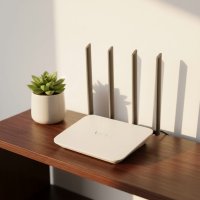
In today’s fast-paced digital world, a reliable internet connection isn’t just a luxury; it’s a necessity. At the heart of this connection in most homes lies the unsung hero: your WiFi router. This powerful little device is your gateway to everything online, from streaming your favorite shows and attending video calls to smart home management and intense gaming sessions. But for many, the WiFi router remains a mysterious black box. This comprehensive guide, brought to you by Xzike, aims to pull back the curtain, transforming you from a passive user into a confident master of your home network. We’ll explore what a WiFi router is, how to choose the perfect one, set it up securely, and optimize its performance for a seamless digital experience.

What Exactly is a WiFi Router, and Why Do You Need One?
Imagine your home as a bustling digital city, and the internet as the global superhighway. Your WiFi router acts as the central traffic controller, directing all the digital data packets to their correct destinations within your home network. Simply put, a WiFi router is a device that connects to your internet modem and then wirelessly distributes that internet access to all your devices – laptops, smartphones, smart TVs, and more – throughout your home.
It works by receiving the internet signal from your modem, which converts the raw internet data from your Internet Service Provider (ISP) into a format your home network can use. The router then creates a Local Area Network (LAN) within your home, assigning unique internal IP addresses to each connected device. When you request a webpage or stream a video, the router efficiently forwards your request to the internet via the modem and brings the data back to the correct device. Without a router, your modem could typically only connect one device directly to the internet via an Ethernet cable, leaving your wireless gadgets out of luck.
Choosing Your Perfect WiFi Router: A Smart Buyer’s Guide
Selecting the right WiFi router is crucial for ensuring your home network meets your current and future needs. With a plethora of options available, knowing what to look for can feel overwhelming. Let’s break down the essential factors to consider to help you make an informed decision.
Factors to Consider Before You Buy
- Internet Speed Compatibility: This is paramount. Always choose a router that can comfortably handle, or even exceed, the internet speed you’re paying your ISP for. If you have a gigabit internet plan (1 Gbps), don’t settle for a router limited to 300 Mbps. Look for specifications like “Gigabit Ethernet ports” and high maximum wireless speeds.
- WiFi Standards (802.11ax/WiFi 6, 802.11be/WiFi 7): WiFi technology constantly evolves.
- Wi-Fi 5 (802.11ac) is still common but older.
- Wi-Fi 6 (802.11ax) is the current standard, offering faster speeds, improved performance in crowded networks, and better efficiency for multiple devices.
- Wi-Fi 6E extends Wi-Fi 6 to the 6 GHz band, providing even more bandwidth and less interference.
- Wi-Fi 7 (802.11be) is the latest and fastest standard, designed for incredibly high speeds and low latency, perfect for future-proofing your network. Opting for the latest standard your budget allows is usually a smart move.
- Coverage Area and Home Size: Evaluate the size and layout of your home. For small apartments, a single router might suffice. For larger homes, multiple floors, or areas with thick walls, you might need a more powerful router or consider a mesh WiFi system for seamless, extended coverage. Routers typically list their expected square footage coverage in their specifications.
- Dual-Band vs. Tri-Band Routers:
- Dual-band routers operate on two frequencies: 2.4 GHz and 5 GHz. The 2.4 GHz band offers wider coverage and better penetration through walls but slower speeds, while the 5 GHz band provides faster speeds but a shorter range.
- Tri-band routers add an extra 5 GHz or 6 GHz band, which is ideal for homes with many devices, heavy internet usage (like 4K streaming and online gaming), or multiple users simultaneously.
- Number of Devices: Consider how many devices (phones, laptops, smart home gadgets) will connect to your network. Routers with Multi-User, Multiple-Input, Multiple-Output (MU-MIMO) technology are better equipped to handle multiple devices simultaneously without performance bottlenecks.
- Security Features: Look for robust security protocols like WPA3 encryption, built-in firewalls, and parental controls to protect your network from cyber threats. Some advanced routers also offer VPN support.
- Ease of Setup and Management: Modern routers often come with intuitive mobile apps that simplify the setup process and allow for easy management of network settings, guest networks, and parental controls. A user-friendly interface can save you a lot of hassle.
- Budget: While you don’t need to break the bank, investing in a slightly more expensive, feature-rich router often pays off in terms of performance, reliability, and longevity. Balance your needs with your budget, prioritizing features that matter most to your usage habits.
“Choosing the right WiFi router isn’t just about speed; it’s about building a robust and secure foundation for your entire digital ecosystem. Consider your current and future needs, from the number of users to the types of activities, to find a router that truly empowers your connectivity,” advises Mark Jensen, a veteran network engineer with over two decades in the field.
Setting Up Your WiFi Router for Seamless Connectivity
Getting your WiFi router up and running effectively is simpler than you might think. Follow these steps to ensure a smooth setup process and optimal performance from the start.
Step-by-Step Installation
|
Our Picks for the Best WiFi Router in 2026
As an Amazon Associate I earn from qualifying purchases.
|
||
| Num | Product | Action |
|---|---|---|
| 1 | Amazon eero 6 mesh wifi router with 1-month free eero Plus (auto-renews) - Supports internet plans up to 900 Mbps, Coverage up to 1,500 sq. ft., Connect 75+ devices, 1-pack |

|
| 2 | TP-Link Dual-Band BE3600 Wi-Fi 7 Router Archer BE230 - 4-Stream - 2×2.5G + 3×1G Ports, USB 3.0, 2.0 GHz Quad Core, 4 Antennas - VPN, EasyMesh, HomeShield, MLO, Private IOT - Free Expert Support |
|
| 3 | TP-Link AXE5400 Tri-Band WiFi 6E Router (Archer AXE75), 2025 PCMag Editors\' Choice, Gigabit Internet for Gaming & Streaming, New 6GHz Band, 160MHz, OneMesh, Quad-Core CPU, VPN & WPA3 Security |
|
| 4 | TP-Link Tri-Band BE9300 WiFi 7 Router (Archer BE550) - 6-Stream, Full 2.5G Ports w/ 6 Internal Antennas, Up to 2,000 Sq Ft, Add Easy-Mesh Device for Extended Coverage, VPN Support, Free Expert Support |
|
| 5 | Amazon eero 6+ mesh wifi router with 1 month free eero Plus (auto-renews) - Coverage up to 1,500 sq. ft., Connect 75+ devices, 1-pack |
|
| 6 | RBLHGG-5acD-US LHG 5 ac - 5GHz 802.11ac Wireless Device with 24.5 dBi Dual-Pol Grid Antenna - 716 MHz CPU, 256MB RAM, Gigabit Port, RouterOS L3, PoE, US Version |
|
| 7 | TP-Link AC1200 Gigabit WiFi Router (Archer A6) - Dual Band MU-MIMO Wireless Internet Router, 4 x Antennas, OneMesh and AP Mode, Long Range Coverage |
|
| 8 | TP-Link AX1800 WiFi 6 Router (Archer AX21) – Dual Band Wireless Internet, Gigabit, Easy Mesh, Works with Alexa - A Certified for Humans Device, Free Expert Support |
|
| 9 | TP-Link Archer BE6500 Dual-Band Wi-Fi 7 Router (Archer BE400) - Dual 2.5 Gbps Ports USB 3.0 - Covers up to 2,400 Sq. ft and 90 Devices - Quad-core CPU- HomeShield, Private IoT, Free Expert Support |
|
| 10 | TP-Link AC1200 WiFi Router (Archer A54) - Dual Band Wireless Internet Router, 4 x 10/100 Mbps Fast Ethernet Ports, EasyMesh Compatible, Support Guest WiFi, Access Point Mode, IPv6 & Parental Controls |
|
- Unbox and Check Components: Open your router box and ensure you have the router itself, a power adapter, and an Ethernet cable.
- Optimal Placement: This is more critical than many realize.
- Central Location: Place your router as close to the center of your home as possible to distribute the signal evenly.
- Elevated Position: Place it on a shelf or desk, not on the floor, as signals tend to travel downwards.
- Avoid Obstructions: Keep it away from large objects, thick walls, metal, and other electronics (like microwaves, cordless phones, baby monitors) that can interfere with the signal.
- Connect to Modem and Power:
- Connect one end of the Ethernet cable (usually yellow or blue) to the internet/WAN port on your router and the other end to your modem’s Ethernet port.
- Plug the power adapter into your router and then into a wall outlet. Wait for the indicator lights to stabilize, which usually takes a few minutes.
- Connect Your Device: For initial setup, it’s often easiest to connect a computer directly to one of the router’s LAN ports using another Ethernet cable. Alternatively, you can connect wirelessly using the default WiFi name (SSID) and password usually found on a sticker on the router itself.
- Access Router Interface: Open a web browser on your connected device and type the router’s IP address into the address bar (common defaults are 192.168.1.1, 192.168.0.1, or 192.168.1.254). Log in using the default username and password (also typically on the sticker).
- Initial Configuration: Follow the router’s setup wizard. This will guide you through changing your WiFi network name (SSID) and creating a strong, unique password for your network. You might also need to input some settings from your ISP, though many routers handle this automatically.
Quick Setup Checklist:
- All cables connected (modem to router WAN, router to power).
- Router lights stabilized.
- Connected a device (wired or default WiFi).
- Accessed router’s web interface.
- Changed default WiFi name (SSID) and password.
Fortifying Your Digital Frontier: Essential WiFi Router Security Tips
Your WiFi router is the first line of defense for your home network against cyber threats. An unsecured router is like leaving your front door unlocked. Taking a few proactive steps can significantly enhance your network’s security and protect your personal data.
Protecting Your Network from Threats
- Change Default Credentials Immediately: This is perhaps the most critical step. Most routers ship with generic usernames and passwords (e.g., “admin/admin” or “admin/password”). These are widely known and easily exploitable. Log into your router’s administration interface and create a strong, unique password for the router itself, not just your WiFi network.
- Update Firmware Regularly: Router manufacturers frequently release firmware updates to patch security vulnerabilities and improve performance. Treat these updates like operating system updates on your computer or phone. Many modern routers can update automatically, or you may need to manually check for updates via the router’s web interface.
- Use Strong Encryption (WPA3 or WPA2-AES): Ensure your WiFi network uses the strongest possible encryption. WPA3 is the latest and most secure standard. If your router and devices don’t support WPA3, then WPA2 with AES encryption (sometimes labeled WPA2-PSK AES) is the next best option. Avoid older, weaker standards like WEP or WPA (TKIP).
- Disable WPS (Wi-Fi Protected Setup): While convenient for quickly connecting devices, WPS can have security flaws that make your network vulnerable to brute-force attacks. It’s generally safer to disable this feature in your router’s settings and connect devices manually using your WiFi password.
- Create a Guest Network: Most routers offer the option to set up a separate guest network. This is invaluable for visitors or smart home devices that only need internet access. A guest network isolates these devices from your main network, preventing them from accessing your private files or other connected devices.
- Change SSID (Network Name) – Avoid Personal Info: The Service Set Identifier (SSID) is the name of your WiFi network. While hiding it doesn’t offer significant security benefits, changing the default SSID to something unique that doesn’t reveal personal information (like your address or family name) can add a layer of privacy.
- Enable Firewall: Most routers have a built-in firewall. Ensure it’s enabled to monitor and filter incoming and outgoing network traffic, blocking suspicious connections and unauthorized access attempts.
- Disable Remote Management (Unless Necessary): This feature allows you to access and manage your router settings from outside your home network. Unless you explicitly need it, disable remote management to prevent potential external access by malicious actors.
- Monitor Your Network: Periodically log into your router’s interface to check the list of connected devices. If you see any unfamiliar devices, you can block them or investigate further.
“Securing your WiFi router is not a one-time task; it’s an ongoing commitment. Regular firmware updates and strong, unique passwords are your best defense against evolving cyber threats. Think of it as continuously reinforcing your digital stronghold,” states Dr. Anya Sharma, a leading cybersecurity analyst specializing in home networks.
Boosting Your WiFi Router’s Performance: Speed and Coverage Optimization
Even the best WiFi router can underperform if not optimized. If you’re experiencing slow speeds, dropped connections, or “dead zones,” these tips can help you squeeze every drop of performance out of your network.
Maximizing Your Wireless Experience
- Optimal Router Placement (Revisit): As discussed during setup, placement is paramount. Ensure your router is in a central, elevated, and open location, away from physical obstructions like thick walls, large furniture, and metal objects.
- Choose the Right Frequency Band:
- 2.4 GHz: Offers broader coverage and better penetration, ideal for devices further from the router or those that don’t require high bandwidth (e.g., smart home devices). However, it’s often more congested.
- 5 GHz (or 6 GHz for Wi-Fi 6E/7): Provides faster speeds and lower latency but with a shorter range. Use this band for bandwidth-intensive activities like 4K streaming and online gaming, especially on devices closer to the router. Many modern dual-band routers can use the same SSID for both bands, allowing your devices to automatically pick the best signal.
- Change WiFi Channels: Wireless networks operate on specific channels. If your router is on the same channel as your neighbors, it can lead to interference and slower speeds. Access your router’s settings to manually change the channel. For the 2.4 GHz band, channels 1, 6, and 11 are generally non-overlapping and recommended. For 5 GHz, you have many more channels to choose from, making interference less likely. Use a WiFi analyzer app on your phone to identify the least congested channels in your area.
- Reduce Interference: Besides other routers, common household items can interfere. Keep your router away from microwaves, cordless phones, Bluetooth devices, halogen lamps, and even fish tanks.
- Update Firmware (Reiterate): Beyond security, firmware updates often include performance enhancements and bug fixes that can improve your router’s speed and stability.
- Adjust Antennas (If Applicable): If your router has external, adjustable antennas, try positioning one vertically and one horizontally. This can help broadcast the signal more effectively in different directions, improving coverage.
- Quality of Service (QoS) Settings: Many routers offer QoS settings, which allow you to prioritize certain types of network traffic (e.g., giving higher priority to video streaming or online gaming over background downloads). This ensures critical applications get the bandwidth they need.
- Consider Mesh WiFi or Range Extenders: For very large homes or persistent dead zones, a single router might not be enough.
- Mesh WiFi systems use multiple nodes that communicate with each other to create a seamless, whole-home WiFi network.
- Range extenders (or WiFi boosters) rebroadcast your router’s signal to expand coverage, though they can sometimes reduce bandwidth.
- Limit Unnecessary Connections: Disconnect devices that are not actively in use. The more devices connected, the more your bandwidth is shared, potentially slowing things down for everyone.
Common WiFi Router Problems and Quick Fixes
Even with the best setup and optimization, you might encounter occasional issues with your WiFi router. Here are some common problems and straightforward troubleshooting steps.
Troubleshooting Your Way to Connectivity
- Slow Internet Speeds:
- Check Your Plan: Confirm you’re getting the speeds you pay your ISP for.
- Restart Router and Modem: A simple reboot often clears temporary glitches.
- Check for Interference: Re-evaluate router placement and nearby devices.
- Too Many Devices: Disconnect unused devices or enable QoS.
- Outdated Router: Your router might not be able to handle your internet speed or the demands of modern devices.
- Dropped Connections:
- Firmware: Ensure your router’s firmware is up to date.
- Interference: Move your router or change WiFi channels.
- Router Overload: Too many devices or intense activities might be overwhelming your router.
- Router Age: Older routers can become unstable.
- WiFi Dead Zones (No Signal in Certain Areas):
- Placement: Re-position your router to a more central location.
- Obstructions: Identify and minimize physical barriers.
- Extend Coverage: Consider a mesh WiFi system or range extender for these areas.
- Forgotten WiFi Password:
- Check Router Sticker: The default password might still be there if you never changed it.
- Router Interface: If you changed it but remember the router’s admin password, you can log in and view/change the WiFi password.
- Factory Reset: If all else fails, you can perform a factory reset on the router (usually a small button on the back). Be aware this will erase all your custom settings, and you’ll have to set it up again from scratch.
Frequently Asked Questions about WiFi Routers
Q: How often should I replace my WiFi router?
A: As a rule of thumb, it’s generally a good idea to consider replacing your WiFi router every 3-5 years. Technology advances rapidly, and newer routers offer improved speeds, better security, and more efficient performance, especially with the introduction of new WiFi standards like Wi-Fi 6 and Wi-Fi 7.
Q: Can I use my ISP’s router, or should I buy my own?
A: While using your ISP’s provided router is convenient, buying your own often gives you better performance, more advanced features, and greater control over your network. You may also save money in the long run by avoiding monthly rental fees.
Q: What is the difference between WiFi 5 and WiFi 6?
A: Wi-Fi 6 (802.11ax) is a significant upgrade from Wi-Fi 5 (802.11ac). It offers faster theoretical speeds, improved efficiency in dense network environments (like homes with many smart devices), better battery life for connected devices, and enhanced security features.
Q: What is a mesh WiFi system?
A: A mesh WiFi system uses multiple devices (a main router and several satellite nodes) that work together to create a single, seamless, and strong WiFi network across a large area. This eliminates dead zones and provides more consistent coverage than a single traditional router or range extenders.
Q: Is hiding my SSID more secure?
A: Hiding your SSID (network name) might give a slight sense of security by making your network less visible, but it offers minimal actual protection. Determined attackers can still detect hidden networks. It also makes connecting new devices more cumbersome. Focusing on strong encryption and passwords is far more effective.
Your Connected Home, Optimized by Xzike
Your WiFi router is more than just a piece of hardware; it’s the heart of your digital home. By understanding its functions, making smart choices, and proactively managing its settings, you can unlock a world of seamless connectivity, robust security, and blazing-fast speeds. From Xzike, we hope this guide empowers you to take control of your network and enhance every aspect of your online life. Don’t let technical jargon intimidate you – empower yourself with knowledge and transform your WiFi experience today. For more in-depth guides, troubleshooting tips, and the latest in WiFi technology, keep exploring Xzike.com!
Get our weekly buyer guide
Practical specs, not advice. Unsubscribe anytime.