Choosing the best WiFi router for your home network involves balancing technical specifications with your specific usage and environment. The ideal router supports your internet plan’s speed, offers sufficient coverage for your home size (a single router for under 2,500 sq ft or a mesh system for larger homes), and includes essential security features like WPA3 encryption. For example, a Wi-Fi 6 router in the $130 range is often sufficient for moderate use, while Wi-Fi 7 systems can cost $200-$600+ for high-performance needs.
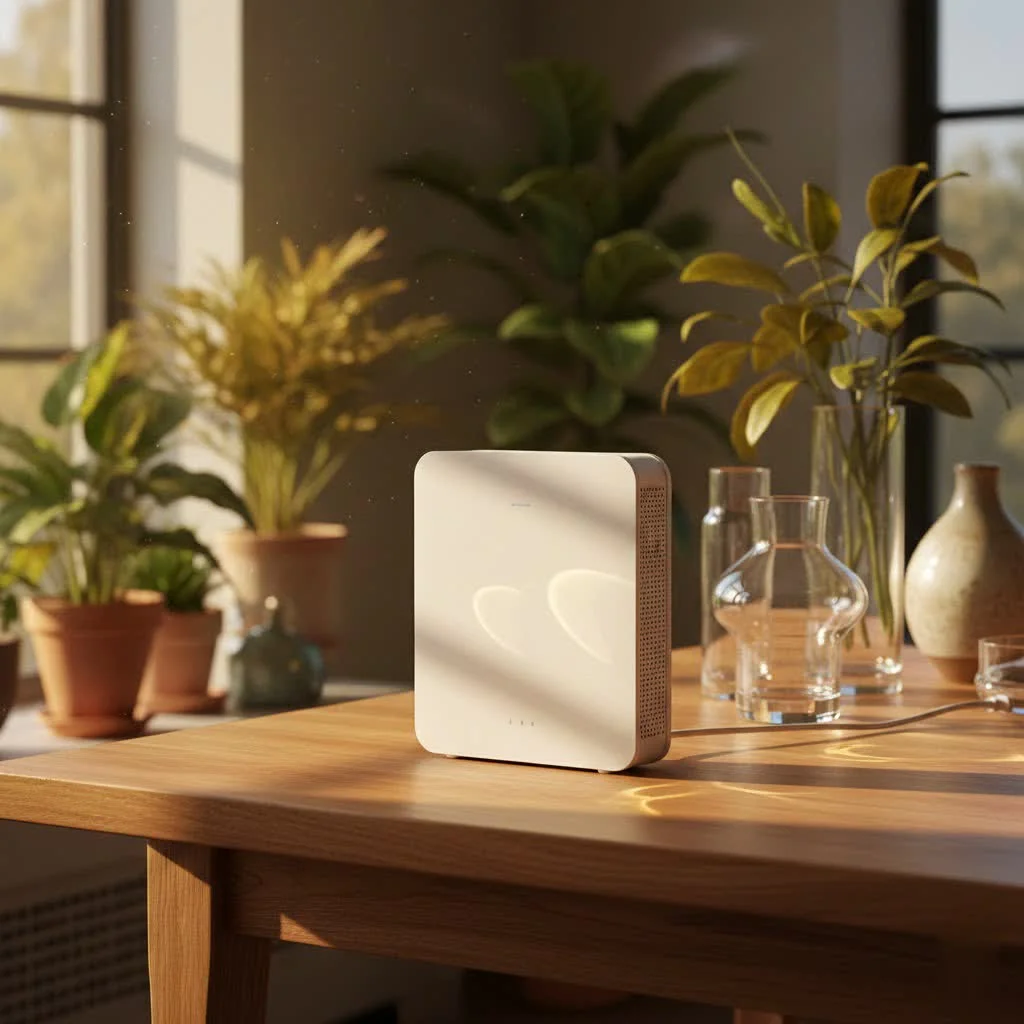
Why Your WiFi Router Matters More Than You Think
In today’s hyper-connected world, your WiFi router is the unsung hero of your digital life. It’s the central nervous system that distributes your internet connection to every device, from your smartphone and laptop to your smart TV, security cameras, and gaming console. While your modem acts as the gateway to the internet service provider, your router is responsible for taking that connection and spreading it wirelessly, creating the local network that all your devices communicate through.
Think about it: whether you’re streaming 4K movies, engaging in high-stakes online gaming, working remotely, or managing a suite of smart home gadgets, a robust and reliable WiFi connection is absolutely essential. If you’re experiencing frustrating slowdowns, annoying dead zones, or frequent connection drops, your router is likely the bottleneck. These are clear signs it’s time to consider an upgrade.
Decoding the Specs: Key Factors When Buying a WiFi Router
Choosing the right WiFi router means balancing various technical specifications with your real-world usage and home environment. Let’s break down the most crucial factors to consider when you’re looking for your next best buy WiFi router.
Internet Speed & WiFi Standards (Wi-Fi 6, 6E, 7)
What internet speed should my router support? Your router should always support speeds equal to or greater than your internet service provider (ISP) plan to avoid creating a bottleneck. Look for terms like “Gigabit router” if you have a 500 Mbps or 1 Gbps plan.
WiFi standards represent generations of wireless technology, each offering improvements in speed, efficiency, and capacity.
- Wi-Fi 6 (802.11ax): This was a significant leap over Wi-Fi 5, introducing technologies like OFDMA (Orthogonal Frequency Division Multiple Access) and MU-MIMO (Multi-User, Multiple-Input, Multiple-Output) to handle more devices simultaneously with greater efficiency. It operates on the 2.4 GHz and 5 GHz bands.
- Wi-Fi 6E (802.11ax): Essentially Wi-Fi 6 with an added 6 GHz band. This “ultrawide” band offers dedicated, less congested airwaves for compatible devices, leading to faster speeds and lower latency, particularly in crowded network environments. According to Nicholas De Leon, a reporter covering routers for Consumer Reports, “Whenever I spoke with the Wi-Fi Alliance, they always tried to make people forget that Wi-Fi 6E even existed. It was kind of a stopgap, Band-Aid solution while on the road to Wi-Fi 7.”
- Wi-Fi 7 (802.11be): The latest and fastest standard, Wi-Fi 7 builds on 6E by doubling the 6 GHz channel size to 320 MHz, supporting Multi-Link Operation (MLO) which allows devices to use multiple bands simultaneously for improved reliability and ultra-low latency, and introducing 4K-QAM modulation for increased transmission efficiency. This means compatible devices, like the latest iPhones or PS5 Pro, can achieve significantly faster “potential maximum” speeds, up to 2.4 times faster than Wi-Fi 6/6E. As David Coleman, director of wireless networking at Extreme Networks, notes, “Wi-Fi 7 introduces several key upgrades that set it apart from tri-band Wi-Fi 6E routers. For example, Wi-Fi 7 supports 320MHz-wide channels… meaning it can deliver much higher data rates. It also brings 4K-QAM modulation, boosting transmission efficiency by up to 20% compared to Wi-Fi 6E.”
All these standards are backward compatible, meaning a Wi-Fi 7 router will still work perfectly with your older Wi-Fi 6 devices, though you won’t get the full speed benefits. Investing in Wi-Fi 7 now can be a smart move for future-proofing your home network.
Coverage Area & Home Size: Single Router vs. Mesh Systems
|
Our Picks for the Best WiFi Router in 2026
As an Amazon Associate I earn from qualifying purchases.
|
||
| Num | Product | Action |
|---|---|---|
| 1 | TP-Link AC1200 Gigabit WiFi Router (Archer A6) - Dual Band MU-MIMO Wireless Internet Router, 4 x Antennas, OneMesh and AP Mode, Long Range Coverage |

|
| 2 | TP-Link Dual-Band BE3600 Wi-Fi 7 Router Archer BE230 - 4-Stream - 2×2.5G + 3×1G Ports, USB 3.0, 2.0 GHz Quad Core, 4 Antennas - VPN, EasyMesh, HomeShield, MLO, Private IOT - Free Expert Support |
|
| 3 | TP-Link AXE5400 Tri-Band WiFi 6E Router (Archer AXE75), 2025 PCMag Editors\' Choice, Gigabit Internet for Gaming & Streaming, New 6GHz Band, 160MHz, OneMesh, Quad-Core CPU, VPN & WPA3 Security |
|
| 4 | TP-Link AC1200 WiFi Router (Archer A54) - Dual Band Wireless Internet Router, 4 x 10/100 Mbps Fast Ethernet Ports, EasyMesh Compatible, Support Guest WiFi, Access Point Mode, IPv6 & Parental Controls |
|
| 5 | RBLHGG-5acD-US LHG 5 ac - 5GHz 802.11ac Wireless Device with 24.5 dBi Dual-Pol Grid Antenna - 716 MHz CPU, 256MB RAM, Gigabit Port, RouterOS L3, PoE, US Version |
|
| 6 | TP-Link Tri-Band BE9300 WiFi 7 Router (Archer BE550) - 6-Stream, Full 2.5G Ports w/ 6 Internal Antennas, Up to 2,000 Sq Ft, Add Easy-Mesh Device for Extended Coverage, VPN Support, Free Expert Support |
|
| 7 | Amazon eero 6 mesh wifi router with 1-month free eero Plus (auto-renews) - Supports internet plans up to 900 Mbps, Coverage up to 1,500 sq. ft., Connect 75+ devices, 1-pack |
|
| 8 | TP-Link AX1800 WiFi 6 Router (Archer AX21) – Dual Band Wireless Internet, Gigabit, Easy Mesh, Works with Alexa - A Certified for Humans Device, Free Expert Support |
|
| 9 | Amazon eero 6+ mesh wifi router with 1 month free eero Plus (auto-renews) - Coverage up to 1,500 sq. ft., Connect 75+ devices, 1-pack |
|
| 10 | TP-Link Archer BE6500 Dual-Band Wi-Fi 7 Router (Archer BE400) - Dual 2.5 Gbps Ports USB 3.0 - Covers up to 2,400 Sq. ft and 90 Devices - Quad-core CPU- HomeShield, Private IoT, Free Expert Support |
|
Do I need a mesh Wi-Fi system or is a single router enough? For smaller apartments or homes (under 2,500 square feet), a single, powerful router is often sufficient. However, for larger homes, multi-story buildings, or spaces with thick walls that notoriously block signals, a mesh WiFi system is almost always the superior choice. Mesh systems use multiple units (a main router and satellite nodes) that work together to create a seamless network with consistent coverage, effectively eliminating frustrating dead zones.
For optimal coverage, always place your router in a central location, elevated off the ground, and away from obstructions like large metal objects, electronics, or thick walls. Think of Wi-Fi signals like sound waves: they travel best in open air.
Band Technology: Dual-Band, Tri-Band, Quad-Band
What’s the difference between dual-band, tri-band, and quad-band routers? These terms refer to the number of frequency bands your router uses to transmit data.
- Dual-Band Routers: These operate on two frequencies: 2.4 GHz and 5 GHz. The 2.4 GHz band offers better range and can penetrate walls more effectively but provides slower speeds. The 5 GHz band delivers faster speeds but has a shorter range.
- Tri-Band Routers: Include an additional 5 GHz or 6 GHz band, ideal for homes with heavy internet usage and multiple connected devices. This provides more “lanes” for your data to travel, reducing congestion.
- Quad-Band Routers: These are high-end systems, often found in mesh setups, that offer multiple 5 GHz and/or 6 GHz bands for ultimate performance, perfect for the most demanding networks with numerous devices.
Device Count & Usage Habits
How many devices can a router handle? A basic router might be fine for a small household with 5-10 devices for light browsing and streaming. However, if you have a larger family, a smart home with 20+ devices, or frequently engage in high-bandwidth activities like 4K video streaming, online gaming, or video conferencing, you’ll need a router designed for high capacity. Look for routers with robust processors (quad-core is standard for high performance) and ample RAM to handle simultaneous data streams without a hitch. Features like Quality of Service (QoS) allow you to prioritize bandwidth for specific devices (e.g., your gaming console over a tablet streaming cartoons) for a smoother experience.
Essential Security Features
What security features should I look for in a Wi-Fi router? Network security is paramount. Your router should, at minimum, support WPA3 encryption, the latest and most secure protocol, which makes data encryption stronger and passwords harder to crack. Equally important are automatic firmware updates, ensuring your router always has the latest security patches. While some manufacturers offer the option to turn these off, having them enabled helps protect your network from emerging threats. Additional features like robust parental controls and the ability to set up a guest network (keeping visitors off your main network) further enhance security and control.
Ease of Setup & Management
Is a router easy to set up? Many modern routers simplify the setup process with user-friendly mobile apps. These apps often guide you through installation step-by-step, allowing you to configure settings, monitor device connections, run speed tests, and manage parental controls directly from your smartphone. This convenience is a huge plus for anyone, especially those new to advanced networking.
Connectivity: Ethernet & USB Ports
Are Ethernet and USB ports still important on a WiFi router? Absolutely! While wireless connectivity is king, wired connections offer unparalleled speed and stability. Look for routers with Gigabit Ethernet ports (capable of 1 Gbps speeds) for devices like gaming PCs, smart TVs, or network-attached storage (NAS) that benefit most from a direct link. The more ports, the more devices you can hardwire. USB ports on routers can be incredibly versatile, allowing you to connect external hard drives for network-wide file sharing or even older printers to make them accessible to all your devices.
Budget Considerations: What to Spend on a Router
How much should I spend on a new router? Router prices can vary widely. For a small to medium-sized home or apartment with moderate internet usage, a well-regarded dual-band Wi-Fi 6 router in the $130 range might be sufficient. If you have a larger home, multiple users, or demand high performance for gaming and 4K streaming, investing more in a mesh system or a high-speed tri-band Wi-Fi 6E or Wi-Fi 7 router (which can range from $200-$600 or more) is a wise decision. Spending a bit more upfront on a reliable, future-proof router can save you significant headaches and frustration down the line.
Top Picks: Finding the Best Buy WiFi Router for Every Need
Based on extensive testing and user feedback, several models consistently stand out in the current market, catering to various budgets and use cases. While specific stock and pricing vary, these categories represent excellent choices you’d find at a retailer like Best Buy.
- Best Overall Router: The Asus ROG Rapture GT-AX6000 (Wi-Fi 6) frequently tops lists for its world-class performance on both 2.4 GHz and 5 GHz bands, extremely low jitter scores (perfect for gaming or video calls), extensive customizable settings, and multiple Gigabit Ethernet ports. It also offers mesh expandability.
- Best Budget Router: For those in smaller homes or apartments, the TP-Link Deco X55 Pro (Wi-Fi 6 mesh system that works great standalone) offers impressive speeds for its price point, often outperforming routers three times its cost. It’s ideal for streaming and social media.
- Best Wi-Fi 7 Router: The Eero Max 7 stands out for its incredible tri-band Wi-Fi 7 speeds, mesh capabilities, and smart home integration (supporting Alexa, Thread, Matter, and Zigbee). It’s a premium choice for early adopters with Wi-Fi 7 devices and multi-gig internet plans.
- Best for Large Homes: The Asus RT-AX86U Pro (Wi-Fi 6) offers impressive range for a single router, maintaining strong throughput even at longer distances and through walls. It’s a strong contender for larger, multi-floor homes that might not yet need a full mesh system.
- Best for Gaming: The Linksys Velop Pro 6E is a fantastic choice for gamers, providing ultra-low jitter and packet loss scores across all its bands (2.4, 5, and 6 GHz) at a competitive price for a tri-band router. Its minimalist design is an added bonus.
- Best Budget Wi-Fi 7 Router: The Netgear Nighthawk RS100 provides a cost-effective entry into Wi-Fi 7 with strong throughput on 2.4 GHz and 5 GHz bands, making it a good option for those with new Wi-Fi 7 devices who aren’t ready for a premium price tag.
Setting Up Your New WiFi Router Like a Pro
Once you’ve found your ideal best buy WiFi router, getting it up and running smoothly is the next step.
- Unbox and Inspect: Ensure all components (router, power adapter, Ethernet cable, instructions) are present.
- Strategic Placement: Position your router in a central location in your home, preferably elevated (e.g., on a shelf or table). Avoid corners, basements, or areas near large metal objects, cordless phones, microwaves, or other electronics that can cause interference.
- Connect to Modem: Use the included Ethernet cable to connect your new router’s WAN (Internet) port to your internet modem’s LAN port. Plug in the power adapter and turn on both devices.
- Access Admin Interface: Most modern routers encourage you to download their dedicated mobile app for an easy, guided setup. Alternatively, you can typically open a web browser on a connected device (via temporary Wi-Fi or another Ethernet cable) and type in the router’s default IP address (often found on a sticker on the router itself, e.g., 192.168.1.1). Follow the on-screen wizard to configure your network.
- Secure Your Network: Critically, change the default network name (SSID) and set a strong, unique password for your WiFi network. Use a mix of uppercase and lowercase letters, numbers, and symbols.
- Update Firmware: Always check for and install the latest firmware updates via the router’s app or admin interface. This is crucial for optimal performance, security, and access to new features.
- Test Your Connection: Connect your devices and test internet speeds in various areas of your home. If you notice persistent dead zones or slow spots, consider adjusting the router’s position slightly or exploring mesh extenders.
Troubleshooting Common WiFi Issues:
- Slow Internet Speeds: Restart your modem and router, check for bandwidth-hogging devices, or reposition the router.
- Dead Zones: A WiFi extender or a mesh system can significantly improve coverage.
- Intermittent Connection Drops: Update your router’s firmware and check all physical cable connections.
- Forgotten Password: You can usually reset it via the router’s mobile app or by logging into the admin interface.
Frequently Asked Questions (FAQ)
Q: When should I upgrade my WiFi router? A: It’s generally time to upgrade if you’re experiencing consistent connectivity issues like slow speeds, dead zones, or frequent drops, or if your router’s manufacturer has stopped issuing firmware updates (typically after about five years). New devices often support newer Wi-Fi standards, so upgrading can unlock their full speed potential.
Q: What exactly does a WiFi router do? A: A WiFi router connects to your internet modem and then wirelessly distributes that internet connection to all your devices (laptops, phones, smart TVs) throughout your home. It also creates a local network, allowing your devices to communicate with each other, like sending a document to a network printer.
Q: Do I need a mesh Wi-Fi system or is a single router enough? A: A single router is usually sufficient for smaller homes (under 2,500 sq ft). However, for larger, multi-story homes, or houses with signal-blocking obstacles like thick walls, a mesh Wi-Fi system is recommended. Mesh systems use multiple units to provide seamless, extended coverage and eliminate dead zones.
Q: What security features are essential for a Wi-Fi router? A: Key security features include WPA3 encryption for strong data protection, regular (ideally automatic) firmware updates for security patches, and optional parental controls and guest networks for added management and isolation.
Q: How do I optimize router placement for the best coverage? A: Place your router in a central, elevated location in your home, away from thick walls, large metal objects, and other electronics like microwaves or cordless phones. Wi-Fi signals travel best in open spaces.
Q: How much should I expect to spend on a router? A: The cost varies greatly depending on your needs. For small to medium homes and basic use, a good Wi-Fi 6 router might be around $100-$150. For larger homes, heavy usage, or next-gen Wi-Fi 7 features, expect to pay $200-$600 or more for a mesh system or high-performance standalone router.
Q: What kind of Wi-Fi standard should I look for? A: At minimum, look for a Wi-Fi 6 router. If you have many devices, stream 4K content, game heavily, or want to future-proof your network, consider Wi-Fi 6E or the latest Wi-Fi 7 for significantly faster speeds and better efficiency.
Your Journey to a Better Home Network Starts Now
Choosing the best buy WiFi router doesn’t have to be a daunting task. By understanding your home’s unique layout, your internet usage habits, and the core features that truly matter, you can make an informed decision that transforms your online experience. Investing in a quality router is an investment in faster speeds, wider coverage, stronger security, and overall digital peace of mind. We here at Xzike.com are confident that with this guide, you’re well-equipped to select the perfect router and optimize your home network, making buffering and dead zones a distant memory. Go forth and conquer your WiFi!
Frequently Asked Questions
When is the best time to upgrade my current WiFi router?
It is generally time to upgrade your WiFi router if you experience consistent connectivity issues like slow speeds, dead zones, or frequent connection drops. Additionally, if your router's manufacturer has stopped issuing firmware updates, typically after about five years, an upgrade is recommended to ensure security and compatibility with newer Wi-Fi standards.
What are the essential security features to look for in a new WiFi router?
Essential security features for a WiFi router include WPA3 encryption, which provides stronger data protection and makes passwords harder to crack. Automatic firmware updates are also crucial for receiving the latest security patches, and features like parental controls and guest networks enhance overall network management and isolation.
How can I optimize the placement of my WiFi router for the best coverage?
To optimize WiFi coverage, place your router in a central, elevated location within your home, such as on a shelf or table. Avoid placing it near thick walls, large metal objects, or other electronics like microwaves or cordless phones, as these can cause interference and degrade signal strength.
What is the typical cost range for a new WiFi router?
The cost of a new WiFi router varies significantly based on features and performance. For small to medium homes with basic internet usage, a good Wi-Fi 6 router might cost around $100-$150. For larger homes, heavy usage, or advanced Wi-Fi 7 features, expect to pay $200-$600 or more for a mesh system or high-performance standalone router.
What is the difference between dual-band, tri-band, and quad-band routers?
These terms refer to the number of frequency bands a router uses. Dual-band routers operate on 2.4 GHz and 5 GHz. Tri-band routers add an extra 5 GHz or 6 GHz band, ideal for homes with many devices. Quad-band routers offer multiple 5 GHz and/or 6 GHz bands for ultimate performance in demanding networks.
How many devices can a typical home WiFi router effectively handle?
A basic router can typically handle 5-10 devices for light browsing and streaming in a small household. However, for larger families, smart homes with 20+ devices, or high-bandwidth activities like 4K streaming and online gaming, a router with a robust processor (like a quad-core) and ample RAM is needed to manage simultaneous data streams efficiently.
Setting Up Your New WiFi Router
Follow these steps to properly set up and secure your new WiFi router for optimal home network performance.
Ensure all components are present, then position your router in a central, elevated location in your home. Avoid obstructions like thick walls, large metal objects, and other electronics that can cause interference.
Use the included Ethernet cable to connect your new router's WAN (Internet) port to your internet modem's LAN port. After connecting, plug in the power adapter and turn on both your modem and router.
Download the router's dedicated mobile app for guided setup, or open a web browser and type in the router's default IP address (e.g., 192.168.1.1). Follow the on-screen wizard to configure your network settings, including changing the default network name (SSID) and setting a strong, unique password.
Always check for and install the latest firmware updates via the router's app or admin interface to ensure optimal performance and security. Connect your devices and test internet speeds in various areas of your home to confirm proper functionality and coverage.
Get our weekly buyer guide
Practical specs, not advice. Unsubscribe anytime.
I was hesitant about spending $200+ on a Wi-Fi 7 system, but the speed and reliability are impressive. I have a lot of devices and do a lot of online work, so the high performance is really beneficial. It was a bit pricey, but I feel like it’s future-proofed my home network for a while.
I finally upgraded to a Wi-Fi 6 router after dealing with constant buffering, and it’s made a huge difference. My home is about 2,000 sq ft, and the coverage is perfect now. I used to have dead spots in my bedroom, but not anymore. Definitely worth the investment for anyone with multiple devices.
I bought a router in the $130 range, hoping it would be enough for my moderate use. While it handles basic browsing fine, I’ve noticed some lag when I’m gaming and my partner is streaming 4K video at the same time. I probably should have splurged a bit more for something with better performance for simultaneous high-bandwidth activities.
I went with a mesh system for my larger home, and it’s been mostly great. The setup was pretty straightforward, and I appreciate the WPA3 encryption for security. My only minor complaint is that one of the satellite units occasionally needs a restart to reconnect properly, but it’s not a frequent issue.
My old router was constantly dropping connections, especially with all my smart home devices. Switching to a new one that supports my internet plan’s speed has been a game-changer. Everything from my security cameras to my smart TV is now seamlessly connected. No more frustration!