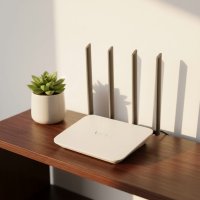
The best WiFi router for most homes balances performance, features, and value, with options like the TP-Link Archer AXE75 (Wi-Fi 6E) or TP-Link Archer AX55 (Wi-Fi 6) providing reliable connectivity for everyday tasks and moderate to heavy usage. Choosing the right router ensures optimal speed, coverage, and reliability for all devices in your home, transforming your digital experience.

Why Your Old Router Just Isn’t Cutting It Anymore
Just a few years ago, internet needs were simpler, typically involving a laptop, smartphone, and smart TV. Today, homes are filled with numerous devices—multiple smartphones, tablets, gaming consoles, smart speakers, security cameras, and smart thermostats—each demanding bandwidth. Older routers struggle with this increased traffic, leading to congestion, slow speeds, dropped connections, and overall network instability. Upgrading to a modern router designed for current demands can significantly improve your online experience.
Decoding WiFi Generations: What’s the Difference?
Understanding WiFi standards is crucial for selecting the best WiFi router.
What is the difference between Wi-Fi 6 and Wi-Fi 6E?
Wi-Fi 6 (802.11ax) enhances efficiency, allowing multiple devices to send and receive data simultaneously without bottlenecks, which is ideal for homes with many connected gadgets. Wi-Fi 6E expands on this by adding a new, uncongested 6GHz band. This 6GHz band offers superior speed and lower latency, making it perfect for demanding applications like VR gaming or high-resolution streaming.
And What About Wi-Fi 7?
Wi-Fi 7 (802.11be), or “Extremely High Throughput” (EHT), is the newest standard, offering theoretical speeds up to 4.8 times faster than Wi-Fi 6. It intelligently utilizes all three bands (2.4GHz, 5GHz, and 6GHz) to boost capacity and reduce latency to near-zero levels. For future-proofing your network, especially with emerging technologies like advanced AI, high-resolution AR/VR, and ultra-low-latency gaming, a Wi-Fi 7 router is a powerful investment.
Key Features to Look for in the Best WiFi Router
Choosing the best WiFi router requires prioritizing crucial features beyond just the price tag:
Speed and Throughput
Your router’s speed rating, measured in Gbps (Gigabits per second), indicates its maximum theoretical data transfer rate. This should match your internet service provider’s (ISP) plan. For gigabit internet, a router with multi-gig (2.5Gbps or 10Gbps) WAN/LAN ports is essential to fully utilize your bandwidth and prevent bottlenecks.
Coverage and Range
The size and layout of your home dictate the router type needed. A single, powerful router may suffice for smaller apartments. However, for larger homes or those with multiple floors and thick walls, a mesh WiFi system is often the best solution. Mesh systems use multiple units to create a single, seamless network, eliminating dead spots and providing consistent coverage.
Bands: Dual-Band, Tri-Band, or Quad-Band?
|
Our Picks for the Best WiFi Router in 2026
As an Amazon Associate I earn from qualifying purchases.
|
||
| Num | Product | Action |
|---|---|---|
| 1 | TP-Link Tri-Band BE9300 WiFi 7 Router (Archer BE550) - 6-Stream, Full 2.5G Ports w/ 6 Internal Antennas, Up to 2,000 Sq Ft, Add Easy-Mesh Device for Extended Coverage, VPN Support, Free Expert Support |

|
| 2 | TP-Link AC1200 WiFi Router (Archer A54) - Dual Band Wireless Internet Router, 4 x 10/100 Mbps Fast Ethernet Ports, EasyMesh Compatible, Support Guest WiFi, Access Point Mode, IPv6 & Parental Controls |
|
| 3 | Amazon eero 6+ mesh wifi router with 1 month free eero Plus (auto-renews) - Coverage up to 1,500 sq. ft., Connect 75+ devices, 1-pack |
|
| 4 | TP-Link Dual-Band BE3600 Wi-Fi 7 Router Archer BE230 - 4-Stream - 2×2.5G + 3×1G Ports, USB 3.0, 2.0 GHz Quad Core, 4 Antennas - VPN, EasyMesh, HomeShield, MLO, Private IOT - Free Expert Support |
|
| 5 | Amazon eero 6 mesh wifi router with 1-month free eero Plus (auto-renews) - Supports internet plans up to 900 Mbps, Coverage up to 1,500 sq. ft., Connect 75+ devices, 1-pack |
|
| 6 | TP-Link AC1200 Gigabit WiFi Router (Archer A6) - Dual Band MU-MIMO Wireless Internet Router, 4 x Antennas, OneMesh and AP Mode, Long Range Coverage |
|
| 7 | RBLHGG-5acD-US LHG 5 ac - 5GHz 802.11ac Wireless Device with 24.5 dBi Dual-Pol Grid Antenna - 716 MHz CPU, 256MB RAM, Gigabit Port, RouterOS L3, PoE, US Version |
|
| 8 | TP-Link AXE5400 Tri-Band WiFi 6E Router (Archer AXE75), 2025 PCMag Editors\' Choice, Gigabit Internet for Gaming & Streaming, New 6GHz Band, 160MHz, OneMesh, Quad-Core CPU, VPN & WPA3 Security |
|
| 9 | TP-Link AX1800 WiFi 6 Router (Archer AX21) – Dual Band Wireless Internet, Gigabit, Easy Mesh, Works with Alexa - A Certified for Humans Device, Free Expert Support |
|
| 10 | TP-Link Archer BE6500 Dual-Band Wi-Fi 7 Router (Archer BE400) - Dual 2.5 Gbps Ports USB 3.0 - Covers up to 2,400 Sq. ft and 90 Devices - Quad-core CPU- HomeShield, Private IoT, Free Expert Support |
|
- Dual-band routers offer 2.4GHz (wider coverage, slower speeds for smart home devices) and 5GHz bands (faster speeds, shorter range for streaming and gaming).
- Tri-band routers add an extra 5GHz band or a 6GHz band (with Wi-Fi 6E/7), dedicating one for high-bandwidth activities to reduce congestion.
- Quad-band routers (often Wi-Fi 7) provide two 5GHz bands and a 6GHz band in addition to the 2.4GHz, offering maximum capacity and flexibility for extremely demanding networks.
Advanced Features
- Quality of Service (QoS): Prioritizes specific traffic types (e.g., gaming or video calls) to ensure adequate bandwidth.
- Parental Controls: Manages internet access, filters content, and sets time limits for devices.
- Robust Security: Includes WPA3 encryption, automatic firmware updates, and built-in antivirus features.
- App Control: Provides intuitive mobile apps for easy setup, management, and troubleshooting.
- USB Ports: Useful for connecting external hard drives for network-attached storage (NAS) or sharing a printer.
Top Picks: The Best WiFi Routers for Different Needs
Based on extensive testing and user feedback, here are some top contenders for the best WiFi router across various categories:
Best Overall for Most Homes
For a strong balance of performance, features, and value, the TP-Link Archer AXE75 (a tri-band Wi-Fi 6E router with 6GHz band access) and the TP-Link Archer AX55 (a dual-band Wi-Fi 6 option known for range and speed up to 750Mbps) are excellent choices. Both provide reliable performance for daily tasks and moderate to heavy usage.
Best for Large Homes & Seamless Coverage (Mesh Systems)
For large or multi-story homes with dead zones, mesh WiFi systems are ideal. The TP-Link Deco BE65 Pro (Wi-Fi 7) or TP-Link Deco XE70 Pro (Wi-Fi 6E) offer excellent tri-band mesh performance. For ultimate performance, the eero Max 7 maintains gigabit speeds at significant distances, while the TP-Link Deco BE63 offers a more budget-friendly Wi-Fi 7 mesh experience.
Best for Serious Gamers
Gamers require ultra-low latency and consistent high speeds. Routers like the ASUS ROG Rapture GT-AX11000 Pro (2 GHz quad-core processor, 10 Gbps WAN/LAN port) and the TP-Link Archer GX90 (tri-band Wi-Fi 6, 1.5 GHz quad-core processor) are designed for competitive gaming, prioritizing gaming traffic and minimizing ping.
Best Budget-Friendly Option
The TP-Link Archer AX55 is a top budget pick, offering impressive range and speed for a dual-band Wi-Fi 6 router. It can saturate internet connections up to 750Mbps and maintain fast speeds up to nearly 100 feet away, making it a reliable and efficient choice without a high price tag.
Future-Proofing with Wi-Fi 7
For modern technology and preparation for future internet speeds, Wi-Fi 7 routers are optimal. The TP-Link Archer BE550 is a tri-band Wi-Fi 7 router with 2.4GHz, 5GHz, and 6GHz bands, featuring fast 6GHz performance and five 2.5Gbps Ethernet ports. The ASUS RT-BE96U is another powerful Wi-Fi 7 contender, delivering speedy throughput and strong signal performance. These premium routers offer unparalleled speed and longevity.
Expert Insight: Optimizing Your Network
“Choosing the right router is foundational, but true network mastery comes from intelligent placement and regular maintenance,” says Dr. Anya Sharma, Lead Network Architect at Xzike Labs. “Even the best WiFi router can underperform if it’s hidden away or placed too far from primary devices. Position it centrally, keep its firmware updated, and consider a mesh system for expansive homes. These simple steps ensure you unlock your network’s full potential.”
Setting Up Your New Best WiFi Router: A Quick Guide
Getting your new best WiFi router operational is typically straightforward:
- Unpack and Connect: Connect the router to your modem using an Ethernet cable and power it on.
- Download the App: Install the dedicated mobile app (e.g., TP-Link Tether, ASUS Router) on your smartphone.
- Follow On-Screen Instructions: The app will guide you through connecting to the router’s temporary WiFi, setting up your network name (SSID), and creating a strong password.
- Secure Your Network: Change the default admin password and enable WPA3 encryption if supported by your devices.
- Placement is Key: Place the router in a central, open location, away from obstructions like walls, large appliances, or other electronics that cause interference.
Frequently Asked Questions
How long do WiFi routers typically last?
Most home WiFi routers have a lifespan of 3 to 5 years due to continuous technological advancements. Investing in a higher-end model can provide a more stable and long-term solution with fewer issues.
Should I upgrade to Wi-Fi 6E or Wi-Fi 7?
Wi-Fi 6E is a great upgrade if you have many newer devices supporting the 6GHz band, or if you are a heavy gamer/streamer in a congested area. Wi-Fi 7 is for those seeking the absolute latest, maximum performance, and long-term future-proofing as devices catch up. For most typical needs, Wi-Fi 6 remains perfectly adequate.
What is the best WiFi router for gigabit internet?
For gigabit internet, you need a router with Wi-Fi 6, Wi-Fi 6E, or Wi-Fi 7 capabilities and at least one multi-gig (2.5Gbps or 10Gbps) WAN port. Excellent choices include the ASUS ROG Rapture GT-AX11000 Pro or the TP-Link Archer BE550.
Can a new router improve my internet speed?
Yes, a new router can significantly improve your internet speed. While it cannot exceed the speed of your ISP plan, an outdated or slow router can create a bottleneck. Upgrading to a modern, powerful router ensures you receive the full speed your ISP provides, often improving consistency and coverage.
What is a mesh WiFi system and how does it work?
A mesh WiFi system uses multiple interconnected “nodes” or “satellites” to extend a strong, unified WiFi signal across a larger area than a single router can. This setup is ideal for large homes or properties with signal dead zones, allowing for seamless roaming between rooms without losing connection.
improve your Home Network Today
Investing in the best WiFi router is an investment in a smoother, faster, and more reliable digital experience for everyone in your home. Whether you’re a hardcore gamer, a remote professional, or simply want seamless streaming and smart home functionality, there’s a perfect router for your needs. At Xzike, we’re committed to simplifying complex tech. Ready to take charge of your WiFi? Explore our guides, optimize your settings, and truly master your connection!
Setting Up Your New Best WiFi Router
This guide provides a quick, straightforward procedure for getting your new WiFi router up and running, ensuring optimal performance and security.
Connect the router to your modem using an Ethernet cable. Ensure both devices are powered on. This establishes the initial physical connection for your network.
Most modern routers come with a dedicated mobile app, such as TP-Link Tether or ASUS Router. Download this app to your smartphone to facilitate easy setup and management.
The app will guide you through connecting to your new router's temporary WiFi network. You will then set up your permanent network name (SSID) and create a strong, secure password for your home network.
Always change the default administrator password for the router itself to prevent unauthorized access. Additionally, enable WPA3 encryption if your devices support it for enhanced security.
Position your router in a central, open location within your home. Avoid placing it near obstructions like thick walls, large appliances, or other electronics that can cause signal interference and reduce coverage.
Get our weekly buyer guide
Practical specs, not advice. Unsubscribe anytime.
I finally upgraded from my ancient router and it’s made such a difference! My old one was constantly dropping connections with all our smart devices. The TP-Link Archer AX55 was a great recommendation, and it handles our gaming consoles, smart TV, and work laptops without a hitch. Setup was surprisingly easy too.
We have so many devices now – multiple phones, tablets, security cameras, and even smart light bulbs. Our old router just couldn’t keep up, and we’d constantly have buffering issues during movie nights. Upgrading to a modern router like the ones mentioned here was a game-changer for our family’s internet experience. No more fighting over bandwidth!
This guide was super helpful in narrowing down my choices. I went with the TP-Link Archer AXE75 for the Wi-Fi 6E, and the speeds are incredible, especially on my new laptop. My only minor complaint is that the range isn’t quite as strong in the far corner of my house as I’d hoped, but it’s still a huge improvement over my previous setup.
I picked up one of the recommended routers, and while the performance is generally good for everyday tasks, I’ve noticed some occasional slowdowns when everyone in the house is streaming 4K content simultaneously. It’s better than my old one, but I was expecting a bit more seamlessness for heavy usage. Maybe I needed something even higher-end.