A Wi-Fi router extender amplifies and expands your existing Wi-Fi signal, eliminating dead zones and improving internet speeds in areas with weak coverage. These devices act as a middleman, picking up the signal from your main router and rebroadcasting it to ensure a strong, reliable connection throughout your home, making them ideal for streaming 4K video, online gaming, and remote work.

What is a Wi-Fi Router Extender and How Does It Work?
A Wi-Fi router extender, also known as a Wi-Fi repeater or Wi-Fi booster, receives your existing Wi-Fi signal, strengthens it, and then retransmits it. It functions as a relay station between your primary Wi-Fi router and devices in areas with poor or no signal, extending the reach of your current internet connection without creating a new one.
How does a Wi-Fi extender enhance network coverage?
A Wi-Fi extender connects wirelessly to your main router, receives data, and then retransmits it. This process effectively expands your Wi-Fi network’s footprint, allowing devices further from the main router to connect with a stronger signal and ensuring data packets travel longer distances.
The Different Types of Wi-Fi Extenders
Several distinct technologies achieve similar goals in extending Wi-Fi coverage:
- Wireless Range Extenders (Repeaters): These are the most common type, wirelessly connecting to your router and broadcasting an extended signal. They often create a new network name (SSID) or clone your existing one, offering an easy setup for minor dead zones.
- Powerline Adapters: These devices use your home’s existing electrical wiring to transmit network data. One adapter plugs into an outlet near your router and connects via Ethernet, while another plugs into an outlet in a different room, providing an Ethernet port or a Wi-Fi hotspot. They are effective for overcoming physical barriers like thick walls.
- Mesh Wi-Fi Systems: These premium solutions consist of multiple nodes that communicate to create a single, seamless Wi-Fi network across an entire home. Mesh systems offer superior coverage, performance, and roaming capabilities compared to traditional extenders.
“Understanding the specific type of extender you need is crucial for optimal performance,” advises Clara Ramirez, a networking infrastructure specialist. “A basic repeater might solve a small dead zone, but a large home with multiple floors often benefits more from a mesh system or powerline solution.”
When Do You Need a Wi-Fi Router Extender?
A Wi-Fi router extender can significantly improve your internet experience in several common scenarios:
- Wi-Fi Dead Zones: These are areas in your home where the Wi-Fi signal is completely absent or extremely weak, representing the primary reason for extender investment.
- Slow Speeds in Specific Rooms: If internet speed degrades significantly with distance from your router, an extender can help maintain consistent performance.
- Large Homes or Multiple Floors: A single router often struggles to cover expansive layouts or multi-story buildings, and an extender bridges these coverage gaps.
- Outdoor Wi-Fi Needs: For Wi-Fi access in your backyard, garage, or patio, an extender placed near an exterior wall can extend the signal outdoors.
- Obstacles Blocking Signal: Thick walls, metal appliances, and large furniture can obstruct Wi-Fi signals; extenders can bypass these by rebroadcasting from a more advantageous location.
Key Features to Look For in a Wi-Fi Router Extender
Choosing the right Wi-Fi extender requires considering several factors to ensure it meets your specific needs and integrates well with your existing setup.
Compatibility and Standards
|
Our Picks for the Best WiFi Router in 2026
As an Amazon Associate I earn from qualifying purchases.
|
||
| Num | Product | Action |
|---|---|---|
| 1 | TP-Link AXE5400 Tri-Band WiFi 6E Router (Archer AXE75), 2025 PCMag Editors\' Choice, Gigabit Internet for Gaming & Streaming, New 6GHz Band, 160MHz, OneMesh, Quad-Core CPU, VPN & WPA3 Security |

|
| 2 | TP-Link Tri-Band BE9300 WiFi 7 Router (Archer BE550) - 6-Stream, Full 2.5G Ports w/ 6 Internal Antennas, Up to 2,000 Sq Ft, Add Easy-Mesh Device for Extended Coverage, VPN Support, Free Expert Support |
|
| 3 | Amazon eero 6+ mesh wifi router with 1 month free eero Plus (auto-renews) - Coverage up to 1,500 sq. ft., Connect 75+ devices, 1-pack |
|
| 4 | TP-Link Dual-Band BE3600 Wi-Fi 7 Router Archer BE230 - 4-Stream - 2×2.5G + 3×1G Ports, USB 3.0, 2.0 GHz Quad Core, 4 Antennas - VPN, EasyMesh, HomeShield, MLO, Private IOT - Free Expert Support |
|
| 5 | TP-Link Archer BE6500 Dual-Band Wi-Fi 7 Router (Archer BE400) - Dual 2.5 Gbps Ports USB 3.0 - Covers up to 2,400 Sq. ft and 90 Devices - Quad-core CPU- HomeShield, Private IoT, Free Expert Support |
|
| 6 | TP-Link AC1200 Gigabit WiFi Router (Archer A6) - Dual Band MU-MIMO Wireless Internet Router, 4 x Antennas, OneMesh and AP Mode, Long Range Coverage |
|
| 7 | Amazon eero 6 mesh wifi router with 1-month free eero Plus (auto-renews) - Supports internet plans up to 900 Mbps, Coverage up to 1,500 sq. ft., Connect 75+ devices, 1-pack |
|
| 8 | TP-Link AX1800 WiFi 6 Router (Archer AX21) – Dual Band Wireless Internet, Gigabit, Easy Mesh, Works with Alexa - A Certified for Humans Device, Free Expert Support |
|
| 9 | RBLHGG-5acD-US LHG 5 ac - 5GHz 802.11ac Wireless Device with 24.5 dBi Dual-Pol Grid Antenna - 716 MHz CPU, 256MB RAM, Gigabit Port, RouterOS L3, PoE, US Version |
|
| 10 | TP-Link AC1200 WiFi Router (Archer A54) - Dual Band Wireless Internet Router, 4 x 10/100 Mbps Fast Ethernet Ports, EasyMesh Compatible, Support Guest WiFi, Access Point Mode, IPv6 & Parental Controls |
|
- Wi-Fi Standards: Ensure the extender supports the same or newer Wi-Fi standards as your router (e.g., Wi-Fi 5/802.11ac or Wi-Fi 6/802.11ax) for optimal speed and compatibility.
- Frequency Bands: Look for dual-band (2.4 GHz and 5 GHz) or tri-band extenders. Dual-band offers flexibility, while tri-band can dedicate one 5 GHz band solely for communication between the router and extender, minimizing performance loss.
Performance and Speed
- Throughput: Check advertised speeds (e.g., AC1200, AX3000); higher numbers generally indicate faster potential speeds. The extender’s speed will always be limited by your main router and internet service.
- Ethernet Ports: Many extenders include Gigabit Ethernet ports, which are excellent for connecting wired devices like gaming consoles, smart TVs, or PCs, providing a stable, high-speed connection.
Ease of Setup and Management
- WPS (Wi-Fi Protected Setup): Most modern extenders support WPS for quick, one-touch setup with compatible routers.
- Mobile App: Many brands offer companion apps that simplify setup, allow you to manage settings, and help find the optimal placement for your extender.
- LED Indicators: These are useful for quickly assessing signal strength and connection status.
Advanced Features
- Access Point Mode: Some extenders can also function as a full access point when connected to your router via Ethernet, providing a new wired network hub.
- MIMO Technology: Multiple-Input, Multiple-Output (MIMO) technology allows an extender to send and receive multiple data streams simultaneously, improving efficiency and speed.
- Beamforming: This technology focuses the Wi-Fi signal directly towards connected devices, rather than broadcasting it in all directions, leading to a stronger, more reliable connection.
Setting Up Your Wi-Fi Router Extender: A Step-by-Step Guide
Setting up a Wi-Fi extender is typically a straightforward process, though specific steps may vary by manufacturer.
- Unbox and Plug In: Plug your Wi-Fi extender into an electrical outlet near your main router.
- Power On and Wait: Wait for the extender’s power indicator light to turn solid, indicating it’s ready for configuration.
- Connect to Your Router:
- WPS Method (Recommended): Press the WPS button on your extender, then immediately press the WPS button on your main Wi-Fi router. The devices should connect automatically within a couple of minutes.
- Manual Method: Connect your computer or smartphone to the extender’s default Wi-Fi network (usually printed on the device or in the manual). Open a web browser, navigate to the extender’s setup page (e.g.,
http://extender.localor an IP address like192.168.0.254), and follow the on-screen instructions to select your home Wi-Fi network and enter its password.
- Optimal Placement: Once connected, unplug the extender and move it to a location roughly halfway between your router and the Wi-Fi dead zone. Ensure the extender’s signal strength indicators show a good connection to your main router.
- Test Your Connection: Connect a device in the previously problematic area to the extender’s network and test the internet speed and stability. Adjust placement if necessary.
“Proper placement is perhaps the most critical aspect of maximizing an extender’s effectiveness,” notes Xzike’s lead network architect, Dr. Alex Chen. “It needs to receive a strong signal from the main router to rebroadcast a strong signal. Placing it too far from the router defeats its purpose.”
Troubleshooting Common Wi-Fi Extender Issues
Even with careful setup, you might encounter some issues. Here are quick solutions for common problems:
- Poor Performance:
- Relocation: Move the extender closer to your main router to improve signal reception.
- Interference: Check for interference from other electronics (microwaves, cordless phones) and move the extender away from them.
- Band Congestion: Try using the 5 GHz band for faster, less congested connections, especially for high-bandwidth activities.
- Connectivity Drops:
- Firmware Update: Ensure both your router and extender have the latest firmware installed.
- Reset: Perform a factory reset on the extender and reconfigure it from scratch.
- Channel Interference: Change the Wi-Fi channel on your main router to a less congested one (e.g., 1, 6, or 11 on 2.4 GHz).
- Setup Problems:
- Password Check: Double-check that you entered the correct Wi-Fi password for your main network.
- Router Reboot: Sometimes, simply rebooting your main router can resolve setup issues.
- Manual Setup: If WPS fails, always try the manual web-based setup method.
Checklist: Optimizing Your Wi-Fi Extender Performance
- Ensure extender firmware is up to date.
- Place the extender within range of a strong signal from your main router.
- Avoid placing the extender near obstructions like thick walls or large metal objects.
- Utilize the 5 GHz band for high-speed devices if available.
- Consider using an Ethernet backhaul if your extender supports it for the most stable connection.
- Regularly check for dead zones and adjust extender placement as needed.
Frequently Asked Questions About Wi-Fi Router Extenders
Q: What’s the difference between a Wi-Fi extender, repeater, and booster?
A: While often used interchangeably, these terms generally refer to devices that extend a Wi-Fi signal. “Extender” is the most common and encompasses various technologies. “Repeater” typically copies and re-broadcasts the signal. “Booster” is a more general marketing term implying signal improvement.
Q: Will a Wi-Fi extender slow down my internet speed?
A: A poorly placed or older Wi-Fi extender can sometimes introduce latency or halve bandwidth due to half-duplex communication. However, modern dual-band or tri-band extenders with good placement minimize this impact, especially if they use dedicated bands for communication with the router.
Q: Can I use multiple Wi-Fi extenders in my home?
A: You can, but it’s generally not recommended to daisy-chain extenders (extender A connects to router, extender B connects to extender A) as this can significantly degrade performance. If you need coverage over a very large area, a mesh Wi-Fi system is usually a more effective and seamless solution.
Q: Where is the best place to put a Wi-Fi router extender?
A: The ideal spot is roughly halfway between your main router and the area where you need improved Wi-Fi. It needs to be close enough to receive a strong signal from the router but also far enough to reach the dead zone effectively. Use the extender’s signal strength indicators or a mobile app to find the optimal spot.
Q: Do Wi-Fi extenders work with all routers?
A: Most Wi-Fi extenders are designed to be universally compatible with standard Wi-Fi routers, regardless of brand. However, checking the Wi-Fi standards (e.g., 802.11ac, 802.11ax) ensures the best performance and compatibility with your existing network.
Q: Is a mesh Wi-Fi system better than a Wi-Fi extender?
A: For larger homes or more demanding users, a mesh Wi-Fi system is generally superior to a single extender. Mesh systems create a single, unified network with seamless roaming and better overall performance, whereas extenders often create separate networks and can sometimes lead to speed reductions.
Embrace Seamless Connectivity
A Wi-Fi router extender can be a major upgrade for anyone struggling with inconsistent Wi-Fi coverage. By understanding their types, features, and proper setup, you can effectively eliminate dead zones and enjoy a consistently strong, fast internet connection throughout your home or office. Don’t let weak signals hold you back from a truly connected experience. Take control of your network, extend your reach, and unlock the full potential of your internet connection with the right Wi-Fi extender. Experiment with placement, keep your firmware updated, and you’ll soon be enjoying seamless connectivity wherever you roam.
Set Up Your Wi-Fi Router Extender
Follow these steps to quickly set up your Wi-Fi router extender and expand your home network coverage.
Plug your new Wi-Fi extender into an electrical outlet located near your main router. This initial placement helps ensure a strong connection during the setup process.
Power on the extender and wait for its power indicator light to turn solid. This indicates that the device is ready for configuration and has successfully booted up.
Use either the WPS method by pressing the WPS buttons on both devices, or the manual method by connecting to the extender's default Wi-Fi network and following the web-based setup instructions. The WPS method typically connects within two minutes.
Once connected, unplug the extender and move it to a location roughly halfway between your main router and the Wi-Fi dead zone. Ensure the extender's signal strength indicators show a good connection to your main router.
Connect a device in the previously problematic area to the extender's network and test the internet speed and stability. Adjust the extender's placement if necessary to achieve the best performance.
Get our weekly buyer guide
Practical specs, not advice. Unsubscribe anytime.
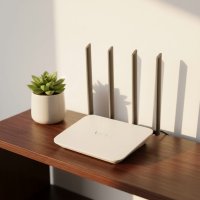
I was so tired of dead zones in my house, especially when trying to stream movies in the bedroom. This Wi-Fi router extender has been a game-changer! Setup was surprisingly easy, and now I have a strong, reliable connection everywhere. No more buffering, even with 4K video.
My home office is on the opposite side of the house from the main router, and I struggled with dropped calls during remote work. Adding a Wi-Fi booster really helped. The speed isn’t quite as fast as right next to the router, but it’s perfectly stable for all my video conferences, which is what I needed most.
This device totally eliminated the weak coverage issues in my backyard. Now I can work from my patio without any interruptions, which is amazing. It really does act as a great relay station, picking up the signal and rebroadcasting it effectively. Highly recommend for anyone with a large home or outdoor areas.
I got a Wi-Fi repeater to help with online gaming in the basement. It definitely improved the signal down there, but I noticed a slight increase in latency compared to being closer to the main router. It’s still playable, but it’s not a perfect solution for competitive gaming. Good for general browsing though.