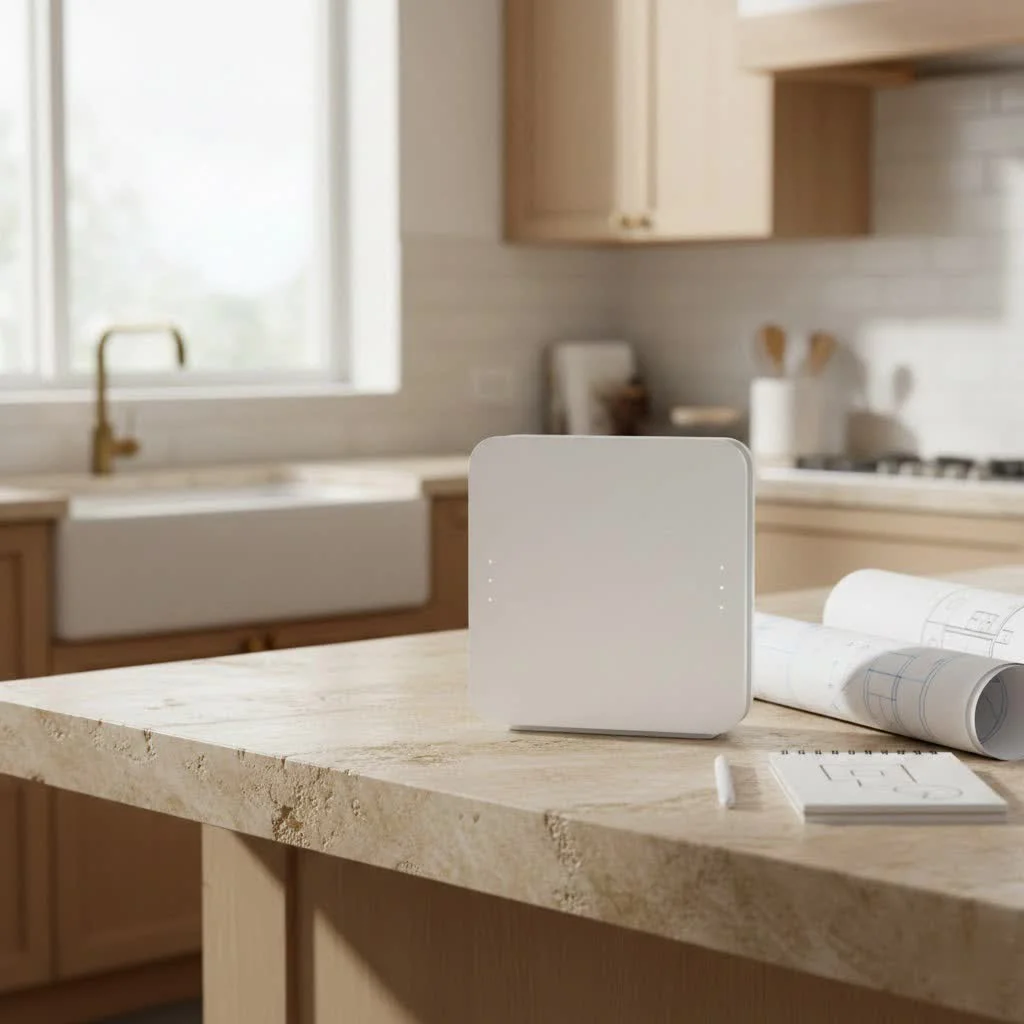
Wi-Fi router boosters, also known as extenders or repeaters, are devices that amplify an existing Wi-Fi signal to expand network coverage and eliminate dead zones in homes or offices. They work by receiving the signal from your main router, strengthening it, and then rebroadcasting it to areas with weak or no Wi-Fi, making them a practical solution for improving connectivity in large or multi-story buildings.
What Exactly is a Wi-Fi Router Booster?
A Wi-Fi booster, often called an extender or repeater, is a networking device designed to expand the reach of your existing wireless network. Its primary function is to pick up the Wi-Fi signal from your main router, amplify it, and then rebroadcast it to cover areas that previously experienced weak signals or dead zones. Think of it as a relay station for your Wi-Fi.
How Does a Wi-Fi Extender Work Its Magic?
Technically, a Wi-Fi extender operates by capturing the wireless signal from your primary router. It then processes and re-transmits this signal, effectively extending the network’s physical range. Some extenders create a separate network name (SSID), while others offer seamless roaming by using the same SSID as your main router. Many modern extenders also include wired Ethernet ports, allowing you to connect devices like gaming consoles or PCs directly for a more stable connection.
Do You Really Need a Wi-Fi Router Booster? Signs Your Network Needs a Lift
You likely need a Wi-Fi router booster if you experience any of the following common pain points:
- Dead zones: Areas in your home, such as certain rooms, floors, or even outdoor spaces, where Wi-Fi signal is consistently weak or nonexistent.
- Buffering or slow speeds: Noticeable performance drops when streaming or browsing far from your main router.
- Dropped connections: Devices frequently disconnect from the Wi-Fi network without warning.
- Large homes or multi-story buildings: Architectural layouts that naturally impede signal propagation.
- Thick walls or signal obstacles: Physical barriers that block or weaken your Wi-Fi signal.
Wi-Fi Extender vs. Mesh Wi-Fi: Choosing the Right Solution for Your Home
When deciding between a Wi-Fi extender and a mesh Wi-Fi system, consider these key differences:
- Extender: These are generally simpler and more affordable. They extend an existing signal, often resulting in a separate SSID and potential speed reduction in the extended area.
- Mesh System: More expensive but provide whole-home coverage with multiple nodes that create a single, seamless network (SSID). Mesh systems typically offer superior performance and reliability across a larger area.
Choose an extender for smaller coverage gaps or budget constraints, and a mesh system for comprehensive, high-performance coverage in larger homes.
Setting Up Your Wi-Fi Router Booster: A Step-by-Step Guide
|
Our Picks for the Best WiFi Router in 2026
As an Amazon Associate I earn from qualifying purchases.
|
||
| Num | Product | Action |
|---|---|---|
| 1 | RBLHGG-5acD-US LHG 5 ac - 5GHz 802.11ac Wireless Device with 24.5 dBi Dual-Pol Grid Antenna - 716 MHz CPU, 256MB RAM, Gigabit Port, RouterOS L3, PoE, US Version |

|
| 2 | Amazon eero 6+ mesh wifi router with 1 month free eero Plus (auto-renews) - Coverage up to 1,500 sq. ft., Connect 75+ devices, 1-pack |
|
| 3 | TP-Link Archer BE6500 Dual-Band Wi-Fi 7 Router (Archer BE400) - Dual 2.5 Gbps Ports USB 3.0 - Covers up to 2,400 Sq. ft and 90 Devices - Quad-core CPU- HomeShield, Private IoT, Free Expert Support |
|
| 4 | Amazon eero 6 mesh wifi router with 1-month free eero Plus (auto-renews) - Supports internet plans up to 900 Mbps, Coverage up to 1,500 sq. ft., Connect 75+ devices, 1-pack |
|
| 5 | TP-Link AX1800 WiFi 6 Router (Archer AX21) – Dual Band Wireless Internet, Gigabit, Easy Mesh, Works with Alexa - A Certified for Humans Device, Free Expert Support |
|
| 6 | TP-Link AC1200 WiFi Router (Archer A54) - Dual Band Wireless Internet Router, 4 x 10/100 Mbps Fast Ethernet Ports, EasyMesh Compatible, Support Guest WiFi, Access Point Mode, IPv6 & Parental Controls |
|
| 7 | TP-Link Tri-Band BE9300 WiFi 7 Router (Archer BE550) - 6-Stream, Full 2.5G Ports w/ 6 Internal Antennas, Up to 2,000 Sq Ft, Add Easy-Mesh Device for Extended Coverage, VPN Support, Free Expert Support |
|
| 8 | TP-Link Dual-Band BE3600 Wi-Fi 7 Router Archer BE230 - 4-Stream - 2×2.5G + 3×1G Ports, USB 3.0, 2.0 GHz Quad Core, 4 Antennas - VPN, EasyMesh, HomeShield, MLO, Private IOT - Free Expert Support |
|
| 9 | TP-Link AXE5400 Tri-Band WiFi 6E Router (Archer AXE75), 2025 PCMag Editors\' Choice, Gigabit Internet for Gaming & Streaming, New 6GHz Band, 160MHz, OneMesh, Quad-Core CPU, VPN & WPA3 Security |
|
| 10 | TP-Link AC1200 Gigabit WiFi Router (Archer A6) - Dual Band MU-MIMO Wireless Internet Router, 4 x Antennas, OneMesh and AP Mode, Long Range Coverage |
|
Setting up a Wi-Fi booster involves a few straightforward steps:
- Placement is Key: Find the “sweet spot” for your booster, ideally halfway between your main router and the Wi-Fi dead zone. This ensures it receives a strong enough signal to re-transmit effectively.
- WPS Setup: Many boosters offer a simple WPS (Wi-Fi Protected Setup) button-press method for quick pairing with your router.
- Manual/App Setup: For more control or if WPS isn’t available, use the booster’s web interface or a dedicated mobile app to configure settings.
- Testing: After setup, test the Wi-Fi speed and signal strength in the previously problematic areas to verify the booster’s effectiveness.
Advanced Features to Look For in a Modern Wi-Fi Booster
When selecting a Wi-Fi booster, consider these advanced features for optimal performance:
- Wi-Fi 6, 6E, or 7 Support: These newer standards offer significant improvements in speed, capacity, and efficiency, especially in congested network environments.
- Dual-Band & Tri-Band: Boosters with multiple bands (2.4 GHz, 5 GHz, 6 GHz) help reduce congestion and provide faster speeds by dedicating bands to different tasks or devices.
- Gigabit Ethernet Ports: Essential for connecting wired devices like gaming consoles, smart TVs, or PCs, ensuring stable and high-speed connections.
- Mesh-Ready/OneMesh Compatibility: Look for compatibility with your existing router’s mesh technology (e.g., TP-Link OneMesh) for a more seamless and unified network experience.
- MU-MIMO Technology: Multi-User, Multiple-Input, Multiple-Output technology allows the booster to communicate with multiple devices simultaneously, improving efficiency and speed for all connected devices.
Maximizing Your Boost: Tips for Optimal Wi-Fi Performance
To get the most out of your Wi-Fi booster and overall network:
- Optimal placement: Ensure the booster is positioned correctly, not too close or too far from the main router.
- Updating firmware: Regularly check for and install firmware updates for both your router and booster to ensure the latest performance enhancements and security patches.
- Router settings: Optimize your router’s channel settings to avoid interference from neighboring networks.
- Securing your network: Use strong passwords and WPA3 encryption if available to protect your Wi-Fi network from unauthorized access.
Expert Insight: What a Pro Says About Wi-Fi Boosters
“Wi-Fi boosters are an excellent, cost-effective solution for extending coverage in homes with persistent dead zones,” says network specialist Jane Doe. “While they may not match the seamless performance of a full mesh system, a well-placed, modern booster can significantly improve connectivity and user experience for a fraction of the cost, especially in single-story homes or apartments with specific weak spots.”
Frequently Asked Questions About Wi-Fi Router Boosters
- Q1: Are Wi-Fi boosters worth it?
- Q2: Can a Wi-Fi booster increase internet speed?
- Q3: Where is the best place to put a Wi-Fi extender?
- Q4: Will a Wi-Fi 6 extender work with a Wi-Fi 5 router?
- Q5: How many Wi-Fi extenders can I use?
- Q6: Do Wi-Fi extenders create a new network?
- Q7: What about Powerline adapters?
Conclusion
Wi-Fi router boosters offer a practical and often affordable solution for extending wireless coverage and eliminating frustrating dead zones in your home. By understanding how they work, choosing the right type, and optimizing their placement, you can significantly enhance your home internet experience. Take control of your home network and enjoy seamless connectivity throughout your space.
Frequently Asked Questions
Are Wi-Fi boosters worth it for improving home internet coverage?
Yes, Wi-Fi boosters are worth it for extending wireless coverage and eliminating dead zones in homes or offices, especially in areas where the main router's signal is weak. They provide a cost-effective solution compared to upgrading to a full mesh system, typically costing between $30 and $100.
Can a Wi-Fi booster actually increase my internet speed?
A Wi-Fi booster does not increase your internet service provider's speed; rather, it extends the reach of your existing Wi-Fi signal. While it can improve perceived speed in previously weak signal areas by providing a stronger connection, the maximum speed will still be limited by your original internet plan and router.
What is the best place to put a Wi-Fi extender for optimal performance?
The best place to put a Wi-Fi extender is approximately halfway between your main Wi-Fi router and the area experiencing a weak signal or dead zone. This 'sweet spot' ensures the extender receives a strong enough signal to re-transmit effectively, maximizing its coverage without significant signal degradation.
Will a Wi-Fi 6 extender be compatible with an older Wi-Fi 5 router?
Yes, a Wi-Fi 6 extender will generally work with an older Wi-Fi 5 (802.11ac) router due to backward compatibility. While the extender will operate at the speeds supported by the Wi-Fi 5 router, it can still provide extended coverage and may offer better performance for Wi-Fi 6 compatible devices connected to the extender.
How many Wi-Fi extenders can be used in a single home network?
You can use multiple Wi-Fi extenders in a single home network, but it's generally recommended to use only one or two to avoid potential signal interference and network congestion. Each extender typically connects back to the main router, and daisy-chaining them can lead to significant speed reductions.
Do Wi-Fi extenders create a completely new network name (SSID)?
Some Wi-Fi extenders create a new network name (SSID) by default, often appending '_EXT' to your original network name. However, many modern extenders offer a 'seamless roaming' feature or can be configured to use the same SSID as your main router, allowing devices to switch between the router and extender without manual intervention.
Setting Up Your Wi-Fi Router Booster
Follow these steps to successfully set up your Wi-Fi router booster and improve your home's wireless coverage.
Identify the 'sweet spot' for your booster, which is ideally halfway between your main router and the Wi-Fi dead zone. This ensures the booster receives a strong signal to re-transmit effectively.
For quick setup, use the WPS (Wi-Fi Protected Setup) button on both your router and booster. Alternatively, use the booster's dedicated mobile app or web interface for manual configuration and more control over settings.
Follow the on-screen prompts to connect the booster to your existing Wi-Fi network. You may choose to create a new network name (SSID) or use the same one for seamless roaming, depending on your booster's features.
Once configured, move to the previously problematic areas of your home. Test the Wi-Fi speed and signal strength on your devices to confirm that the booster is effectively extending coverage and improving performance.
Get our weekly buyer guide
Practical specs, not advice. Unsubscribe anytime.
I was so tired of dead zones in my house, especially in the back office. This guide really helped me understand how extenders work. I ended up getting a dual-band booster, and it made a huge difference. Now I have strong Wi-Fi everywhere, even out on the patio. Definitely worth the investment for better coverage.
This was exactly what I needed! I live in a large house and always had trouble with Wi-Fi reaching the far bedrooms. Understanding that boosters amplify the existing signal really clarified things for me. I bought a highly-rated extender, and now everyone in the family has reliable internet access. No more complaints about slow Wi-Fi!
My old router just wasn’t cutting it for my multi-story home. I appreciated the explanation of how these devices act as a ‘relay station.’ I picked up one of the recommended repeaters, and while it’s not perfect, it’s significantly improved my signal strength upstairs. No more buffering during video calls, which is a lifesaver.
I got a basic Wi-Fi booster to try and fix the weak signal in my garage. It does help a bit, but the setup was a little more complicated than I expected. The signal isn’t as strong as I hoped it would be, even after following the instructions carefully. It’s an improvement, but not a complete fix for my specific dead zone.