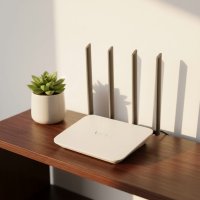
Ever found yourself battling frustrating WiFi dead zones or experiencing painfully slow internet speeds right in your own home? It’s a common modern-day dilemma, and it often leaves us wondering how to achieve the reliable, wall-to-wall coverage we all crave. Enter the Cox Panoramic WiFi Router, a robust solution designed to transform your home network experience. This all-in-one gateway aims to provide not just internet access but a comprehensive, smart WiFi system that keeps all your devices connected and secure.

At Xzike, we understand the complexities of home networking, and we’re here to demystify devices like the Cox Panoramic WiFi Router. This guide will walk you through what makes this gateway tick, how to set it up for optimal performance, and how to maximize its capabilities to ensure a smooth, reliable connection throughout your entire living space.
What Exactly is the Cox Panoramic WiFi Router?
So, what exactly are we talking about when we mention the Cox Panoramic WiFi Router? Simply put, it’s a powerful modem and router combined into a single, sleek device, often referred to as a gateway. This integration is a game-changer for many users, eliminating the need for separate pieces of equipment and simplifying your home network setup.
Cox designed the Panoramic WiFi Router to deliver a “panoramic” or “wall-to-wall” WiFi experience, aiming to blanket your entire home with a strong, consistent signal. It’s not just about getting online; it’s about optimizing your in-home WiFi for speed, coverage, and control, making it an ideal choice for busy households with multiple devices, remote workers, avid gamers, and streamers.
Key Features that Make a Difference
The Cox Panoramic WiFi Router comes packed with features designed to enhance your connectivity:
- Latest WiFi Technology: Depending on the model, your Panoramic WiFi Router supports either Wi-Fi 5 (802.11ac) or the more advanced Wi-Fi 6 (802.11ax) standard. This means faster speeds, improved efficiency, and better handling of multiple connected devices simultaneously.
- Dual-Band Connectivity: It smartly utilizes both the 2.4 GHz and 5 GHz frequency bands. The 2.4 GHz band provides broader coverage, perfect for devices further away, while the 5 GHz band offers faster speeds for closer devices demanding high bandwidth.
- Advanced Security: Included with your service, this feature provides robust, personalized security for all devices connected to your network. It actively blocks suspicious connections and sends real-time alerts, safeguarding your digital life without extra cost.
- Panoramic WiFi App: This intuitive app acts as the command center for your home network. With it, you can easily manage connected devices, change your WiFi name (SSID) and password, set parental controls, pause internet access for specific devices, and even run speed tests.
- Optional Panoramic WiFi Pods: For larger homes or those tricky spots where the signal struggles, Cox offers optional WiFi Pods. These extenders seamlessly integrate with your Panoramic WiFi Router to eliminate dead zones and ensure comprehensive coverage.
- Automatic Channel Optimization: The gateway intelligently scans and selects the best WiFi frequencies, minimizing interference and ensuring your devices always get the strongest possible signal.
- Routine Equipment Upgrades: Cox often provides the option to upgrade your gateway equipment every three years, usually without additional fees, ensuring your home network benefits from the latest technology.
- StayConnect WiFi Backup (Optional): This add-on provides peace of mind, keeping you connected during internet outages with 4G cellular data and a 4-hour battery backup.
- Cox Hotspots: Your Panoramic WiFi Gateway broadcasts an additional, separate “CoxWiFi” signal, allowing eligible Cox Internet subscribers who visit your home to connect without needing your private password.
“In my two decades working with home networks, the integrated approach of the Cox Panoramic WiFi Router truly simplifies connectivity for the average user,” notes Sarah Jenkins, a Senior Network Architect at Xzike. “While enthusiasts might prefer separate components, the seamless setup and advanced management features via the app make it a robust solution for achieving wall-to-wall coverage without the technical hassle.”
Setting Up Your Cox Panoramic WiFi Router: A Step-by-Step Walkthrough
Getting your Cox Panoramic WiFi Router up and running is designed to be straightforward. Let’s walk through the process, ensuring you’re connected efficiently.
How to Get Your Panoramic WiFi Gateway Up and Running
|
Our Picks for the Best WiFi Router in 2026
As an Amazon Associate I earn from qualifying purchases.
|
||
| Num | Product | Action |
|---|---|---|
| 1 | Amazon eero 6+ mesh wifi router with 1 month free eero Plus (auto-renews) - Coverage up to 1,500 sq. ft., Connect 75+ devices, 1-pack |

|
| 2 | TP-Link Archer BE6500 Dual-Band Wi-Fi 7 Router (Archer BE400) - Dual 2.5 Gbps Ports USB 3.0 - Covers up to 2,400 Sq. ft and 90 Devices - Quad-core CPU- HomeShield, Private IoT, Free Expert Support |
|
| 3 | TP-Link AXE5400 Tri-Band WiFi 6E Router (Archer AXE75), 2025 PCMag Editors\' Choice, Gigabit Internet for Gaming & Streaming, New 6GHz Band, 160MHz, OneMesh, Quad-Core CPU, VPN & WPA3 Security |
|
| 4 | TP-Link AC1200 WiFi Router (Archer A54) - Dual Band Wireless Internet Router, 4 x 10/100 Mbps Fast Ethernet Ports, EasyMesh Compatible, Support Guest WiFi, Access Point Mode, IPv6 & Parental Controls |
|
| 5 | TP-Link Tri-Band BE9300 WiFi 7 Router (Archer BE550) - 6-Stream, Full 2.5G Ports w/ 6 Internal Antennas, Up to 2,000 Sq Ft, Add Easy-Mesh Device for Extended Coverage, VPN Support, Free Expert Support |
|
| 6 | TP-Link Dual-Band BE3600 Wi-Fi 7 Router Archer BE230 - 4-Stream - 2×2.5G + 3×1G Ports, USB 3.0, 2.0 GHz Quad Core, 4 Antennas - VPN, EasyMesh, HomeShield, MLO, Private IOT - Free Expert Support |
|
| 7 | Amazon eero 6 mesh wifi router with 1-month free eero Plus (auto-renews) - Supports internet plans up to 900 Mbps, Coverage up to 1,500 sq. ft., Connect 75+ devices, 1-pack |
|
| 8 | TP-Link AC1200 Gigabit WiFi Router (Archer A6) - Dual Band MU-MIMO Wireless Internet Router, 4 x Antennas, OneMesh and AP Mode, Long Range Coverage |
|
| 9 | RBLHGG-5acD-US LHG 5 ac - 5GHz 802.11ac Wireless Device with 24.5 dBi Dual-Pol Grid Antenna - 716 MHz CPU, 256MB RAM, Gigabit Port, RouterOS L3, PoE, US Version |
|
| 10 | TP-Link AX1800 WiFi 6 Router (Archer AX21) – Dual Band Wireless Internet, Gigabit, Easy Mesh, Works with Alexa - A Certified for Humans Device, Free Expert Support |
|
Your Easy Connect kit typically includes the Panoramic WiFi Gateway, a coax cable, and a power cord.
- Step 1: Find the Sweet Spot for Placement: This might be the most crucial step for optimal performance. Place your Cox Panoramic WiFi Router in a central, elevated location in your home. Think high on a shelf or table, away from potential obstructions like thick walls, large furniture, and metal objects. Also, keep it clear of interference from other electronics such as microwaves, cordless phones, and even baby monitors. A good central spot ensures an even distribution of the WiFi signal throughout your house.
- Step 2: Connect the Gateway:
- First, connect one end of the provided coax cable to the cable port on the back of your Panoramic WiFi Gateway and the other end to an active cable wall outlet. Make sure the connection is snug.
- Next, plug the power cord into the gateway and then into an electrical outlet. It’s best to avoid outlets connected to dimmer switches.
- Step 3: Connect to the Network:
- Once plugged in, wait approximately 10 minutes for the gateway to power on and fully initialize. You’ll typically see a solid white LED light once it’s online and operational.
- On your smartphone, tablet, or computer, open your WiFi settings. You’ll find the network name (SSID) and password printed on a label on the bottom or back of your Panoramic WiFi Gateway. Select this network and enter the password to connect.
- Once connected, open a web browser and try navigating to a website to confirm your internet is working.
- Step 4: Personalize with the Panoramic WiFi App: We highly recommend downloading the Cox Panoramic WiFi app. It’s available for both iOS and Android. Once downloaded, sign in with your Cox user ID and password. From the app, you can easily personalize your network by changing the default WiFi name and password to something more memorable, create profiles for family members, and manage various settings to optimize your WiFi experience.
Troubleshooting Initial Connection Issues
Sometimes, technology can be a little finicky. If you encounter issues connecting:
- Patience is Key: Wait a few more minutes and try reconnecting. The gateway might still be establishing its connection.
- Check All Cables: Ensure the coax and power cables are securely plugged into both the gateway and their respective outlets.
- Restart the Gateway: You can often restart your Panoramic WiFi Router directly from the Cox Panoramic WiFi app under the “Troubleshoot” section. Alternatively, unplug the power cord from the electrical outlet, wait about 15 seconds, and then plug it back in. This “power cycle” can often resolve minor glitches.
Maximizing Your Cox Panoramic WiFi Performance
Having your Cox Panoramic WiFi Router set up is just the beginning. To truly unlock its potential and enjoy the fastest, most reliable connection, a bit of optimization goes a long way.
Optimizing Your Home Network for Speed and Coverage
- Strategic Router Placement: As mentioned during setup, optimal placement is paramount. A centrally located, elevated position away from interference dramatically improves signal strength and coverage. Think of your Cox Panoramic WiFi Router as a lighthouse – the higher and clearer its line of sight, the further and stronger its signal will reach.
- Leverage Panoramic WiFi Pods: If your home has multiple floors, thick walls, or covers a large area, you’ll likely benefit from Cox Panoramic WiFi Pods. These extenders work in harmony with your gateway to blanket every corner of your home, effectively eliminating frustrating dead zones.
- Utilize the Panoramic WiFi App: The Panoramic WiFi app is your secret weapon for network mastery. Use it regularly to:
- Monitor Network Health: Keep an eye on your internet connection status.
- Run Speed Tests: Test your actual speeds at various locations to identify potential weak spots.
- Manage Connected Devices: See who’s online, pause internet access for certain devices (hello, dinner time!), and prioritize bandwidth for critical activities like video calls or gaming.
- Prioritize 5 GHz for High-Bandwidth Devices: For devices like smart TVs, gaming consoles, and laptops that are closer to the Cox Panoramic WiFi Router and demand high speeds, connect them to the 5 GHz band. For devices further away or those that don’t require blazing speeds (like smart home sensors), the 2.4 GHz band offers better range.
- Keep Firmware Updated: While Cox typically handles automatic firmware updates for your Panoramic WiFi Gateway, it’s always good practice to occasionally check via the app or Cox’s support site to ensure your device is running the latest software. Updates often include performance enhancements and critical security patches.
- Secure Your Network: Beyond the built-in Advanced Security, always use strong, unique passwords for your WiFi network. Regular password changes add another layer of protection against unauthorized access.
- Consider Bridge Mode for Advanced Users: If you’re a networking enthusiast or already own a high-performance third-party router, you can configure your Cox Panoramic WiFi Gateway into “bridge mode.” This effectively turns off its routing and WiFi capabilities, allowing it to function solely as a modem. You can then connect your preferred router to one of its Ethernet ports, giving you full control over your network’s advanced settings and features.
Is the Cox Panoramic WiFi Router Right for You? Pros and Cons
Deciding whether the Cox Panoramic WiFi Router is the best fit for your home involves weighing its advantages against potential drawbacks.
The Upsides of Cox Panoramic WiFi
- Simplicity and Convenience: The all-in-one modem/router design significantly simplifies setup and reduces cable clutter. It’s a plug-and-play solution that “just works” for most users.
- Excellent Coverage and Speed: Designed for wall-to-wall coverage, it often delivers reliable speeds throughout homes, especially when paired with optional Pods. The inclusion of Wi-Fi 6 in newer models ensures future-proof performance.
- Integrated Security: Advanced Security offers peace of mind with automatic threat detection and real-time alerts without needing separate security software or hardware.
- Easy Management via App: The Panoramic WiFi app provides a user-friendly interface for controlling your network, managing devices, and customizing settings, making advanced features accessible to everyone.
- No-Cost Equipment Upgrades: The option for periodic equipment upgrades ensures your hardware remains current with evolving WiFi technology, preventing your speeds from being bottlenecked by outdated gear.
Potential Downsides to Consider
- Rental Fee: Unlike owning your own equipment, the Cox Panoramic WiFi Router typically comes with a monthly rental fee, which can add up over time.
- Less Customization: While the app offers good control, advanced users might find the customization options less extensive compared to high-end, dedicated third-party routers.
- “Gimmicky” Perception: Some tech-savvy users view the “Panoramic” branding as marketing hype, preferring to invest in separate, enthusiast-grade modems and routers for maximum control and performance. For most everyday users, however, the integrated solution offers undeniable benefits.
Frequently Asked Questions about the Cox Panoramic WiFi Router
Here are some common questions we hear about the Cox Panoramic WiFi Router:
Q: Can I use my own router with Cox Panoramic WiFi?
A: Yes, you absolutely can. If you prefer your own router, you can put the Cox Panoramic WiFi Gateway into “bridge mode.” This converts the gateway into a modem-only device, allowing your personal router to handle all WiFi and routing functions.
Q: What is Advanced Security, and how does it protect my network?
A: Advanced Security is a free, integrated feature in the Cox Panoramic WiFi app. It continuously monitors your home network for digital threats, blocks suspicious activity, and sends you real-time alerts to protect all your connected devices from malware, phishing attempts, and other online dangers.
Q: How do I change my WiFi password or network name (SSID)?
A: The easiest way to change your WiFi password or network name is through the Cox Panoramic WiFi app. Navigate to the WiFi tab, select WiFi details, and you’ll find options to edit your settings. Remember to save any changes!
Q: Do I need Panoramic WiFi Pods?
A: Panoramic WiFi Pods are optional. They are designed to extend WiFi coverage and eliminate dead zones in larger homes or multi-story residences where the gateway’s signal might struggle to reach. If you experience inconsistent coverage, Pods are a great solution.
Q: Does the Panoramic WiFi Gateway support WiFi 6?
A: Many of the newer Cox Panoramic WiFi Gateway models do support the latest Wi-Fi 6 (802.11ax) standard, offering improved speeds and efficiency for compatible devices. Older models typically support Wi-Fi 5 (802.11ac).
Conclusion
The Cox Panoramic WiFi Router offers a compelling package for anyone looking to simplify their home network while enjoying robust coverage, impressive speeds, and integrated security. It’s a powerful gateway that truly lives up to its name, aiming to provide a “panoramic” and seamless WiFi experience across your entire home.
Whether you’re streaming, gaming, working from home, or simply browsing, this all-in-one solution, coupled with the intuitive Panoramic WiFi app and optional Pods, puts you in control. It empowers you to tackle common network challenges like dead zones and slow speeds, transforming your connectivity from a source of frustration into a seamless digital experience. So go ahead, explore its features, optimize your settings, and experience the difference a truly integrated and managed WiFi system can make!
Get our weekly buyer guide
Practical specs, not advice. Unsubscribe anytime.