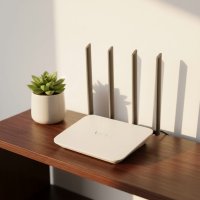
Ever feel like your home internet setup is a bit of a mystery? You’re not alone! Many of us plug in a few boxes, see the lights blink, and assume everything’s just magically working. But at the heart of every robust home network lies two unsung heroes: the cable modem and the WiFi router. These devices are often confused, sometimes even used interchangeably, but understanding their distinct roles is key to unlocking the full potential of your internet connection. As your trusted experts at Xzike.com, we’re here to demystify these crucial pieces of tech, helping you build a faster, more reliable, and secure wireless experience.
What Exactly Are They? A Clear Breakdown
Think of your internet connection like a highway leading to your home. You need a gate to get on and off that highway, and then once you’re inside, you need a system to direct traffic to all the different rooms. That’s essentially the relationship between your cable modem and WiFi router. For expert home reviews on this site.
The Cable Modem: Your Internet’s Front Door
The “modem,” short for MOdulator-DEModulator, is your home’s direct link to the outside internet world, specifically through your Internet Service Provider (ISP). Its primary job is to act as a translator. Your ISP sends internet signals through physical lines—in the case of a cable modem, that’s typically a coaxial cable, much like the one that connects to your TV. These signals are in an analog format that your home devices can’t understand.
What does a cable modem do then? It takes those analog signals and converts them into digital data that your computer, phone, or tablet can process. Conversely, it translates the digital data from your devices back into analog signals for the ISP. Without a cable modem, your home network wouldn’t be able to communicate with the vast global network we call the internet. It’s the essential bridge, granting your network a unique public IP address to identify it on the internet.
The WiFi Router: Your Home Network’s Traffic Cop
Once the internet signal makes it through your cable modem, the WiFi router steps in to take control. Imagine it as the traffic director for all the devices within your home. Its main goal is to create a Local Area Network (LAN) and then distribute that internet connection to multiple devices simultaneously.
This is where the “WiFi” comes in. Your router broadcasts a wireless signal, allowing your smartphones, laptops, smart TVs, and other gadgets to connect to the internet without needing a physical cable. Beyond wireless connectivity, routers also typically feature multiple Ethernet ports, providing stable, high-speed wired connections for devices like desktop computers, gaming consoles, or network-attached storage. A good WiFi router also handles important network security functions like firewalls and network address translation (NAT), assigning private IP addresses to each device in your home network and managing the flow of data.
The Dynamic Duo: How a Cable Modem and WiFi Router Work Together
For a bustling modern home with multiple devices and a desire for wireless freedom, having both a cable modem and WiFi router is absolutely crucial. They don’t just coexist; they work in a seamless relay:
- The internet signal arrives at your home via a coaxial cable from your ISP.
- Your cable modem receives this signal and translates it into a digital format.
- The digital internet signal then travels from the modem to your WiFi router (usually via an Ethernet cable).
- Your WiFi router takes that translated signal and broadcasts it wirelessly (WiFi) and distributes it via Ethernet cables to all the devices connected to your home network.
Without the modem, there’s no internet entering your home. Without the router, you’d likely only be able to connect one device directly to the modem via an Ethernet cable, and you certainly wouldn’t have any wireless connectivity. They are, in essence, two halves of a complete internet experience.
Combo vs. Separate: Which Setup is Right for You?
When you’re setting up your home network, you’ll encounter two main options: a single device that combines both functions (often called a gateway or modem-router combo) or separate units for your cable modem and WiFi router. Each approach has its merits and drawbacks.
The All-in-One Gateway: Modem-Router Combos
|
Our Picks for the Best WiFi Router in 2026
As an Amazon Associate I earn from qualifying purchases.
|
||
| Num | Product | Action |
|---|---|---|
| 1 | Amazon eero 6 mesh wifi router with 1-month free eero Plus (auto-renews) - Supports internet plans up to 900 Mbps, Coverage up to 1,500 sq. ft., Connect 75+ devices, 1-pack |

|
| 2 | TP-Link AXE5400 Tri-Band WiFi 6E Router (Archer AXE75), 2025 PCMag Editors\' Choice, Gigabit Internet for Gaming & Streaming, New 6GHz Band, 160MHz, OneMesh, Quad-Core CPU, VPN & WPA3 Security |
|
| 3 | TP-Link Dual-Band BE3600 Wi-Fi 7 Router Archer BE230 - 4-Stream - 2×2.5G + 3×1G Ports, USB 3.0, 2.0 GHz Quad Core, 4 Antennas - VPN, EasyMesh, HomeShield, MLO, Private IOT - Free Expert Support |
|
| 4 | TP-Link AC1200 Gigabit WiFi Router (Archer A6) - Dual Band MU-MIMO Wireless Internet Router, 4 x Antennas, OneMesh and AP Mode, Long Range Coverage |
|
| 5 | RBLHGG-5acD-US LHG 5 ac - 5GHz 802.11ac Wireless Device with 24.5 dBi Dual-Pol Grid Antenna - 716 MHz CPU, 256MB RAM, Gigabit Port, RouterOS L3, PoE, US Version |
|
| 6 | TP-Link Tri-Band BE9300 WiFi 7 Router (Archer BE550) - 6-Stream, Full 2.5G Ports w/ 6 Internal Antennas, Up to 2,000 Sq Ft, Add Easy-Mesh Device for Extended Coverage, VPN Support, Free Expert Support |
|
| 7 | TP-Link Archer BE6500 Dual-Band Wi-Fi 7 Router (Archer BE400) - Dual 2.5 Gbps Ports USB 3.0 - Covers up to 2,400 Sq. ft and 90 Devices - Quad-core CPU- HomeShield, Private IoT, Free Expert Support |
|
| 8 | Amazon eero 6+ mesh wifi router with 1 month free eero Plus (auto-renews) - Coverage up to 1,500 sq. ft., Connect 75+ devices, 1-pack |
|
| 9 | TP-Link AX1800 WiFi 6 Router (Archer AX21) – Dual Band Wireless Internet, Gigabit, Easy Mesh, Works with Alexa - A Certified for Humans Device, Free Expert Support |
|
| 10 | TP-Link AC1200 WiFi Router (Archer A54) - Dual Band Wireless Internet Router, 4 x 10/100 Mbps Fast Ethernet Ports, EasyMesh Compatible, Support Guest WiFi, Access Point Mode, IPv6 & Parental Controls |
|
Modem-router combos integrate the functionalities of a cable modem and a WiFi router into one convenient device. Many ISPs provide these gateways as part of their service package.
Pros:
- Simplicity: Just one device to set up, manage, and power.
- Space-Saving: Reduces clutter and the number of cables.
- Easy Initial Setup: Often plug-and-play, especially if provided by your ISP.
- Cost-Effective: Can sometimes be cheaper upfront than buying two separate units.
Cons:
- Less Flexibility: If one part fails, you have to replace the entire unit.
- Limited Performance: Combos often prioritize convenience over cutting-edge speed and coverage, potentially offering less powerful Wi-Fi or fewer advanced features compared to dedicated routers.
- Harder Upgrades: To get the latest Wi-Fi standard or modem technology (like DOCSIS 4.0), you usually have to replace the whole combo.
- Basic Security: ISP-provided units may offer only basic security features, limiting your control over network protection.
Ideal For: Home users with basic internet needs, small apartments or offices, those who prefer a straightforward setup without much technical fuss, or anyone on a tight budget.
The Power Couple: Separate Modems and Routers
Choosing a standalone cable modem and a separate WiFi router means you have two distinct devices working together.
Pros:
- Superior Performance: Dedicated routers often boast more powerful processors, advanced antenna arrays, and support for the latest Wi-Fi standards (like Wi-Fi 6 or Wi-Fi 6E), delivering faster speeds and wider coverage.
- Greater Flexibility: You can upgrade your modem or router independently. Want a new gaming router with Quality of Service (QoS) features? Keep your modem. Need a faster DOCSIS 4.0 modem? Keep your high-end router.
- Advanced Features & Customization: Separate routers offer more granular control over network settings, enhanced security features (like robust firewalls, VPN support, parental controls), and compatibility with advanced setups like mesh Wi-Fi systems.
- Easier Troubleshooting: If you have an internet issue, you can often pinpoint whether the problem is with the modem (internet coming in) or the router (internet distribution) more easily.
- Enhanced Security: Dedicated routers often come with more advanced security protocols and more frequent firmware updates, providing a stronger defense against cyber threats.
Cons:
- More Devices & Cables: You’ll have two boxes and more power cables to manage.
- Potentially Higher Upfront Cost: Buying two quality devices can be more expensive initially.
- Slightly More Complex Setup: Requires configuring two devices, though modern interfaces make this much easier.
Ideal For: Gamers, streamers, large homes with many connected devices, tech enthusiasts, users who demand the best network performance, and those who prioritize advanced security and customization.
Rent or Own? Making a Smart Financial and Performance Choice
Many Internet Service Providers offer the option to rent a cable modem or a modem-router combo for a monthly fee. While this seems convenient, these rental fees can quietly add up over time. Depending on your ISP, you could be paying anywhere from $10 to $15 per month, which translates to $120 to $180 annually! Purchasing your own cable modem and WiFi router can often pay for itself within a year or two, saving you significant money in the long run.
Beyond the financial savings, owning your equipment gives you more control. You can choose devices that offer better performance, support the latest technologies, and provide the advanced features you desire, rather than being limited to the often-basic equipment provided by your ISP. As network expert Dr. Anya Sharma wisely notes, “Investing in your own cable modem and router is like tailoring your internet experience. You get to choose the best fit for your specific needs, rather than settling for off-the-rack solutions.” This freedom also ensures you can update firmware regularly for better performance and security, a task sometimes overlooked with rented units.
Optimizing Your Cable Modem and WiFi Router Setup for Peak Performance
So, you’ve chosen your cable modem and WiFi router – great! Now, let’s make sure you’re getting the absolute best out of them.
- Central Placement is Key: Your WiFi router broadcasts signals in all directions. Placing it in a central, open location in your home, away from thick walls, large metal objects, and other electronics (like microwaves or cordless phones) that can cause interference, will significantly improve your wireless coverage and speed.
- Keep Firmware Updated: Firmware is the operating system for your networking devices. Regular updates not only patch security vulnerabilities but often introduce performance enhancements and new features. If you own your equipment, check the manufacturer’s website periodically for updates. ISP-rented equipment is usually updated automatically.
- Master Your Frequencies (2.4GHz vs. 5GHz): Most modern WiFi routers operate on two frequency bands: 2.4GHz and 5GHz.
- The 2.4GHz band offers a wider range and better penetration through walls but generally provides slower speeds and is more susceptible to interference. It’s ideal for devices farther away or for basic browsing.
- The 5GHz band delivers faster speeds and lower latency but has a shorter range and struggles with obstacles. Use it for devices close to the router, especially for streaming 4K video, online gaming, or video conferencing.
- Embrace Wired Connections: For stationary devices like desktop PCs, gaming consoles, smart TVs, or network storage, an Ethernet cable connection directly to your WiFi router is almost always superior to WiFi. Wired connections offer maximum speed, lowest latency, and unparalleled stability, freeing up your wireless bandwidth for truly mobile devices.
- Consider DOCSIS Standards: For cable modems, the DOCSIS (Data Over Cable Service Interface Specification) standard dictates the maximum speeds your modem can handle. Ensure your cable modem supports the latest DOCSIS standard compatible with your ISP’s network (e.g., DOCSIS 3.1 for gigabit speeds) to avoid bottlenecks.
Frequently Asked Questions (FAQ)
Do I really need both a cable modem and a WiFi router?
Yes, for most modern homes, you absolutely need both. The cable modem connects you to the internet via your ISP, while the WiFi router creates your local network, allowing multiple devices to connect wirelessly or via Ethernet. Without a router, you’d only connect one device directly to the modem with a wire.
What’s the main difference between a cable modem and a gateway?
A cable modem connects your home to the internet. A gateway is a single device that combines the functions of both a cable modem and a WiFi router into one unit. So, a gateway includes a cable modem, but a standalone cable modem is just the modem component.
Is a modem-router combo more secure than separate devices?
Generally, separate modem and router units offer better security. Dedicated routers often have more advanced firewall features, parental controls, VPN support, and receive more frequent security updates from their manufacturers, giving you greater control over your network’s defense.
Can I use any cable modem with any ISP?
No. Your cable modem must be compatible with your specific Internet Service Provider and support their network’s DOCSIS standard. Always check your ISP’s approved modem list before purchasing one.
How often should I upgrade my cable modem and WiFi router?
It depends on your internet plan and usage. For a cable modem, upgrade when your ISP offers significantly faster speeds that your current modem can’t handle (e.g., moving from a DOCSIS 3.0 to a DOCSIS 3.1 plan). For a WiFi router, consider upgrading every 3-5 years or when new Wi-Fi standards (like Wi-Fi 6E or Wi-Fi 7) offer substantial improvements that your devices can leverage, or if you’re experiencing coverage or speed issues.
What is DOCSIS?
DOCSIS stands for Data Over Cable Service Interface Specification. It’s an international telecommunications standard that allows high-speed data transfer over an existing cable TV (CATV) system. Cable modems must adhere to a specific DOCSIS version to work with your cable internet provider.
How can I improve my Wi-Fi speed?
Besides upgrading your cable modem and WiFi router, you can improve speeds by:
- Placing your router centrally.
- Keeping firmware updated.
- Using the 5GHz band for speed-critical devices.
- Connecting stationary devices via Ethernet.
- Minimizing interference from other electronics.
- Considering a mesh Wi-Fi system for large homes.
Conclusion
Navigating the world of home networking doesn’t have to be intimidating. By understanding the fundamental roles of your cable modem and WiFi router, you empower yourself to make informed decisions that enhance your online experience. Whether you choose the streamlined convenience of a combo unit or the robust performance of separate devices, the goal remains the same: a fast, secure, and reliable internet connection that perfectly fits your lifestyle. Take control of your network, optimize your setup, and enjoy seamless connectivity for all your digital adventures. For more in-depth guides and expert tips on optimizing your home network, visit Xzike.com – your ultimate resource for mastering your WiFi!
Get our weekly buyer guide
Practical specs, not advice. Unsubscribe anytime.