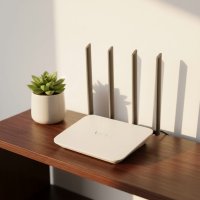
Are you tired of sluggish internet, dropped connections, or those never-ending monthly rental fees from your internet service provider (ISP)? It might be time to take control of your home network with a WiFi cable modem router. This all-in-one device can be a game-changer, simplifying your setup, boosting performance, and putting money back in your pocket. As an expert from Xzike.com, I’m here to guide you through everything you need to know about these essential networking hubs.

A WiFi cable modem router, often called a “gateway,” is a single device that combines the functions of two crucial networking components: a cable modem and a wireless router. The modem part is responsible for connecting your home to your ISP’s internet service, typically via a coaxial cable. It translates the digital signals from your ISP into a format your home network can understand. The router component then takes that internet connection and shares it with all your devices, both wirelessly through Wi-Fi and via Ethernet cables. This integrated approach means less clutter, fewer cables, and a streamlined management experience.
Identifying if you already have a modem router combo is straightforward. If your internet connection comes from just one device that’s plugged into your cable wall outlet and also broadcasts Wi-Fi, you likely have a combo unit. You can also look for an informational sticker, usually on the bottom of the device, which will explicitly state “Modem Router,” “Gateway,” or list both modem and router model numbers. Physically, a combo unit will typically have a coaxial cable input (threaded connector), multiple Ethernet ports for wired devices, and often visible antennas for Wi-Fi. In contrast, a standalone cable modem usually only has one Ethernet output and no Wi-Fi capabilities, while a standalone router will have a dedicated “WAN” or “Internet” port for connecting to a modem, along with multiple LAN ports and antennas for wireless connectivity.
The primary reason many users choose to invest in their own WiFi cable modem router is to save money. ISPs commonly charge equipment rental fees, which can range from $7 to $20 per month. Over a year, this can add up to over $120, making the purchase of your own device a wise financial decision that often pays for itself within a year. Beyond savings, owning your equipment grants you greater control over your network’s configuration, security settings, and allows you to choose a device that better matches your internet plan and home networking needs, potentially offering better speeds and performance than the basic units often provided by ISPs. Many ISPs even enable public Wi-Fi hotspots on their leased equipment, which you can avoid by owning your own.
Key Features to Consider When Buying a WiFi Cable Modem Router
|
Our Picks for the Best WiFi Router in 2026
As an Amazon Associate I earn from qualifying purchases.
|
||
| Num | Product | Action |
|---|---|---|
| 1 | TP-Link AXE5400 Tri-Band WiFi 6E Router (Archer AXE75), 2025 PCMag Editors\' Choice, Gigabit Internet for Gaming & Streaming, New 6GHz Band, 160MHz, OneMesh, Quad-Core CPU, VPN & WPA3 Security |

|
| 2 | TP-Link AC1200 Gigabit WiFi Router (Archer A6) - Dual Band MU-MIMO Wireless Internet Router, 4 x Antennas, OneMesh and AP Mode, Long Range Coverage |
|
| 3 | RBLHGG-5acD-US LHG 5 ac - 5GHz 802.11ac Wireless Device with 24.5 dBi Dual-Pol Grid Antenna - 716 MHz CPU, 256MB RAM, Gigabit Port, RouterOS L3, PoE, US Version |
|
| 4 | TP-Link Tri-Band BE9300 WiFi 7 Router (Archer BE550) - 6-Stream, Full 2.5G Ports w/ 6 Internal Antennas, Up to 2,000 Sq Ft, Add Easy-Mesh Device for Extended Coverage, VPN Support, Free Expert Support |
|
| 5 | Amazon eero 6+ mesh wifi router with 1 month free eero Plus (auto-renews) - Coverage up to 1,500 sq. ft., Connect 75+ devices, 1-pack |
|
| 6 | TP-Link AX1800 WiFi 6 Router (Archer AX21) – Dual Band Wireless Internet, Gigabit, Easy Mesh, Works with Alexa - A Certified for Humans Device, Free Expert Support |
|
| 7 | TP-Link Archer BE6500 Dual-Band Wi-Fi 7 Router (Archer BE400) - Dual 2.5 Gbps Ports USB 3.0 - Covers up to 2,400 Sq. ft and 90 Devices - Quad-core CPU- HomeShield, Private IoT, Free Expert Support |
|
| 8 | Amazon eero 6 mesh wifi router with 1-month free eero Plus (auto-renews) - Supports internet plans up to 900 Mbps, Coverage up to 1,500 sq. ft., Connect 75+ devices, 1-pack |
|
| 9 | TP-Link AC1200 WiFi Router (Archer A54) - Dual Band Wireless Internet Router, 4 x 10/100 Mbps Fast Ethernet Ports, EasyMesh Compatible, Support Guest WiFi, Access Point Mode, IPv6 & Parental Controls |
|
| 10 | TP-Link Dual-Band BE3600 Wi-Fi 7 Router Archer BE230 - 4-Stream - 2×2.5G + 3×1G Ports, USB 3.0, 2.0 GHz Quad Core, 4 Antennas - VPN, EasyMesh, HomeShield, MLO, Private IOT - Free Expert Support |
|
Choosing the right WiFi cable modem router involves looking at several critical specifications to ensure it meets your current and future internet demands.
DOCSIS Standard: The Foundation of Speed
The Data Over Cable Service Interface Specification (DOCSIS) defines how your modem communicates with your cable internet provider.
- DOCSIS 3.1 is the current standard and the minimum you should consider. It supports multi-gigabit speeds and is essential for most modern internet plans.
- DOCSIS 4.0 is the upcoming standard, promising even faster upload and download speeds, offering superior future-proofing. When available, devices supporting DOCSIS 4.0 will be at the cutting edge.
WiFi Standard: The Wireless Revolution
The Wi-Fi standard dictates your wireless network’s speed and efficiency.
- Wi-Fi 6 (802.11ax) offers significant improvements over previous generations, providing faster speeds, better performance in congested environments, and improved battery life for connected devices.
- Wi-Fi 7 (802.11be), also known as Ultra-High Reliability and Low Latency (UHRLL), is the newest technology. While still emerging, Wi-Fi 7 brings even higher speeds, lower latency, and enhanced capabilities, making devices like the Arris Surfboard G54 noteworthy for early adopters looking for the absolute latest in wireless performance.
Speed and Performance: Matching Your Internet Plan
Your modem router’s speed capabilities should align with your ISP’s internet plan.
- Look for devices with a modem speed that can handle or exceed your subscribed internet speed (e.g., if you have a 1 Gbps plan, ensure the modem supports at least that).
- Wireless speeds (e.g., AX2700, BE18000) indicate the theoretical maximum throughput across all Wi-Fi bands. Higher numbers generally mean faster and more robust Wi-Fi.
- Consider multi-gigabit Ethernet ports (e.g., 2.5 Gbps, 10 Gbps WAN/LAN ports) if your internet plan offers speeds beyond 1 Gbps or if you plan to connect high-speed wired devices.
- Dual-band (2.4 GHz and 5 GHz) is standard, while tri-band (adding a second 5 GHz band or a 6 GHz band with Wi-Fi 6E/7) offers less congestion and higher speeds, especially in busy networks with many devices.
ISP Compatibility: A Non-Negotiable Requirement
This is perhaps the most crucial factor. Not all modem routers work with all cable internet providers. Always check your ISP’s list of approved devices before making a purchase. Major providers like Xfinity, Spectrum, and Cox maintain lists of compatible hardware to ensure seamless service.
Connectivity: Ports and Beyond
- LAN Ports: Look for at least four Gigabit Ethernet LAN ports to connect wired devices like computers, gaming consoles, or smart TVs. Some high-end models offer multi-gigabit LAN ports.
- USB Ports: USB 3.0 ports can be useful for connecting external storage devices to create a simple network-attached storage (NAS) solution or for sharing a printer across your network.
Advanced Features: Enhancing Your Experience
- Security: Features like built-in firewalls, VPN support, and WPA3 encryption are vital for protecting your home network from external threats. Some brands offer subscription-based security suites.
- Parental Controls: Essential for managing internet access and content for younger users.
- Mobile App Management: Many modern devices come with intuitive mobile apps that simplify setup, network monitoring, and settings adjustments.
- Mesh System Compatibility: If you have a large home, consider a combo unit that can integrate with a mesh Wi-Fi system to extend coverage seamlessly. For example, NETGEAR Orbi mesh systems often pair well with their gateways.
Setting Up Your New WiFi Cable Modem Router: A Step-by-Step Guide
Installing your own WiFi cable modem router is a straightforward process, even if you’re not a tech guru. Follow these steps for a smooth setup.
Pre-installation Checklist
Before you begin, gather these items:
- Your new WiFi cable modem router and its power adapter.
- A coaxial cable (often not included, so have one ready).
- An Ethernet cable (usually included, for initial connection and connecting devices).
- Your ISP account details (account number, login credentials).
- The default login credentials for your new modem router (usually on a sticker).
- A computer or smartphone for configuration.
Strategic Placement
The location of your modem router significantly impacts Wi-Fi performance.
- Central Location: Place it as close to the center of your home as possible to maximize Wi-Fi coverage.
- Elevated Position: Elevate the device, ideally on a shelf or desk, rather than on the floor. Wi-Fi signals travel better downwards.
- Avoid Obstructions: Keep it away from thick walls, large metal objects (like filing cabinets or refrigerators), and other electronics that can cause interference, such as microwaves, cordless phones, and Bluetooth devices.
- Ventilation: Ensure adequate airflow around the device to prevent overheating.
Physical Connections
- Turn Off Existing Equipment: If you’re replacing an old modem or gateway, power it down and disconnect it completely.
- Connect Coaxial Cable: Screw one end of the coaxial cable into a working cable wall outlet. Connect the other end securely to the threaded “Cable In” port on the back of your new modem router. Hand-tighten until snug.
- Connect Power: Plug the power adapter into the “Power” port on the back of the modem router, then plug the other end into a wall electrical outlet. Ensure it’s not an outlet controlled by a wall switch to avoid accidental power interruptions.
Power On and Indicator Lights
Once powered on, your modem router will begin its startup sequence. This can take several minutes. Watch the LED indicator lights on the front of the device. You’ll typically see lights for power, upstream/downstream data (US/DS), online connectivity, and Wi-Fi. Wait until the power, US/DS, and online lights are solid (often green or blue, refer to your manual) and the Wi-Fi light is active (solid or blinking), indicating it’s connected to your ISP’s network and broadcasting Wi-Fi.
Activating with Your ISP
This is a crucial step. Even after successful physical connection, your new device needs to be registered with your ISP.
- Contact Your ISP: Many ISPs offer self-activation through a mobile app or a dedicated website that pops up automatically when you first connect a device. Otherwise, you’ll need to call their customer service.
- Provide Information: You’ll typically need to provide the modem router’s MAC address and serial number, which are found on the informational sticker.
Initial Configuration
After activation, you can configure your Wi-Fi network.
- Connect a Device: Connect a computer directly to one of the modem router’s LAN ports using an Ethernet cable, or connect wirelessly to its default Wi-Fi network (SSID and password are on the sticker).
- Access Admin Portal: Open a web browser and enter the modem router’s default IP address (e.g.,
192.168.1.1or192.168.0.1). Consult your device’s manual or sticker for the exact address. - Login: Enter the default username and password (e.g., “admin”/”password”).
- Change Credentials: Immediately change the default admin username and password to something strong and unique. This is a vital security step.
- Configure Wi-Fi: Change the default Wi-Fi network name (SSID) and set a strong, secure password for both the 2.4 GHz and 5 GHz bands. Choose WPA2 or WPA3 encryption for the best security.
- Apply Settings: Save your changes and restart the modem router if prompted.
Troubleshooting Common WiFi Cable Modem Router Issues
Even with the best equipment, occasional issues can arise. Here’s how to tackle some common problems:
- No Internet Connection: If your “online” light isn’t solid after setup and activation, first check all cable connections (coaxial, Ethernet, power) to ensure they are secure. Restart the modem router by unplugging it for 30 seconds and plugging it back in. If the issue persists, verify that your device has been activated with your ISP and check for any service outages in your area.
- Slow WiFi Speeds: This could be due to several factors. Ensure your modem router supports your internet plan’s speed. Check for interference from other electronics and try repositioning the device to a more central, elevated location. Obsolete devices or old firmware can also impact speeds, so ensure all your network equipment is up-to-date.
- Spotty WiFi Coverage: For large homes or areas with thick walls, a single modem router might not be enough. Consider supplementing your setup with Wi-Fi extenders or, better yet, a mesh Wi-Fi system if your combo unit supports it. Upgrading to a Wi-Fi 6 or Wi-Fi 7 device can also improve range and signal strength.
“A robust home network is the backbone of modern living. Investing in a quality WiFi cable modem router isn’t just about faster speeds; it’s about stability, security, and ultimately, a more reliable connection to your digital world,” advises Alex Thorne, Lead Network Architect at Xzike.com. “Don’t settle for less when it comes to your internet experience.”
Conclusion
A WiFi cable modem router is a powerful, integrated solution that can significantly enhance your home networking experience. By combining the essential functions of a modem and a router, these devices simplify setup, reduce cable clutter, and eliminate those persistent monthly rental fees. More importantly, they empower you to customize your network for optimal performance, ensuring you get the most out of your internet connection. From selecting the right DOCSIS and Wi-Fi standards to ensuring ISP compatibility and strategic placement, understanding these key aspects will help you make an informed decision. Taking the time to properly set up and configure your WiFi cable modem router means a more secure, faster, and more reliable connection for every device in your home. Take control, choose wisely, and enjoy the benefits of a truly optimized home network. Share your setup experiences or questions in the comments below – your insights help the entire Xzike community thrive!
Frequently Asked Questions
Q1: What is the main difference between a modem and a router?
A: A modem connects your home to the internet service provided by your ISP, translating signals. A router takes that internet connection and distributes it to all the devices in your home, either wirelessly via Wi-Fi or through Ethernet cables, allowing multiple devices to share one internet connection. A WiFi cable modem router combines both functions into one unit.
Q2: Should I buy my own WiFi cable modem router or rent one from my ISP?
A: Buying your own device is generally recommended. It saves you money on monthly rental fees, often paying for itself within a year. Owning your equipment also gives you more control over your network settings, security, and allows you to choose a device with better performance and features tailored to your needs.
Q3: How do I know if a WiFi cable modem router is compatible with my internet service provider?
A: Before purchasing, always check your ISP’s official website for a list of approved and compatible modem router models. Compatibility is crucial; an incompatible device will not work with your service. Major ISPs like Xfinity, Spectrum, and Cox maintain these lists.
Q4: What is DOCSIS 3.1, and why is it important?
A: DOCSIS 3.1 is the latest widely adopted Data Over Cable Service Interface Specification standard for cable modems. It’s important because it supports higher internet speeds, including multi-gigabit connections, and offers better efficiency compared to older DOCSIS versions, making it essential for modern high-speed internet plans.
Q5: What is Wi-Fi 6, and do I need it in a modem router combo?
A: Wi-Fi 6 (802.11ax) is the latest generation of Wi-Fi technology, offering faster speeds, improved performance in environments with many connected devices, and better energy efficiency compared to Wi-Fi 5. While not strictly necessary for basic use, it’s highly recommended for future-proofing and improving the experience of all your Wi-Fi devices. Wi-Fi 7 is even newer and offers further enhancements.
Q6: Can I use a WiFi cable modem router with any internet service?
A: No. WiFi cable modem routers are specifically designed for cable internet service providers. If you have DSL, fiber, or satellite internet, you will need a modem or gateway compatible with those specific technologies, not a cable modem.
Q7: How can I improve my Wi-Fi signal strength and coverage?
A: Optimize your modem router’s placement by positioning it centrally, elevated, and away from obstructions and interference. Ensure your device’s firmware is updated. For larger homes, consider a mesh Wi-Fi system that works with your gateway to provide seamless coverage throughout your entire living space.
Get our weekly buyer guide
Practical specs, not advice. Unsubscribe anytime.