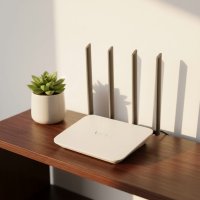
Ever wondered about that single device silently humming away in your home, providing both your internet connection and the magic of Wi-Fi? You’re likely looking at a wifi modem router, the unsung hero of modern connectivity. This integrated powerhouse simplifies your home network, bringing the vastness of the internet to all your devices, wirelessly and seamlessly.

At Xzike, we believe that understanding your network is the first step to mastering it. Let’s pull back the curtain on the wifi modem router and discover how this crucial piece of hardware works, what benefits it offers, and how to choose and optimize one for your digital life.
What Exactly is a WiFi Modem Router?
To truly grasp the concept of a wifi modem router, it’s essential to understand its two core components: the modem and the router. Think of them as a dynamic duo, each with a distinct but equally vital role.
The modem, short for “modulator-demodulator,” is your home’s direct gateway to the internet. It acts as a translator, converting the raw digital signals from your Internet Service Provider (ISP) – whether through cable, DSL, or fiber – into a format your local network can understand. Without a modem, your devices wouldn’t have a bridge to the outside world.
The router, on the other hand, is the traffic controller of your internal home network. Once the modem brings the internet signal in, the router takes over. It creates a Local Area Network (LAN) within your house, allowing multiple devices – laptops, smartphones, smart TVs, gaming consoles – to connect to each other and share that single internet connection. Crucially, a wifi router also broadcasts a wireless signal, freeing you from the tangle of Ethernet cables and allowing you to connect wirelessly via Wi-Fi.
A wifi modem router, often called a gateway, combines these two essential functions into one convenient device. It’s the ultimate all-in-one solution, receiving the internet signal from your ISP and then distributing it, both wired and wirelessly, throughout your home. It’s like having a universal translator who also hosts the best party in town, making sure everyone can communicate and have a great time.
Why Consider a WiFi Modem Router Combo? The Benefits Unpacked
Opting for a wifi modem router combo unit offers a compelling blend of advantages that can significantly enhance your home networking experience. For many homeowners, the convenience and efficiency of a single device outweigh the benefits of separate components.
First off, there’s the undeniable simplicity and space-saving aspect. Instead of juggling two separate boxes, power adapters, and an Ethernet cable connecting them, you get one compact unit. This reduction in clutter is a major win for aesthetics and practicality, especially in smaller living spaces or when you want a tidy setup.
Then, let’s talk about cost efficiency. Many ISPs charge a monthly rental fee for their modem and often their router too. By purchasing your own wifi modem router, you can eliminate these recurring fees, leading to significant savings over time. It’s an upfront investment that pays dividends, much like owning your car instead of perpetually renting one.
The streamlined setup is another big plus. Installing a single wifi modem router is generally more straightforward than connecting and configuring two separate devices. With fewer cables and a unified interface, you can get your network up and running faster, often with user-friendly mobile apps that guide you through the process.
Finally, combo units are designed for unified performance. Since the modem and router components are engineered to work together seamlessly, you often get optimized compatibility and efficiency right out of the box. This integration can lead to a more stable connection, as there are fewer points of failure or compatibility issues between different manufacturers’ equipment.
Is a Combo Always the Best Choice? Understanding the Trade-offs
While the convenience of a wifi modem router is undeniable, it’s not always the perfect fit for every household. As a networking expert, I often highlight the trade-offs to help you make an informed decision.
One of the primary considerations is upgrade flexibility. Technology evolves rapidly, and Wi-Fi standards (like Wi-Fi 6, 6E, and soon Wi-Fi 7) advance much faster than modem standards (like DOCSIS 3.1). With a combo unit, if you want to upgrade your Wi-Fi capabilities to leverage the latest speeds and features, you often have to replace the entire wifi modem router, even if the modem portion is still perfectly adequate for your internet plan. Separate units allow you to upgrade your router independently, saving you money and reducing electronic waste.
Performance potential can also be a factor. Dedicated, high-end modems and routers often offer more robust hardware, advanced features, and greater processing power than what’s typically found in a single combo unit. If you’re a heavy gamer, streamer, or have a large household with many connected devices, separate components might provide better overall speed, range, and stability for your wifi network.
Furthermore, separate devices often provide advanced features and greater control. Many standalone routers come with more sophisticated settings for Quality of Service (QoS), VPN compatibility, advanced firewall rules, and more granular control over your network’s security and traffic. While combo units offer basic settings, they can sometimes be locked down by your ISP, limiting your ability to truly customize your wifi modem router experience.
Finally, troubleshooting can be simpler with separate devices. If you experience an internet outage, it’s easier to determine whether the issue lies with your ISP’s connection (modem) or your internal network (router) when they are distinct units. This helps pinpoint the problem faster and get you back online quickly.
As Sarah Chen, a Networking Architect at Xzike.com, often remarks, “While the wifi modem router offers fantastic simplicity, it’s crucial to weigh your long-term upgrade plans and specific performance needs. Sometimes, two specialized tools truly outperform a multi-purpose one for optimal network health.”
Choosing the Right WiFi Modem Router: Key Factors to Consider
Selecting the ideal wifi modem router can seem daunting with the myriad of options available. However, by focusing on a few key factors, you can narrow down your choices and find the perfect fit for your home network.
First and foremost, ISP compatibility is non-negotiable. Not all modem-router combos work with every Internet Service Provider. Check your ISP’s approved device list to ensure the unit you choose is compatible with their network technology (e.g., DOCSIS 3.0 or 3.1 for cable internet, specific models for DSL or fiber). This step prevents headaches down the line and ensures you can activate your new wifi modem router without issues.
Next, consider your internet plan’s speed and Wi-Fi standards. There’s no point in buying a cutting-edge Wi-Fi 7 modem router if your internet plan only offers 100 Mbps. Match the Wi-Fi standard (e.g., Wi-Fi 5, Wi-Fi 6, Wi-Fi 6E, or Wi-Fi 7) and maximum modem speed (often measured in Gbps) to your subscribed internet speed to ensure you’re getting the most out of your investment without overspending. Dual-band (2.4 GHz and 5 GHz) is standard, but tri-band or even quad-band options offer more bandwidth for busy networks.
Coverage area and antenna design are critical for ensuring strong Wi-Fi signals throughout your home. If you live in a small apartment, a basic unit might suffice. For larger homes or multi-story dwellings, look for models with external antennas and features like beamforming, which directs Wi-Fi signals more efficiently to your devices. Some advanced wifi modem routers even integrate mesh technology for extended, seamless coverage.
Don’t overlook the number of Ethernet ports. While Wi-Fi is fantastic, wired connections offer unparalleled stability and speed for devices like desktop PCs, gaming consoles, or smart TVs. Ensure your chosen unit has enough Gigabit Ethernet ports to accommodate your wired devices.
Finally, prioritize security features and consider your budget. Look for WPA3 encryption, robust firewalls, and the ability to set up guest networks. While high-end models offer superior performance, there are excellent mid-range wifi modem routers that provide a fantastic balance of features and value. Brands like NETGEAR Nighthawk, ARRIS SURFboard, and TP-Link often offer reliable options across various price points.
Setting Up Your WiFi Modem Router: A Step-by-Step Guide
Getting your wifi modem router up and running is typically a straightforward process. Follow these steps carefully, and you’ll be online in no time:
- Preparation is Key: Before you start, gather your new wifi modem router, its power adapter, the coaxial cable (for cable internet), and an Ethernet cable. Have your ISP account details and the default login credentials (usually found on a sticker on the device) handy.
- Physical Connection:
- For Cable Internet: Connect one end of the coaxial cable to the cable wall outlet and the other end to the “Cable In” port on your wifi modem router.
- For DSL/Fiber: Connect the appropriate cable from your wall jack to the designated port on your combo unit (this varies by ISP and technology).
- Plug the power adapter into your wifi modem router and then into an electrical outlet.
- Optionally, connect one end of an Ethernet cable from one of the LAN ports on your combo unit to your computer for initial configuration.
- Power On Sequence: First, power on your wifi modem router and wait for a few minutes for all the indicator lights to stabilize. This typically means the device has successfully connected to your ISP and is ready to broadcast Wi-Fi.
- Initial Configuration:
- Open a web browser on your connected computer (or a device connected to the combo unit’s default Wi-Fi network).
- Enter the device’s default IP address (e.g., 192.168.1.1 or 192.168.0.1) into the browser’s address bar and press Enter. This will take you to the login page.
- Enter the default username and password (again, usually on a sticker) to access the administrative interface.
- Customize Settings:
- Change Default Passwords: Immediately change the default Wi-Fi network name (SSID) and password to something secure and easy for you to remember. We recommend using WPA2 or WPA3 encryption for the best security.
- Admin Password: Change the administrative login password for your wifi modem router to prevent unauthorized access to its settings.
- Follow any setup wizards or prompts to complete the basic configuration.
- Test Connection: Once configured, disconnect your computer from the Ethernet cable (if you used one) and try connecting to your new Wi-Fi network using the customized SSID and password. Open a web browser and visit a few websites to confirm your internet connection is working correctly.
Optimizing Your WiFi Modem Router for Peak Performance
Even with a great wifi modem router, a little optimization can go a long way in ensuring your home network runs at its best.
Optimal Placement is paramount. Place your wifi modem router in a central location in your home, away from thick walls, large metal objects, and other electronic devices that can cause interference (like microwaves or cordless phones). Elevating the device can also improve signal dispersion. Think of it as placing a speaker in the middle of a room for the best sound distribution.
Always keep your firmware updated. Manufacturers regularly release firmware updates to improve performance, add new features, and patch security vulnerabilities. Check your wifi modem router‘s administrative interface or the manufacturer’s website for the latest updates.
Consider channel optimization. Wi-Fi networks operate on various channels, and if your neighbors are using the same channel, it can cause interference and slow down your connection. Use a Wi-Fi analyzer app (available on smartphones) to identify less congested channels and manually switch your wifi modem router to one for better performance.
If you have specific devices or applications that require consistent bandwidth, enable Quality of Service (QoS) settings. QoS allows you to prioritize certain types of traffic (e.g., video streaming or online gaming) over others, ensuring a smoother experience when your network is busy.
Setting up a guest network is not just for courtesy; it’s a security best practice. It provides visitors with internet access without giving them access to your main network and its connected devices, safeguarding your personal data.
Finally, don’t underestimate the power of a regular reboot. Just like your computer, a wifi modem router can benefit from a periodic restart to clear its memory and refresh its connection. Aim to reboot it at least once a month, or whenever you notice a dip in performance.
FAQs about WiFi Modem Routers
Q: Can I use any WiFi modem router with any ISP?
|
Our Picks for the Best WiFi Router in 2026
As an Amazon Associate I earn from qualifying purchases.
|
||
| Num | Product | Action |
|---|---|---|
| 1 | TP-Link AX1800 WiFi 6 Router (Archer AX21) – Dual Band Wireless Internet, Gigabit, Easy Mesh, Works with Alexa - A Certified for Humans Device, Free Expert Support |

|
| 2 | TP-Link AXE5400 Tri-Band WiFi 6E Router (Archer AXE75), 2025 PCMag Editors\' Choice, Gigabit Internet for Gaming & Streaming, New 6GHz Band, 160MHz, OneMesh, Quad-Core CPU, VPN & WPA3 Security |
|
| 3 | RBLHGG-5acD-US LHG 5 ac - 5GHz 802.11ac Wireless Device with 24.5 dBi Dual-Pol Grid Antenna - 716 MHz CPU, 256MB RAM, Gigabit Port, RouterOS L3, PoE, US Version |
|
| 4 | TP-Link Tri-Band BE9300 WiFi 7 Router (Archer BE550) - 6-Stream, Full 2.5G Ports w/ 6 Internal Antennas, Up to 2,000 Sq Ft, Add Easy-Mesh Device for Extended Coverage, VPN Support, Free Expert Support |
|
| 5 | Amazon eero 6+ mesh wifi router with 1 month free eero Plus (auto-renews) - Coverage up to 1,500 sq. ft., Connect 75+ devices, 1-pack |
|
| 6 | Amazon eero 6 mesh wifi router with 1-month free eero Plus (auto-renews) - Supports internet plans up to 900 Mbps, Coverage up to 1,500 sq. ft., Connect 75+ devices, 1-pack |
|
| 7 | TP-Link Archer BE6500 Dual-Band Wi-Fi 7 Router (Archer BE400) - Dual 2.5 Gbps Ports USB 3.0 - Covers up to 2,400 Sq. ft and 90 Devices - Quad-core CPU- HomeShield, Private IoT, Free Expert Support |
|
| 8 | TP-Link AC1200 WiFi Router (Archer A54) - Dual Band Wireless Internet Router, 4 x 10/100 Mbps Fast Ethernet Ports, EasyMesh Compatible, Support Guest WiFi, Access Point Mode, IPv6 & Parental Controls |
|
| 9 | TP-Link AC1200 Gigabit WiFi Router (Archer A6) - Dual Band MU-MIMO Wireless Internet Router, 4 x Antennas, OneMesh and AP Mode, Long Range Coverage |
|
| 10 | TP-Link Dual-Band BE3600 Wi-Fi 7 Router Archer BE230 - 4-Stream - 2×2.5G + 3×1G Ports, USB 3.0, 2.0 GHz Quad Core, 4 Antennas - VPN, EasyMesh, HomeShield, MLO, Private IOT - Free Expert Support |
|
A: No, wifi modem routers must be compatible with your Internet Service Provider’s network technology (e.g., DOCSIS standards for cable) and often need to be on their approved device list. Always check with your ISP before purchasing a new unit.
Q: What’s the difference between dual-band and tri-band WiFi modem routers?
A: Dual-band wifi modem routers broadcast Wi-Fi on two frequency bands (2.4 GHz and 5 GHz). Tri-band units add a second 5 GHz band, or sometimes a 6 GHz band with Wi-Fi 6E/7, offering more channels and dedicated bandwidth for devices, reducing congestion and improving speed, especially in busy networks.
Q: How often should I replace my WiFi modem router?
A: While there’s no fixed rule, it’s generally a good idea to consider upgrading your wifi modem router every 3-5 years. This ensures you can take advantage of newer Wi-Fi standards, improved security features, and better performance that can keep pace with increasing internet speeds and device demands.
Q: Can a WiFi modem router improve my internet speed?
A: A wifi modem router itself doesn’t increase your internet plan speed from your ISP. However, an upgraded or properly configured unit can ensure that you are receiving the full speed you pay for, reducing bottlenecks and improving the efficiency of your internal network, leading to a perception of faster internet.
Q: What is DOCSIS and why is it important for a WiFi modem router?
A: DOCSIS (Data Over Cable Service Interface Specification) is a global telecommunications standard that enables high-speed data transfer over existing cable TV (coaxial) systems. For a cable wifi modem router, having a modern DOCSIS version (like DOCSIS 3.1) is crucial for compatibility with current and future high-speed cable internet plans.
Master Your Connection with a WiFi Modem Router
The wifi modem router truly is the command center of your digital home. It’s the device that effortlessly connects you to the world and empowers every smart device, streaming session, and video call. By understanding its functions, appreciating its benefits, and knowing how to choose and optimize one, you gain control over your connectivity.
At Xzike, we encourage you to take charge of your home network. Embrace the power of the wifi modem router to unlock a faster, more reliable, and more secure online experience. Make an informed choice, set it up right, and enjoy the seamless connectivity you deserve!
Get our weekly buyer guide
Practical specs, not advice. Unsubscribe anytime.