In today’s hyper-connected world, a reliable and robust home network isn’t just a luxury—it’s a necessity. If you’re a Cox internet subscriber, you’ve likely encountered or are currently using the Cox WiFi router, specifically their Panoramic Wifi Gateway. But what exactly is this device, and how can you make the most of it? As an industry veteran with over 15 years of hands-on experience in networking and WiFi, and the lead content creator for xzike.com, I’m here to demystify your Cox WiFi router, offering practical advice on everything from setup and optimization to understanding whether it’s truly the best fit for your digital life.

What is the Cox Panoramic WiFi Router, Anyway?
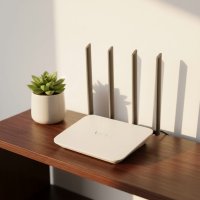
At its core, the Cox Panoramic Wifi Router isn’t just a router; it’s a two-in-one gateway device that seamlessly combines a modem and a wireless router into a single unit. This integrated approach aims to simplify your home networking setup, reducing clutter and streamlining connections. Think of it as the central nervous system of your Cox internet service, translating the incoming internet signal into a usable WiFi network for all your devices. For best home roundups on this site.
The newer generations of the Panoramic Wifi Gateway are designed to support the latest Wi-Fi standards, including Wi-Fi 6 and even Wi-Fi 6E. This means they are capable of delivering significantly faster speeds and handling a multitude of connected devices simultaneously with greater efficiency. It also typically features dual-band technology, operating on both 2.4 GHz and 5 GHz frequencies. The 2.4 GHz band offers broader coverage and better penetration through walls, while the 5 GHz band provides faster speeds over shorter distances, making it ideal for high-bandwidth activities like streaming 4K video or online gaming.
Beyond just basic connectivity, the Panoramic Wifi Gateway comes packed with features manageable through the intuitive Cox Panoramic Wifi app. This application transforms your smartphone into a command center, allowing you to monitor connected devices, set up guest Wi-Fi networks, enable advanced security features, and even implement parental controls to manage screen time and content access for your family.
Setting Up Your Cox Panoramic WiFi: A Breeze or a Challenge?
Setting up your Cox Panoramic Wifi Gateway is generally a straightforward process, designed to be user-friendly. Most users can get their network up and running in just a few simple steps.
A Step-by-Step Activation Guide
- Connect the Cables: First, connect the coaxial cable from an active cable outlet in your home to the coax port on the back of your Panoramic Wifi Gateway. Then, plug the power cord into the gateway and an electrical outlet. The gateway will usually power on automatically.
- Wait for Initialization: Allow about 10 minutes for the gateway to power on and connect to the Cox network. You’ll typically see a blinking light that eventually turns solid, indicating it’s online and fully operational.
- Connect to the Network: On your smartphone, tablet, or computer, open your Wi-Fi settings. You’ll find two similarly named networks (SSIDs) provided by your Cox WiFi router, often with one ending in “5G” for the faster 5 GHz band. Connect to either using the network name and pre-shared key (password) found on the label at the bottom of your gateway.
- Personalize with the App: For the best experience and to unlock all features, download the Cox Panoramic Wifi app. The app guides you through personalizing your network, changing the Wi-Fi name and password, and optimizing settings.
Tips for Optimal Placement and Expanding Coverage
|
Our Picks for the Best WiFi Router in 2026
As an Amazon Associate I earn from qualifying purchases.
|
||
| Num | Product | Action |
|---|---|---|
| 1 | TP-Link AXE5400 Tri-Band WiFi 6E Router (Archer AXE75), 2025 PCMag Editors\' Choice, Gigabit Internet for Gaming & Streaming, New 6GHz Band, 160MHz, OneMesh, Quad-Core CPU, VPN & WPA3 Security |

|
| 2 | Amazon eero 6+ mesh wifi router with 1 month free eero Plus (auto-renews) - Coverage up to 1,500 sq. ft., Connect 75+ devices, 1-pack |
|
| 3 | RBLHGG-5acD-US LHG 5 ac - 5GHz 802.11ac Wireless Device with 24.5 dBi Dual-Pol Grid Antenna - 716 MHz CPU, 256MB RAM, Gigabit Port, RouterOS L3, PoE, US Version |
|
| 4 | TP-Link Archer BE6500 Dual-Band Wi-Fi 7 Router (Archer BE400) - Dual 2.5 Gbps Ports USB 3.0 - Covers up to 2,400 Sq. ft and 90 Devices - Quad-core CPU- HomeShield, Private IoT, Free Expert Support |
|
| 5 | TP-Link AX1800 WiFi 6 Router (Archer AX21) – Dual Band Wireless Internet, Gigabit, Easy Mesh, Works with Alexa - A Certified for Humans Device, Free Expert Support |
|
| 6 | TP-Link Dual-Band BE3600 Wi-Fi 7 Router Archer BE230 - 4-Stream - 2×2.5G + 3×1G Ports, USB 3.0, 2.0 GHz Quad Core, 4 Antennas - VPN, EasyMesh, HomeShield, MLO, Private IOT - Free Expert Support |
|
| 7 | TP-Link Tri-Band BE9300 WiFi 7 Router (Archer BE550) - 6-Stream, Full 2.5G Ports w/ 6 Internal Antennas, Up to 2,000 Sq Ft, Add Easy-Mesh Device for Extended Coverage, VPN Support, Free Expert Support |
|
| 8 | TP-Link AC1200 Gigabit WiFi Router (Archer A6) - Dual Band MU-MIMO Wireless Internet Router, 4 x Antennas, OneMesh and AP Mode, Long Range Coverage |
|
| 9 | TP-Link AC1200 WiFi Router (Archer A54) - Dual Band Wireless Internet Router, 4 x 10/100 Mbps Fast Ethernet Ports, EasyMesh Compatible, Support Guest WiFi, Access Point Mode, IPv6 & Parental Controls |
|
| 10 | Amazon eero 6 mesh wifi router with 1-month free eero Plus (auto-renews) - Supports internet plans up to 900 Mbps, Coverage up to 1,500 sq. ft., Connect 75+ devices, 1-pack |
|
Placement is key to maximizing your Cox WiFi router’s performance. For the best signal strength and coverage, place your gateway in a central, unobstructed location in your home, ideally on a high surface like a shelf or desk. Avoid placing it near large appliances, mirrors, or in enclosed spaces that can interfere with the signal.
For larger homes or areas prone to “dead zones,” Cox offers optional Panoramic Wifi Pods. These devices act as signal extenders, creating a mesh network that works seamlessly with your gateway to provide wall-to-wall coverage. They simply plug into a wall outlet and are managed through the Panoramic Wifi app, strengthening the signal in harder-to-reach areas.
Unpacking the Performance: Speed, Coverage, and Reliability
The Cox Panoramic Wifi Router is engineered to deliver robust internet speeds and reliable coverage for a variety of online activities, from streaming high-definition content to online gaming. Depending on your Cox internet plan, you can expect speeds ranging from basic to well over 1 Gbps with their Gigablast plans.
However, real-world performance can sometimes vary. While the Panoramic Wifi Gateway aims for “wall-to-wall” coverage, some users, particularly those with very large homes or specific architectural layouts, might still experience areas with weaker signals. Reports indicate that while download speeds are generally good, some users might encounter issues with jitter (fluctuations in data packet arrival times) or signal drops, which can impact real-time applications like video calls and online gaming. For example, a common complaint points to potential bottlenecks for users with gigabit internet plans, where the gateway might limit speeds below the subscribed rate.
To combat these challenges, deploying Panoramic Wifi Pods can be a game-changer, effectively extending your network’s reach and stabilizing connections in previously problematic areas.
To Rent or To Own? Demystifying the Cox WiFi Router Decision
One of the most frequent questions I get from readers on xzike.com is whether to rent the Cox Panoramic Wifi Gateway or invest in their own equipment. It’s a critical decision with implications for both your wallet and your network’s performance.
The Rental Advantage
Renting the Cox Panoramic Wifi Gateway offers undeniable convenience. For a monthly fee (typically $12-15), you get an all-in-one modem and router with direct support from Cox. This means if anything goes wrong with the equipment, Cox is responsible for troubleshooting and replacement. You also benefit from automatic firmware updates, ensuring your gateway has the latest features and security patches without you lifting a finger. This plug-and-play simplicity, combined with dedicated technical support, can be a major draw for users who prefer a hands-off approach to network management.
The Ownership Edge
On the other hand, owning your own modem and router can lead to significant long-term savings. While the upfront cost for quality equipment might seem substantial (ranging from $100 to $300+ for a good modem/router combo or separate units), it quickly pays for itself when you consider the cumulative monthly rental fees. Over a few years, you could save hundreds of dollars. [cite: 3 – compatible modems search]
Beyond cost, owning your equipment often provides greater flexibility and advanced features. High-end third-party routers typically offer superior performance, better Wi-Fi range, more robust security options, and advanced customization capabilities that the standard ISP-provided equipment might lack. For power users, gamers, or those with smart home ecosystems, this level of control can be invaluable. As Sarah Chen, a Senior Network Architect at Xzike.com, often advises, “Understanding your network’s unique demands is the first step to unlocking its full potential, whether you’re using an ISP-provided gateway or a custom setup.”
When to Consider Each Option
- Rent if: You prioritize convenience, prefer having Cox handle all equipment issues, don’t want the upfront cost of buying hardware, or are satisfied with basic performance for everyday browsing and streaming. If you’re getting the rental for free as part of a promotion, it’s definitely worth trying out before investing in your own. [cite: 2 – rent vs own]
- Own if: You want to save money in the long run, desire more advanced features and better performance (especially for gigabit plans or large homes), want greater control over your network, or are comfortable with self-troubleshooting and managing firmware updates.
Choosing Your Own: Top Cox-Compatible Routers & Modems
If you decide to take the plunge and purchase your own equipment, it’s crucial to choose devices that are compatible with Cox internet service. This primarily means selecting a DOCSIS 3.0 or, ideally, a DOCSIS 3.1 modem for higher speeds. DOCSIS 3.1 is essential for maximizing speeds on gigabit internet plans.
Some popular and highly-rated brands for Cox-compatible modems and routers include:
- Netgear: Models like the Netgear C6250, CM700, C7000, CM1000, or the advanced Nighthawk series (e.g., CAX80) are frequently recommended. [cite: 1, 3, 4 – compatible modems search]
- Arris SURFboard: The SURFboard line offers reliable modems and modem/router combos, such as the SBG7600AC2, G20, G34, SB8200, and SB6190. [cite: 2, 3, 4 – compatible modems search]
- Motorola: Certain Motorola models like the MG7550 or MG8702 are also often approved. [cite: 4 – compatible modems search]
- TP-Link: The TP-Link Archer CR700 is another combo option. [cite: 1 – compatible modems search]
Crucial Advice: Always check Cox’s official list of approved modems on their website before making a purchase. Compatibility can change, and using an unsupported device may lead to connectivity issues or prevent you from accessing your full internet speed.
Advanced Tips for Optimizing Your Cox WiFi Router
Even if you’re sticking with the Cox Panoramic Wifi Gateway, there are several steps you can take to optimize your home network.
Bridge Mode: Unleash Your Own Router’s Power
If you want the stability of Cox’s modem but prefer the advanced features of your own router, you can configure the Panoramic Wifi Gateway into “bridge mode.” This essentially turns the gateway into a modem-only device, allowing your personal router to handle all the Wi-Fi and routing functions. This setup is often preferred by network enthusiasts as it gives them complete control over their network settings, QoS (Quality of Service), and advanced security features. To enable bridge mode, you’ll typically log into the gateway’s web interface.
Leveraging the Panoramic Wifi App
Don’t underestimate the power of the Cox Panoramic Wifi app. It’s more than just a setup tool. Use it to:
- Monitor Devices: See who’s connected to your network and identify any unfamiliar devices.
- Manage Profiles: Create user profiles for family members and assign devices to control their online time and access specific content using parental controls.
- Troubleshoot: The app often provides basic troubleshooting steps, including the ability to remotely restart your gateway.
- Enhanced Security: Activate advanced security features to protect your network from malicious websites and suspicious activity.
Regular Maintenance and Firmware Updates
While Cox generally handles firmware updates for their rented gateways automatically, it’s always a good practice to periodically restart your router. A simple reboot can often resolve minor connectivity glitches and improve performance by clearing its memory. If you own your equipment, be sure to check the manufacturer’s website regularly for the latest firmware updates to ensure optimal performance and security.
Frequently Asked Questions (FAQ)
What is the monthly rental fee for a Cox Panoramic Wifi router?
The typical monthly rental fee for a Cox Panoramic Wifi Gateway is around $12 to $15, though new customers might receive it for free for a limited promotional period.
Can I use my own router with Cox internet?
Yes, you can use your own modem and/or router with Cox internet. However, Cox will only provide direct technical support for your home network if you rent their Panoramic Wifi Gateway. Always check Cox’s official list of approved modems and routers to ensure compatibility.
How do I improve my Cox Panoramic Wifi signal?
To improve your signal, place the gateway in a central, unobstructed location. For larger homes or dead zones, consider purchasing Cox Panoramic Wifi Pods, which extend coverage and create a mesh network.
Does Cox Panoramic Wifi support Wi-Fi 6E?
Newer generations of Cox Panoramic Wifi Gateways do support Wi-Fi 6 and Wi-Fi 6E, offering faster speeds and better handling of multiple devices.
How do parental controls work with the Cox Panoramic Wifi app?
The Cox Panoramic Wifi app allows you to create profiles for family members, assign devices, and set limits on internet access times, as well as block specific websites or content.
What is “bridge mode” and when should I use it?
Bridge mode disables the routing functions of your Cox Panoramic Wifi Gateway, effectively turning it into a modem-only device. This is useful if you want to use your own advanced router to manage your network while still utilizing Cox’s modem for internet connectivity.
Conclusion
Navigating the complexities of your home network, especially with a service provider like Cox, doesn’t have to be a daunting task. The Cox WiFi router, particularly the Panoramic Wifi Gateway, offers a comprehensive solution for many users, balancing convenience with robust features. However, understanding its capabilities, knowing how to optimize its performance, and making an informed decision between renting and owning your equipment are crucial steps toward a seamless and efficient online experience. By leveraging the tips and insights shared here, you’re now equipped to take control of your Cox WiFi router, ensuring reliable, fast, and secure connectivity for every device in your home. Remember, an optimized network isn’t just about speed; it’s about empowerment.
Get our weekly buyer guide
Practical specs, not advice. Unsubscribe anytime.